
Steps
Add, change and connect the steps a workflow runs after its trigger, and pick the right step for each job.
What this does
After the trigger, a workflow in Small Business Chatbot runs its steps from top to bottom. The app calls a step a node or an action. Steps can text, email and call your contacts, wait, branch, update the CRM and call other tools.
A run starts when its trigger fires, or when you replay an earlier run under Executions. Every text, email and call a workflow sends is logged on the contact's timeline in the CRM.
Send Text, Send Email and AI voice call send only when outbound sending is on for their channel. HTTP Request steps run whatever those switches say. See Outbound switches and limits.
Add a step
- Add the first step
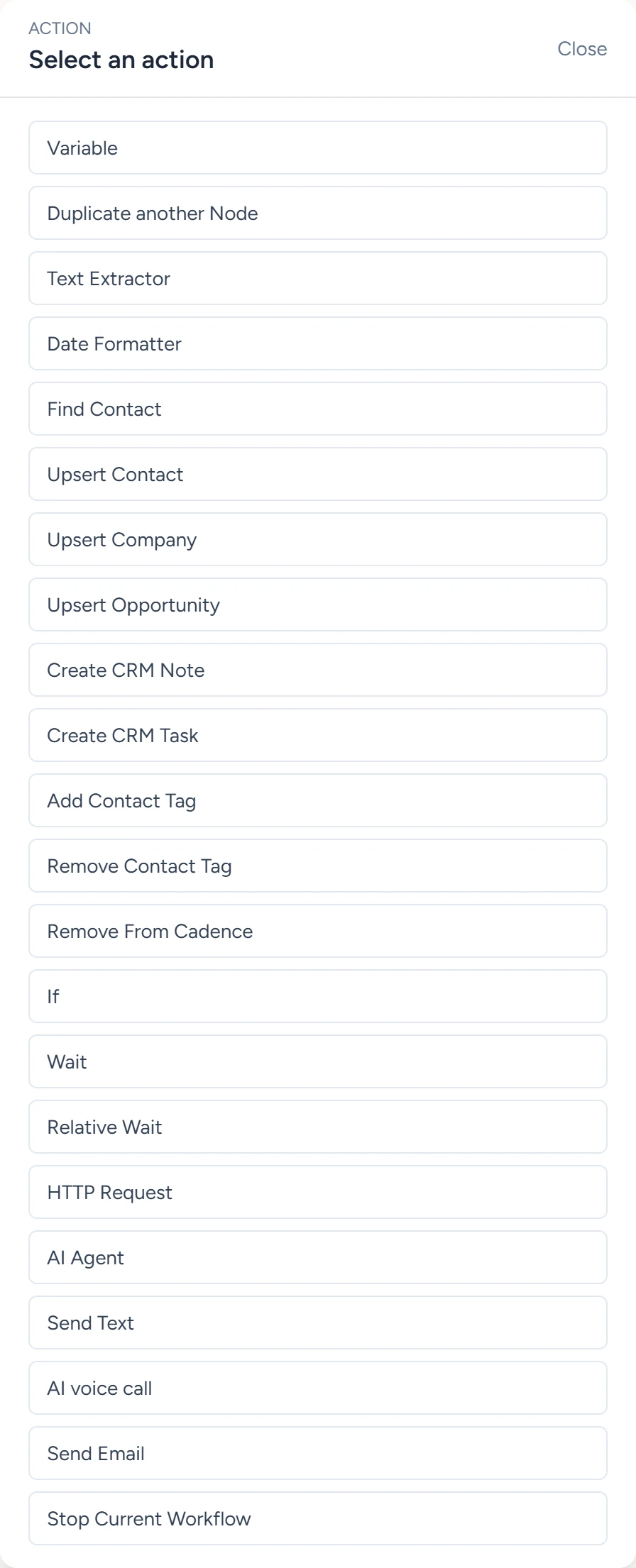
In the app, open Workflows and pick the workflow. On the canvas, click the Action card under the trigger. Select an action lists every step. Click one, and its window opens.
Workflows › Editor, October 2026 - Add the next step
Click the round + under the last step. A new step opens as Variable. Under Node type, pick the step you want.
- Insert a step between two others
Click the + on the line between them. The new step goes in between.
- Fill in its fields
The window has three columns: Input on the left, the step's settings in the middle, and Output on the right. Type plain text, or variables in double braces such as
{{trigger.first_name}}. The tag button at the left of a field opens the Reference picker. It lists values from an earlier run. Until the workflow has run once, its Trigger group is empty, except in a workflow with an appointment trigger, which shows a sample appointment.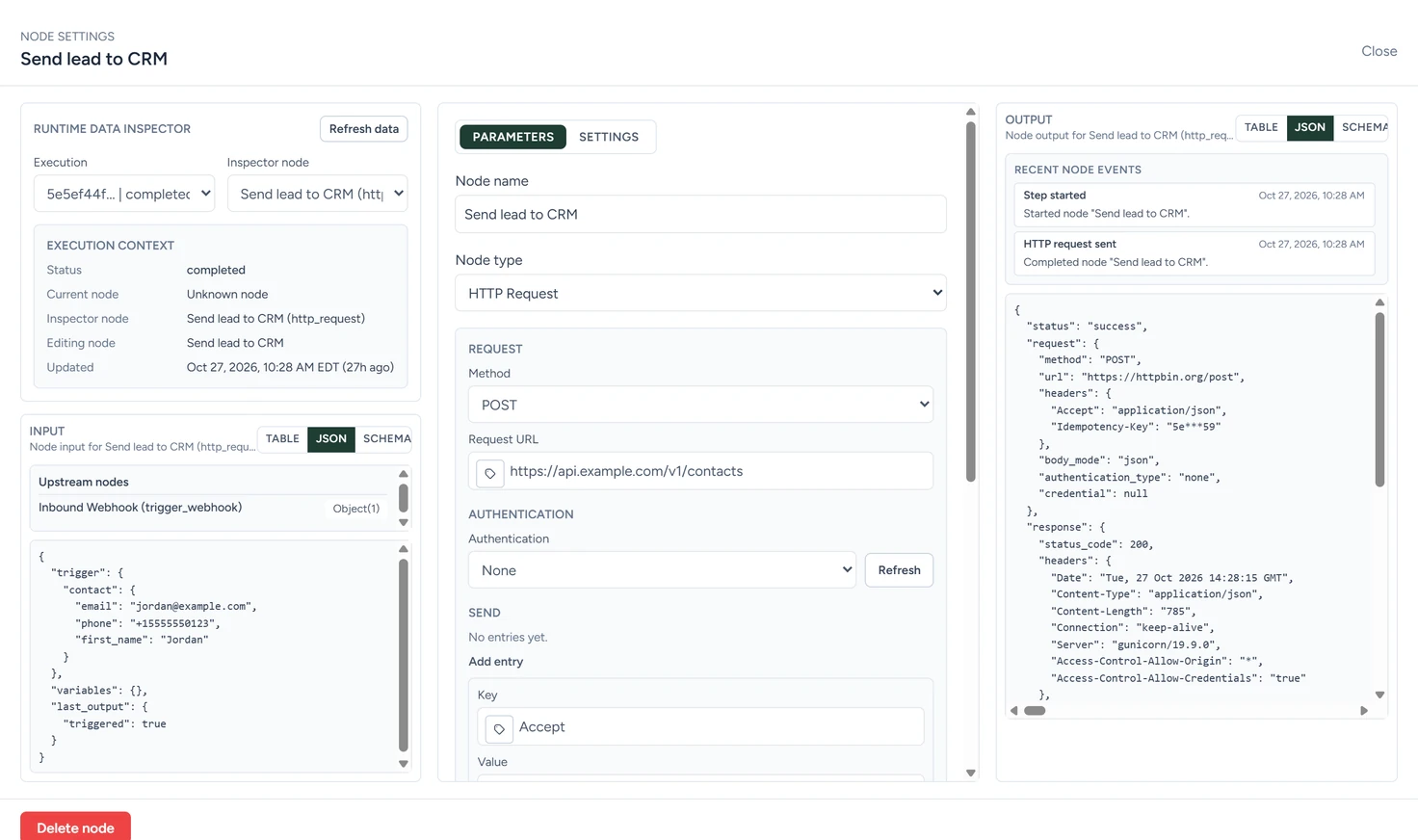
Workflows › Editor, October 2026 - Close and save
Click Close, then Save workflow under the canvas. To remove a step, open it and click Delete node.
Pick the right step
| Step | What it does | Reference |
|---|---|---|
| Send Text | Texts the number in Recipient phone from your business number | Text |
| Send Email | Emails the address in To, from the address in From email | |
| AI voice call | The AI receptionist calls the number with the Opening line, Goals and system rules, Personality and Call flow you write | AI call |
| Wait | Pauses for minutes, hours or days, optionally only within allowed days and hours | Wait |
| Relative Wait | Pauses until a time before or after an appointment, or another date the run carries | Wait |
| If | Compares two values and continues down its TRUE or FALSE branch | Branch |
| AI Agent | Answers a question you write about the run, as text or as named fields | AI step |
| Find Contact, Upsert Contact, Upsert Company, Upsert Opportunity, Create CRM Note, Create CRM Task, Add Contact Tag, Remove Contact Tag | Find, create or update CRM records | CRM steps |
| Remove From Cadence | Stops this contact's other runs in one workflow, or in all of them | Remove from workflow |
| HTTP Request | Calls any public web address, with a saved credential if the tool needs one | HTTP request |
| Variable, Text Extractor, Date Formatter, Duplicate another Node | Stores a value, pulls text out of a value, formats a date, or copies another step's settings | Variables |
| Stop Current Workflow | Ends the run at that point |
A step's output is open to every step after it. Variables shows how to read it.
Branch with If
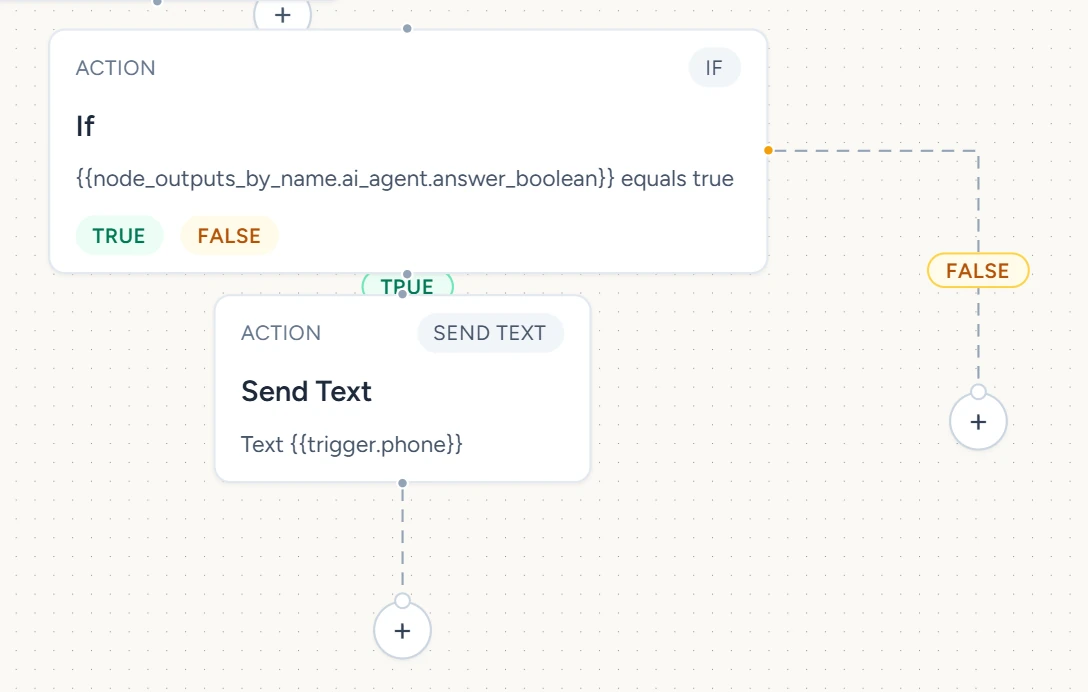
An If step has two exits, labelled TRUE and FALSE on the canvas. Each has its own +. Add the steps for each outcome under its label. To act on an AI answer, put an AI Agent step first, then an If step that checks its answer.
Settings
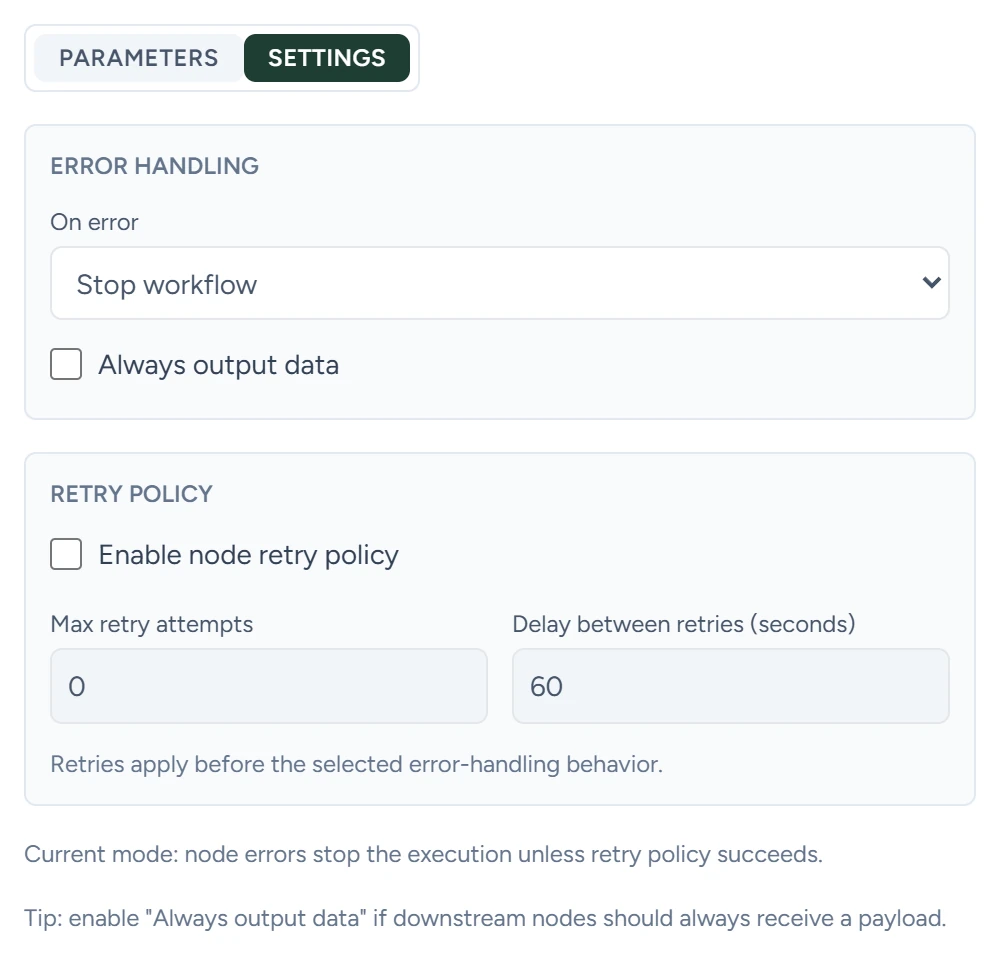
Each step's window has two tabs, Parameters and Settings. Parameters holds the step's own fields. Settings holds these, the same for every step.
On error
What happens when the step fails. Stop workflow, the default, ends the run as failed once the run's three retries are used up. Continue workflow passes the error on as the step's output and runs the next step.
Always output data
When the step returns nothing, it outputs an empty marker instead, so the steps after it have something to read. Off by default.
Enable node retry policy
Tries the step again when it fails, before On error applies. Off by default.
Max retry attempts
How many times to try again. Used only when the retry policy is on.
Delay between retries (seconds)
How long to wait between tries. The default is 60.
If something goes wrong
| What you see | Why | What to do |
|---|---|---|
| Save workflow shows an error about a Duplicate another Node step | That step hasn't copied its settings yet | Open it, pick the Node to duplicate, and click Apply duplicate. Or delete the step. |
| Save workflow shows an error about an HTTP Request step | Authentication asks for a credential and none is picked | Pick a saved credential, or set Authentication to None. |
| Trigger in the Reference picker is empty | The workflow hasn't run yet | Type the variable by hand, using the trigger's reference page for its name. |