
What the free trial includes
What the 7-day trial includes, how to test the AI receptionist by phone with no number, and what happens when the trial ends.
What this does
The Small Business Chatbot free trial lasts 7 days from sign-up and needs no card. It covers the AI chatbot on your website, trained on your pages, with bookings into your connected calendar. You can also call your AI receptionist from your browser in the Playground, before you have a phone number. A phone number, texting, the CRM, workflows and Zapier open when you subscribe.
- Length
- 7 days from sign-up
- Card
- Not needed for the trial
- Test calls
- Playground › Phone, no number needed
- Opens on payment
- Voice Agent, CRM, Workflows, Zapier
What works during the trial
| Sidebar | During the trial |
|---|---|
| Get Started, Conversations, Analytics | Open |
| Chat Widget: Website, Q&A, Look and Feel, Calendar Booking, Add to Website | Open |
| Chat Widget: Playground, including test calls on the Phone tab | Open |
| Voice Agent: Settings, Q&A | Opens on payment |
| CRM: Contacts, Opportunities | Opens on payment |
| Workflows | Opens on payment |
| Integrations: Google Analytics | Open |
| Integrations: Zapier | Opens on payment |
| Support, AI Actions, Admin | Open |
Test the phone before you subscribe
- Open the Phone tab
In the app, open Chat Widget › Playground and click Phone. From Voice Agent, click Test it in the Playground.
- Call your receptionist
Click Start test call and allow the microphone. The AI receptionist answers with your greeting and talks to you as it would to a caller.
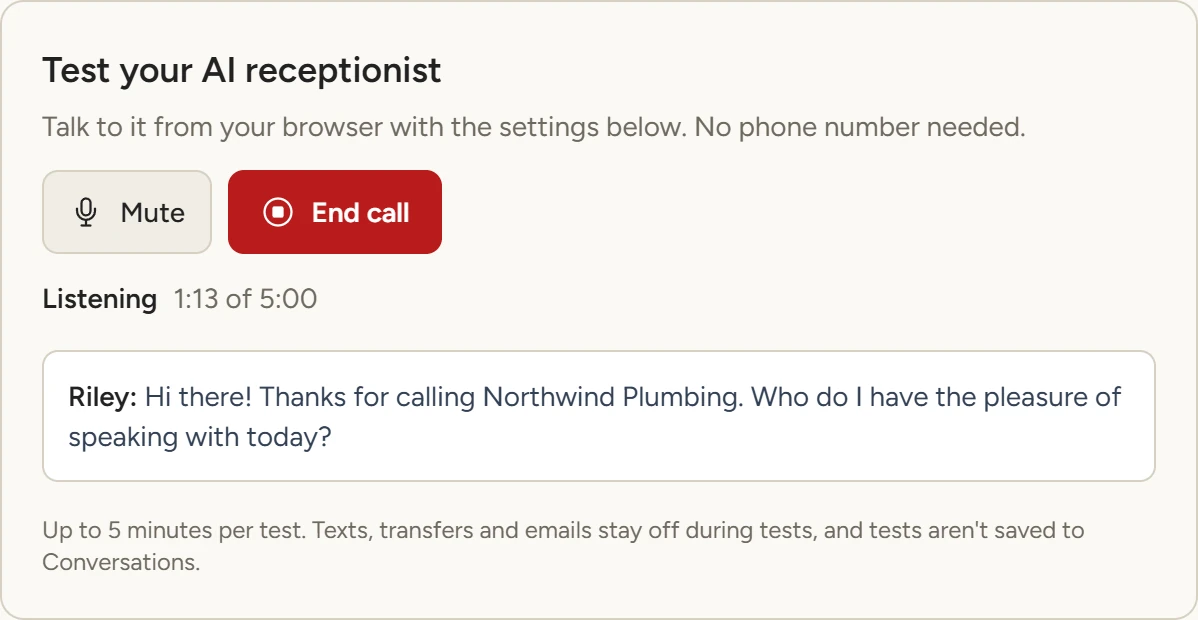
Chat Widget › Playground › Phone, October 2026 - Shape the call
Change the Voice settings under the card, click Save voice settings, and call again. A number you choose later uses the same settings.
Playground covers test calls in full.
What a panel that opens on payment shows
The panel shows a lock and a heading with the panel's name, for example CRM is included in your plan. Its button opens Stripe Checkout for Self Serve billed monthly. The link under it opens Checkout for Managed billed monthly. For annual billing, use Manage Plan. On Voice Agent, Test it in the Playground opens the Phone tab.
The same panels open on both plans. Plans compares them.
Subscribe
- Open Manage Plan
In the app, click Manage Plan at the bottom of the sidebar. You can also use the button on any panel that opens on payment.
- Choose a plan
On the Manage Plan page, pick Monthly or Annual, then click Choose Self Serve or Choose Managed. Stripe Checkout opens.
- Pay
In Stripe Checkout, enter your card and pay. Checkout charges the same day, and paying ends the free trial.
- Go back to the app
Stripe sends you back to the app. Every panel opens as soon as Stripe confirms the payment.
Manage your plan covers switching plans and billing periods.
When the trial ends
- The app opens the plan page instead of your panels. Its heading reads Your trial has ended.
- The widget stays on your website. When a visitor writes, the chatbot replies "We're not able to chat right now. Please check back later."
- Subscribe from that page to open the app again.
If something goes wrong
| What you see | Why | What to do |
|---|---|---|
| A panel still shows the lock after you paid | Stripe hasn't confirmed the payment yet. | Reload the app. If the lock stays, ask through Support. |
| A red message under the button instead of Checkout | Checkout couldn't be started. | Click the button again. If the message repeats, ask through Support. |