
Playground
Test the AI chatbot as a visitor would, and call the AI receptionist from your browser before you have a phone number.
What this does
The Playground panel runs Small Business Chatbot with your current look, Q&A, website pages and instructions, so you can test it before customers see it. It has three tabs:
- Embedded widget: the always-open Q&A widget that sits inside a page.
- Chat widget: the widget that opens from the corner of your site.
- Phone: a call with your AI receptionist from your browser, with its voice settings underneath. No phone number needed.
Test the chat widget
- Open the Playground
In the app, open Chat Widget › Playground. It opens on the Embedded widget tab.
- Switch to the chat widget
At the top of the panel, click Chat widget. The widget opens with your intro message.
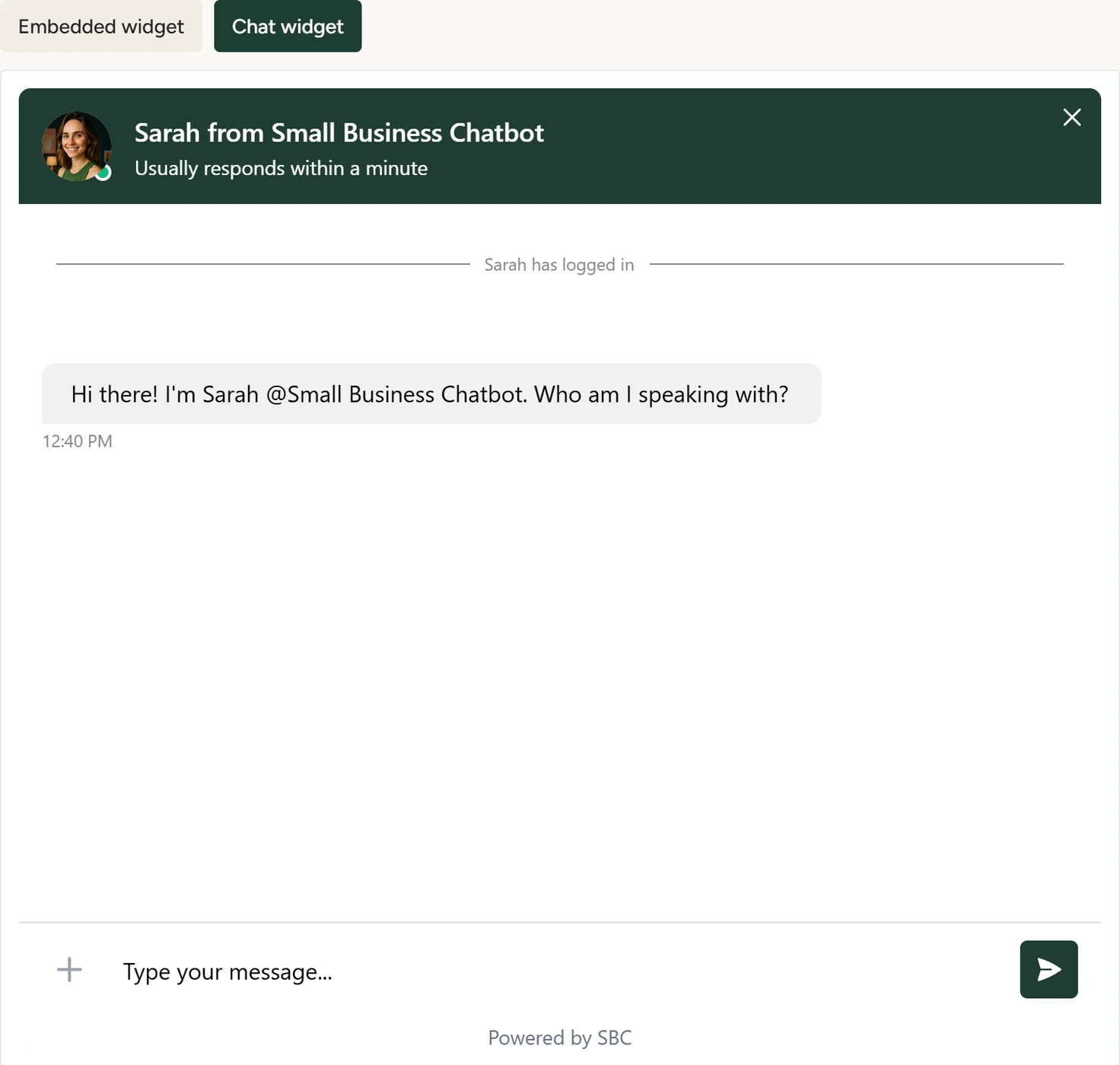
Chat Widget › Playground, October 2026 - Ask what your customers ask
In the widget, type the questions you get by phone and email. Check each answer against your Q&A and your website. If booking is on, ask for an appointment.
- Fix and test again
Playground chats are real chats. Each chat where you send a message is saved in Conversations and sends you the summary email when it ends. A chat in the Chat widget tab also starts any published workflow that runs when a chat ends. A booking you make goes into your real calendar.
Send the message TESTMODE on its own, in capital letters, to skip the summary email for that chat. The chat is still saved and workflows still run.
Test the always-open Q&A widget
- Set its size
On the Embedded widget tab, tick Fill container, or move the Width and Height sliders (200 to 1000 px). The preview resizes. The size is kept in this browser.
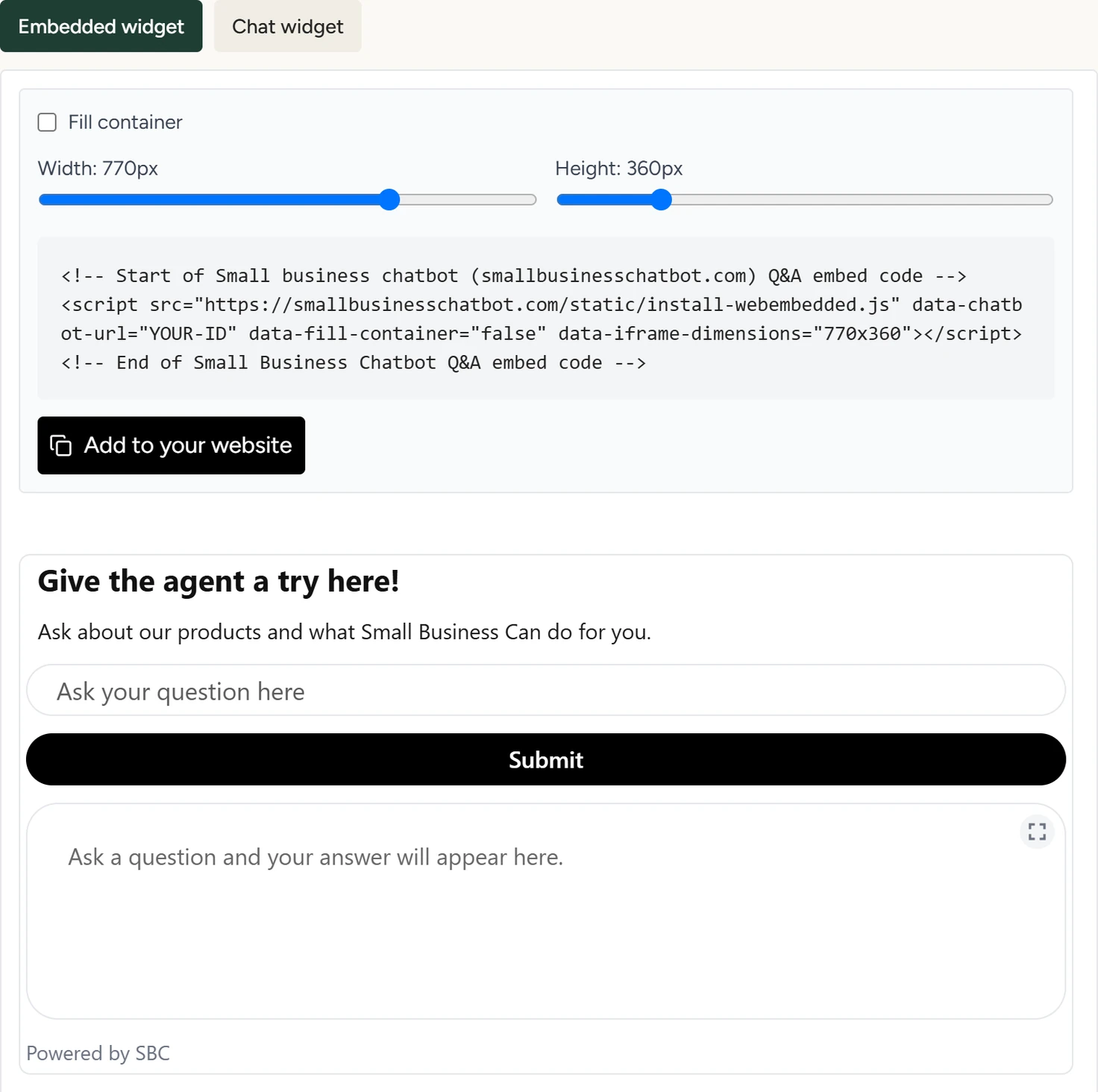
Chat Widget › Playground, October 2026 - Change its look
Under the preview, change Embedded background colour, Embedded submit button colour, Embedded header or Embedded subheader. Click Save embedded widget settings. The app shows Embedded widget settings saved!
- Ask a question
In the preview, type a question. When the answer uses your website, a Sources button under it lists the pages.
- Copy the code
Above the preview, click Add to your website to copy the Q&A embed code with your size settings. The button reads Copied! Add to your website explains where to paste it.
Call your AI receptionist
The Phone tab lets you talk to the AI receptionist the way a caller would, from your computer's microphone. It works on every account, before you choose a phone number. The call uses your greeting, call rules, Q&A and voice, and the website lookup when it's switched on.
- Open the Phone tab
In the app, open Chat Widget › Playground and click Phone. The card Test your AI receptionist is at the top, with Voice settings under it.
- Start a test call
Click Start test call and allow the microphone when your browser asks. The receptionist answers with your Greeting. While it talks, the card reads Speaking. While it waits for you, Listening.
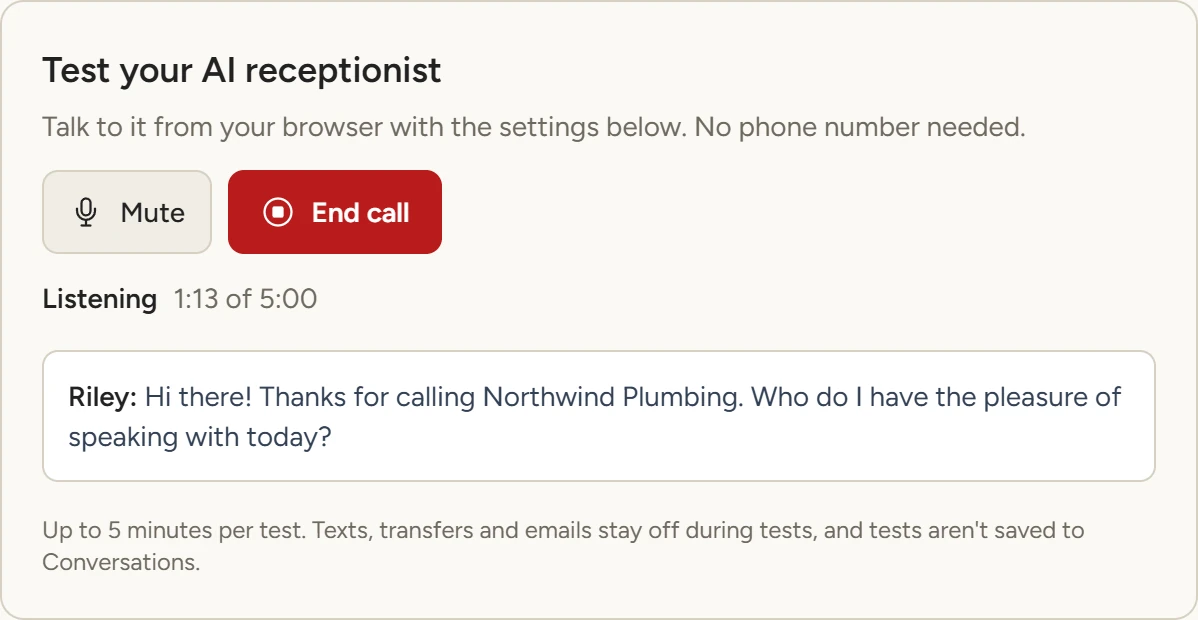
Chat Widget › Playground › Phone, October 2026 - Talk to it
Ask what your callers ask: prices, hours, a booking, something only your website answers. What you both say appears under the card as you talk.
- End the call
Click End call. Each test call lasts up to 5 minutes.
Texts, transfers and emails stay off during test calls. When the call reaches one of them, the receptionist says what it would do on a real call. Test calls aren't saved to Conversations.
Change the voice settings and test again
- Edit the settings
Under Voice settings, change Assistant Name, Company Name, Business Email, AI Speaker, Greeting, Goals and System Rules, Personality or Call Flow. Greeting and call rules explains each field.
- Choose the website lookup
Switch on Let the voice agent look up answers from your website pages to let the receptionist search your website pages when your Q&A has no answer. It says a short line such as "Let me check that for you." first.
- Save and call again
Click Save voice settings. The app shows Saved. Start a new test call to hear the change.
These are the same settings as Voice Agent › Settings. Once you have a number, real calls use them too. Phone number and voice covers choosing a number.
If something goes wrong
| What you see | Why | What to do |
|---|---|---|
| Microphone access was blocked. Allow it in your browser settings and try again. | The browser was told not to share the microphone | Allow the microphone for the app in your browser's site settings, then click Start test call |
| No microphone was found. Connect one and try again. | The computer has no microphone the browser can use | Connect a headset or microphone, then try again |
| A test call is already running. | Another tab or person on the account has a test call open | End that call, or wait for it to finish |
| You've used today's test calls. Try again tomorrow. | The account reached the daily number of test calls | Try again the next day |
| The test call could not connect. Try again. | The call didn't start | Click Start test call again |