
Admin settings
Change your login email, choose who gets conversation summaries by email and text, connect your sending domain, and read scan history.
What this does
The Admin panel holds your account settings in Small Business Chatbot. It sets who gets the summary after each conversation, the email you sign in with, and the domain workflow emails send from. It also lists your website scans and has Log out.
Choose who gets conversation summaries
- Open Admin
In the app, open Admin at the bottom of the sidebar.
Admin, October 2026 - Set the primary email
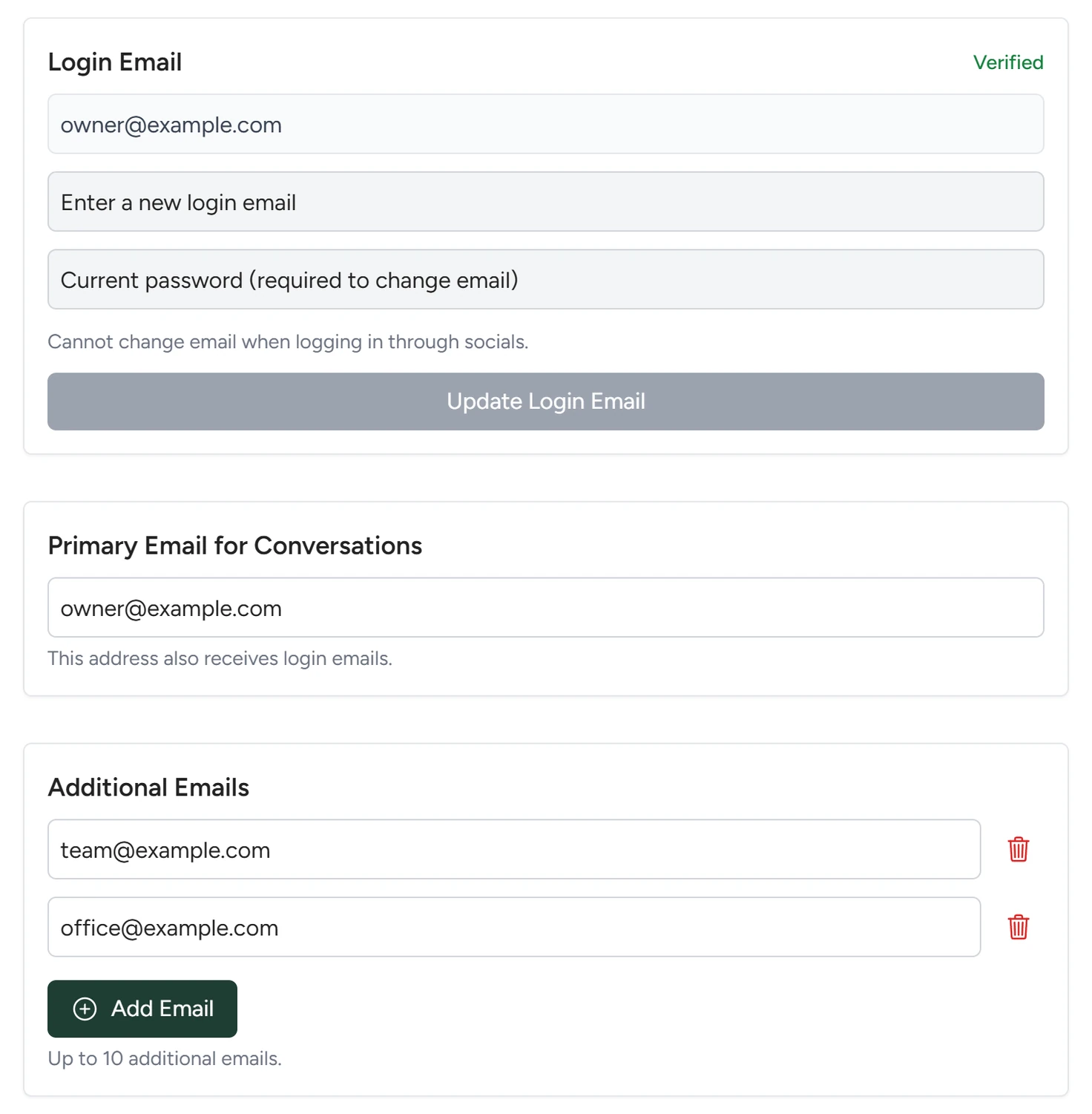
Under Primary Email for Conversations, type the address that should get every summary email.
- Add more addresses
Under Additional Emails, click Add Email and type an address. Repeat for up to 10 addresses.
- Add a phone for text summaries
Under Get text notifications, click Add Number. Type the number with its country code and no spaces, for example
+1and ten digits. - Save
Click Save at the bottom of the panel. The app shows Contact preferences saved!
Settings
Login Email
The email you sign in with, marked Verified or Verification pending. To change it, type the new address in Enter a new login email, type your current password, and click Update Login Email. The new address gets an email asking you to verify it. Only the account owner can change it. If you sign in with a social account, the panel reads Cannot change email when logging in through socials.
Primary Email for Conversations
The address that gets the summary email after each chat, call and text conversation. It is required. The email you sign in with stays the same when you change it. Summary emails shows what each email holds.
Additional Emails
Up to 10 more addresses that get the same summary emails, for example a colleague who handles bookings. Click the bin icon to remove one.
Get text notifications
Phone numbers that get a short text after each website chat, with the visitor's name, email, phone and a summary. The panel's notice says up to 2 messages per chat, and that replying STOP opts out.
Workflow Email (Mailgun)
The domain your workflow emails send from. The badge reads Not connected until you add one.
- Under Enter domain name, type a sending domain such as
mg.yourdomain.comand click Add & Verify. - Click View DNS instructions. The Mailgun DNS Setup window lists each record with its Record, Host, Required value and Verified columns.
- Add each record at the company that runs your domain's DNS, then click Verify DNS.
- Click Send test email. The test goes to your Primary Email for Conversations.
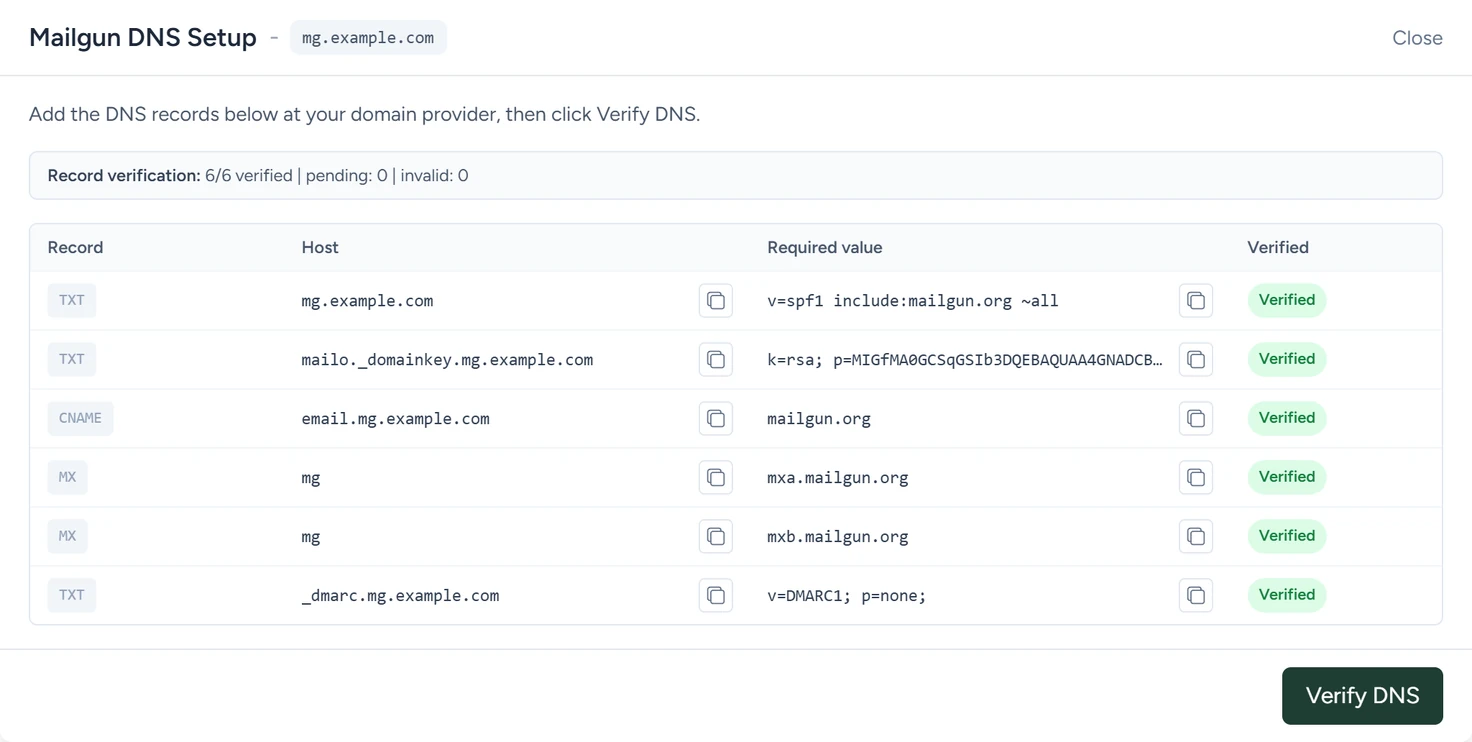
Sending domain covers each record.
Chatbot Brain Crawl Jobs
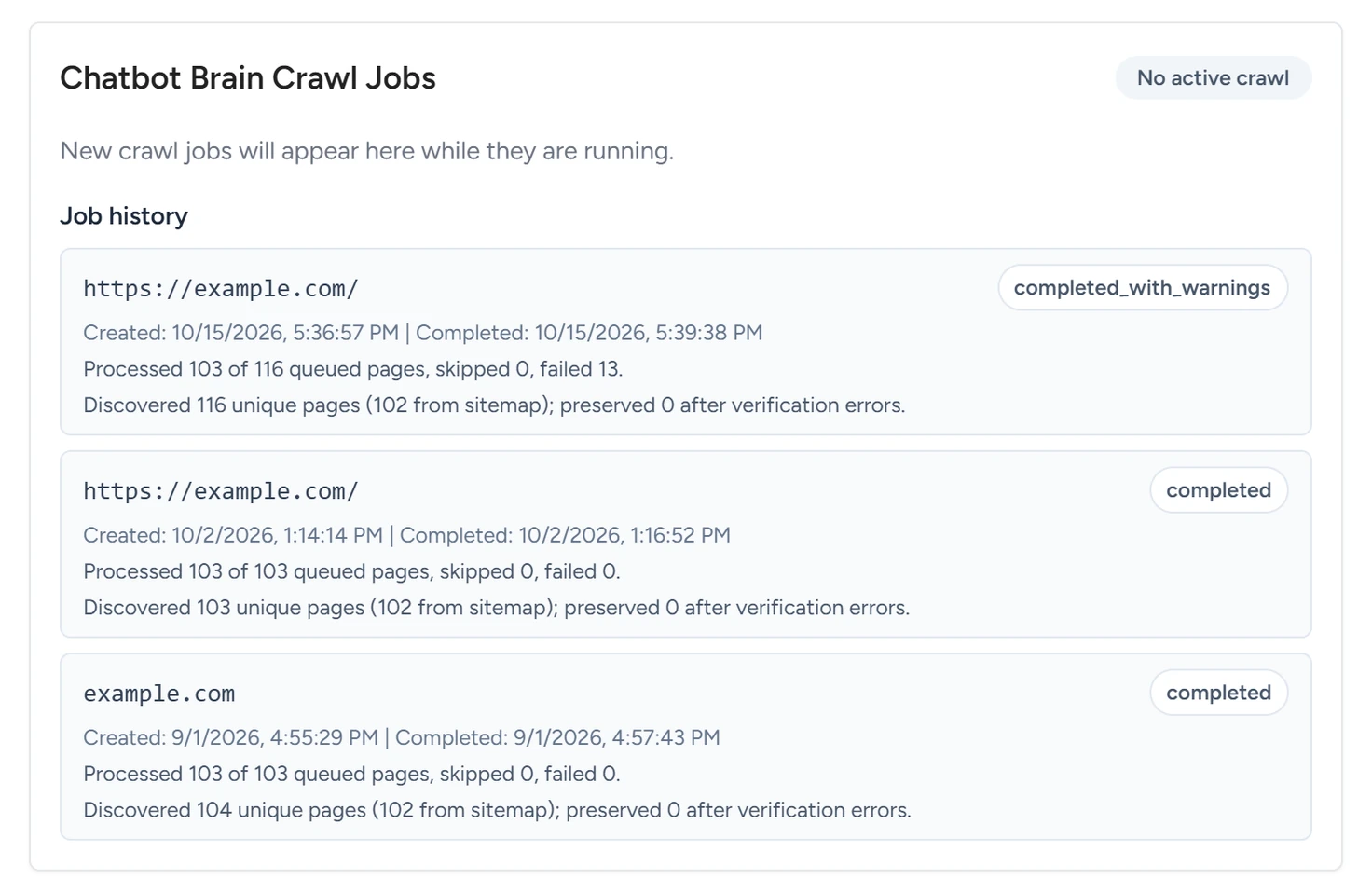
Your website scans. While one runs, Live job shows the domain, the page counts and the latest page read. Job history lists your last 10 scans with their status, when each was created and completed, and how many pages were processed, skipped and failed. The section updates every 5 seconds while the panel is open. To start or refresh a scan, open Chat Widget › Website, as Train the chatbot on your website shows.
Save and Log out
Save stores the primary email, additional emails and text numbers. The login email and the sending domain have their own buttons. Log out signs you out of the app.
If something goes wrong
| What you see | Why | What to do |
|---|---|---|
| Primary email is required and must be valid. | The primary email is empty or not an email address. | Fix the address and click Save again. |
| One or more phone numbers are invalid. | A number has spaces, dashes or too few digits. | Type digits only, with the country code. |
| Enter your current password to change the login email. | The password field is empty. | Type your current password, then click Update Login Email. |
| Domain is connected but still waiting for DNS verification. | Some DNS records aren't found yet. | Check each record in View DNS instructions, then click Verify DNS again later. |