
Add the AI chatbot to your website
Copy the chat widget's code and paste it into your site, or email it to whoever runs your site.
What this does
The AI chatbot from Small Business Chatbot goes on your site with one line of code. Paste it on every page where you want the chat widget. The round launcher then shows in the bottom-right corner of those pages.
Any website has the details: where the code goes, how to check it loads, the always-open Q&A widget, and fixes. On WordPress, use the WordPress plugin instead of the code.
Copy the code yourself
- Open the panel
In the app, click Add to Website at the top right of any panel, or open Chat Widget › Add to Website. The panel is headed Add your chatbot to your website.
- Copy the code
Under Copy the installation code directly, click Copy installation code. The button reads Installation code copied!
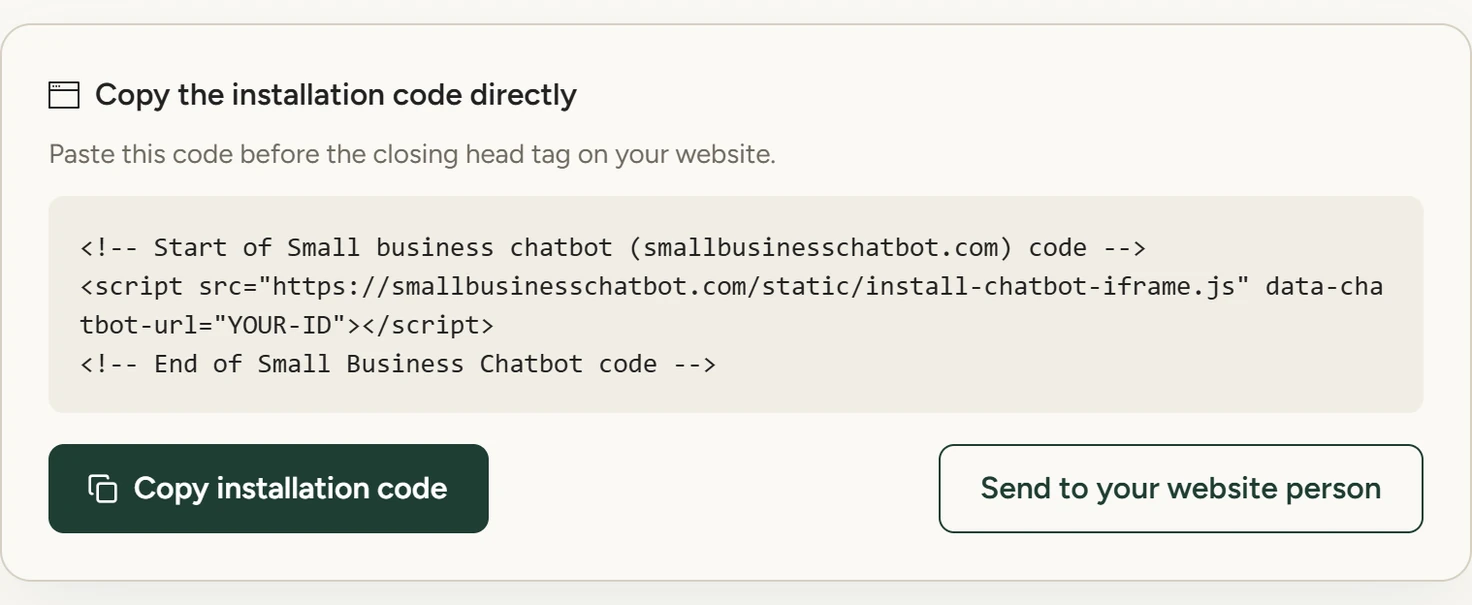
Chat Widget › Add to Website, October 2026 - Paste it into your site
In your site's code, paste it before the closing
</head>tag on every page where you want the widget. - Check your site
On your site, reload a page. The launcher shows in the bottom-right corner. Click it and send a question. The chat shows in Conversations.
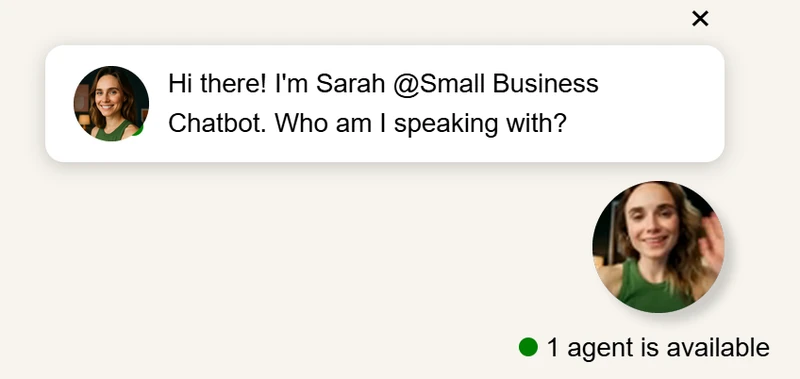
The chat widget on the sample site, October 2026
Send it to your website person
- Open the invite form
Under the code, click Send to your website person. The card reads Send the installation instructions to your website person.
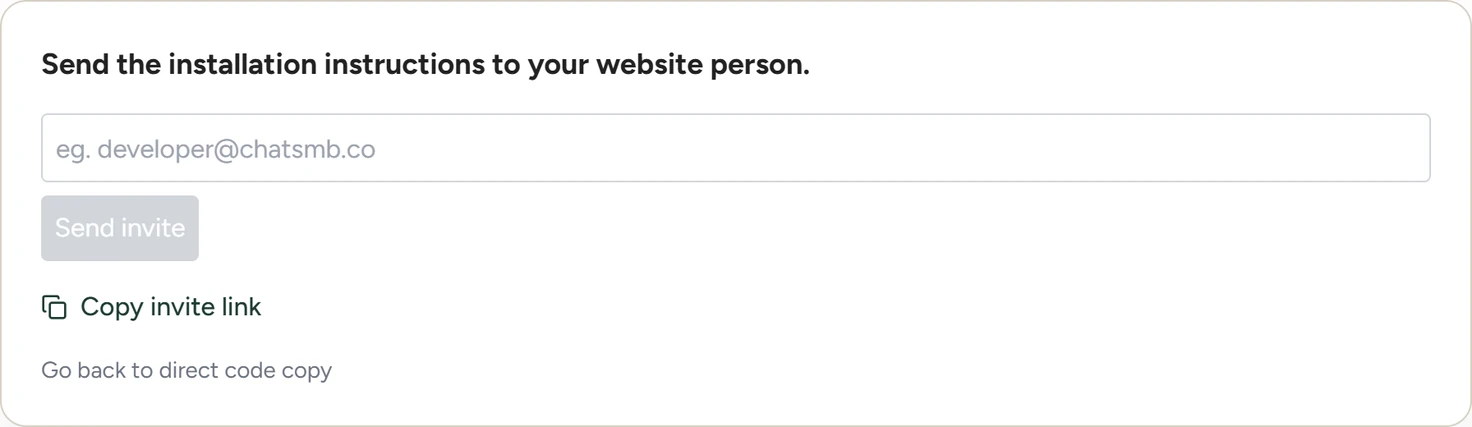
Chat Widget › Add to Website, October 2026 - Send the invite
In the email field, type their address. Send invite turns on once the address is valid. Click it, and the button reads Invite Sent!
- They install it
In their inbox, they get an email with your code and a request to add it before
</body>on every page of your site.
Copy invite link copies the address of this page in the app, which opens only with your account's sign-in. To get the code to your website person, use Send invite. To return to the code, click Go back to direct code copy.
If something goes wrong
| What you see | Why | What to do |
|---|---|---|
| The launcher doesn't show on a page | The code isn't on that page, or the change isn't published. | Add the code where every page includes it, publish, then reload. Any website lists more fixes. |
| Failed to send invite. Please try again. | The email didn't send. | Check the address, or copy the code and send it yourself. |