
Train your AI chatbot on your website
Scan your site or add single pages so the AI chatbot answers from them, and re-scan when your site changes.
What this does
The chatbot answers website visitors from the pages it has read and from your Q&A. Small Business Chatbot scans your site when you sign up. The Website panel is where you scan it again, add or remove single pages, and refresh pages that changed.
On phone calls, the AI receptionist can search these pages too when Let the voice agent look up answers from your website pages is on. Greeting and call rules has the switch.
Scan the whole site
- Open the Website panel
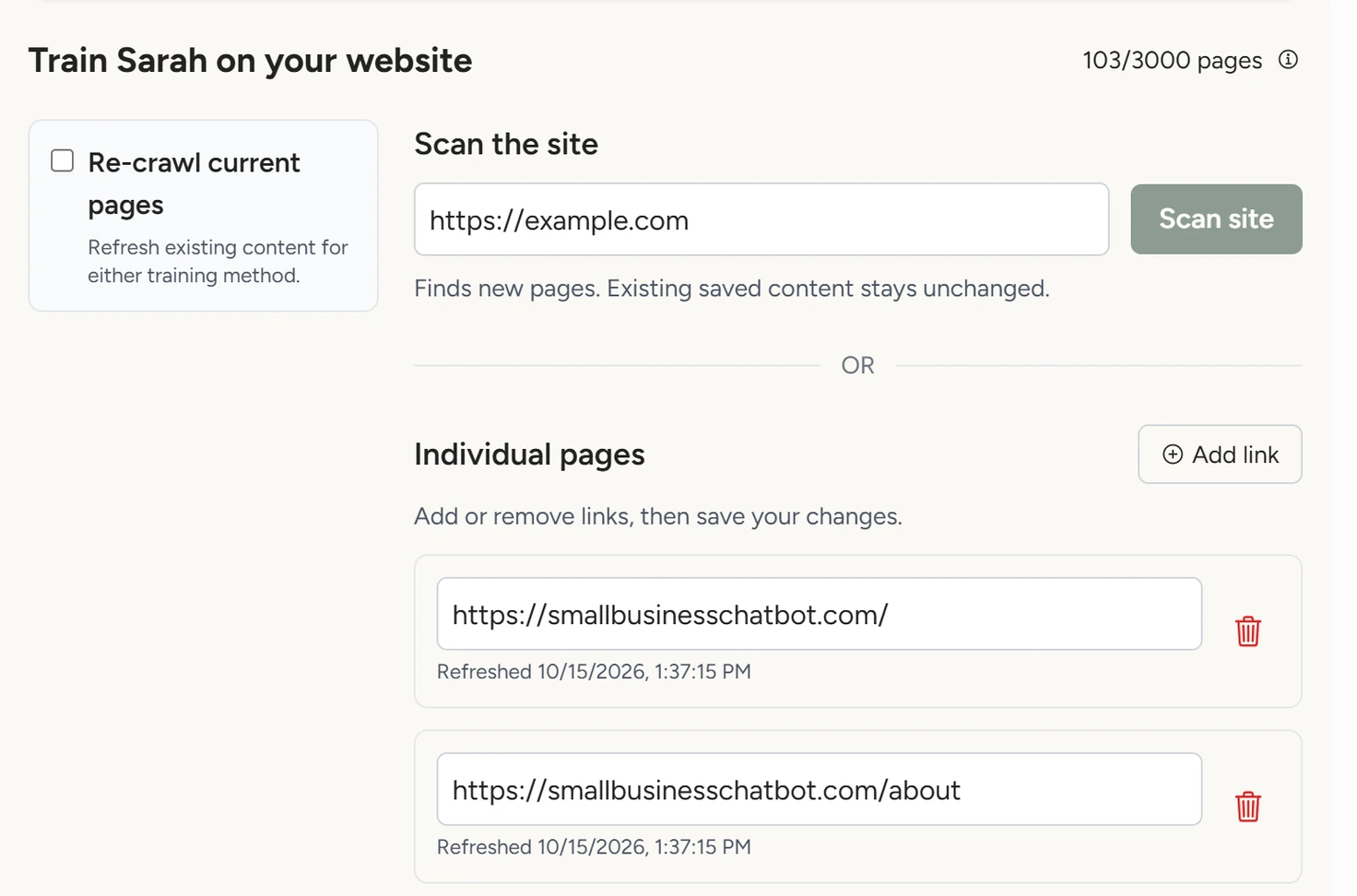
In the app, open Chat Widget › Website. The panel shows how many pages the chatbot has learned, for example 42/100 pages.
Chat Widget › Website, October 2026 - Type your website address
Under Scan the site, type your home page address, for example
https://example.com. - Start the scan
Under Scan the site, click Scan site. The button changes to Training in progress… and a progress bar appears at the top of the panel with the latest page read.
- Read the result
When the scan ends, the card at the top of the panel reads Website training complete with a summary such as Trained 42 pages · 3 obsolete links skipped. The pages now appear in the list under Individual pages.
If some pages couldn't be read, one line on the card says how many, and Details lists them. To try one again, add it under Individual pages. The card clears itself 7 days after the scan finished.
A scan adds the new pages it finds. Pages the chatbot already has keep their saved version until you refresh them.
Add or remove single pages
- Add a link
Under Individual pages, click Add link and paste the page's full address, for example
https://example.com/products. The row reads New link · not trained yet.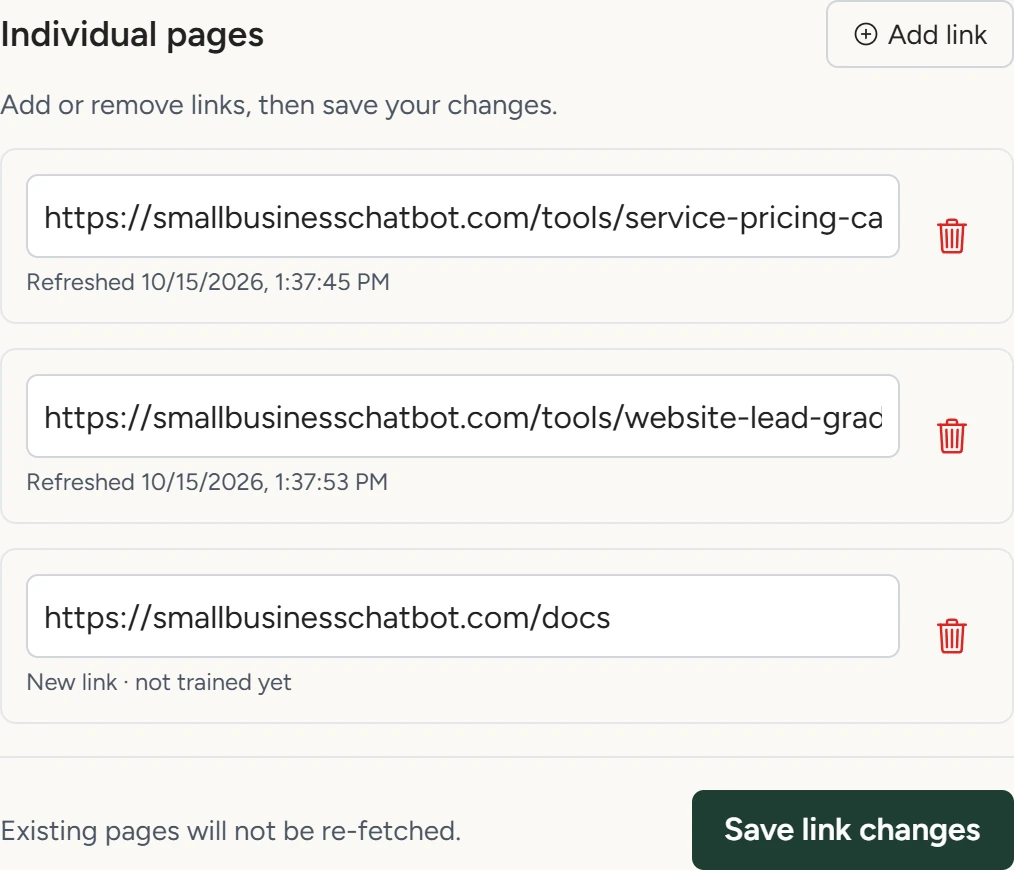
Chat Widget › Website, October 2026 - Remove a page
Under Individual pages, click the bin icon at the end of a row. The chatbot stops using that page once you save.
- Save
At the bottom of Individual pages, click Save link changes. The app reads each new page and removes the ones you deleted. The panel shows Link changes saved. Existing page content was not refreshed.
Scan site stays greyed out while you have unsaved link changes. Save them first.
Refresh pages after your site changes
The chatbot keeps the version of each page it read. Each saved row shows Refreshed and the date the page was last read. When your site changes, start a re-scan or refresh the pages that changed.
- Tick Re-crawl current pages
In the Website panel, tick Re-crawl current pages. It applies to the site scan and to the single pages.
- Refresh the whole site or chosen pages
To refresh every page and add new ones, type your address under Scan the site and click Scan & refresh site. To refresh only some pages, go to Individual pages, tick the box at the start of each saved row, then click Save & refresh followed by the number of pages you ticked.
- Check the result
At the top of the panel, a chosen-page refresh ends with Selected page refresh complete and how many pages were refreshed. Other pages keep their saved version.
Page limits
Your plan sets how many pages the chatbot can learn. The counter at the top of the panel shows pages used out of your limit, and Plans lists the limit for each plan.
A scan starts with your home page and stops at the limit. Add link is greyed out once the list is full.
If something goes wrong
| What you see | Why | What to do |
|---|---|---|
| Scan site is greyed out | The address is empty, a scan is running, or link changes aren't saved. | Type the address, wait for the scan, or click Save link changes. |
| Website training is taking longer than usual, but is still running | The scan has run for more than 10 minutes. | Nothing. The scan keeps running, and the panel checks its progress every 10 seconds. |
| Website training could not finish | The scan stopped. Pages trained before are kept. | Start the scan again. |
| A row reads Refresh date unavailable | The page was trained before refresh dates were recorded. | Tick Re-crawl current pages and refresh that page. |