
Look and feel
Set the chat widget's colours, the assistant's name and photo, the first message, the launcher video, photo uploads and the contact form.
What this does
The Look and Feel panel in Small Business Chatbot sets how the AI chatbot looks on your site and what it says first. Every change applies when you click Save.
Change the widget
- Open the panel
In the app, open Chat Widget › Look and Feel. The panel is headed Make the experience feel like your business.
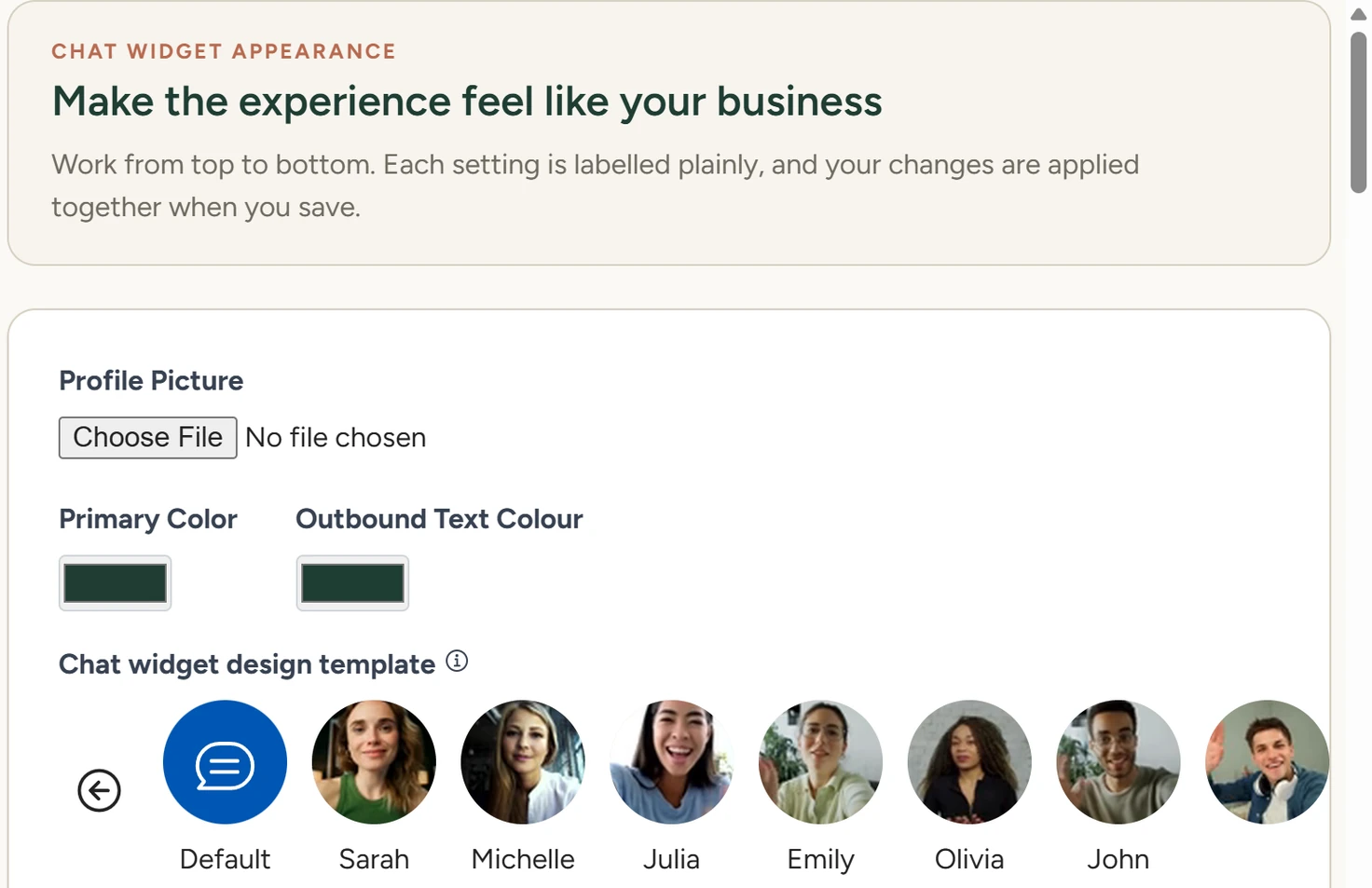
Chat Widget › Look and Feel, October 2026 - Change the fields
In the panel, work from the top down. Nothing changes on your site until you save.
- Save
At the bottom of the panel, click Save. The app shows Look and Feel settings saved! and reloads the widget inside the app.
- Check the result
In Playground, click Chat widget to see the widget with your changes.
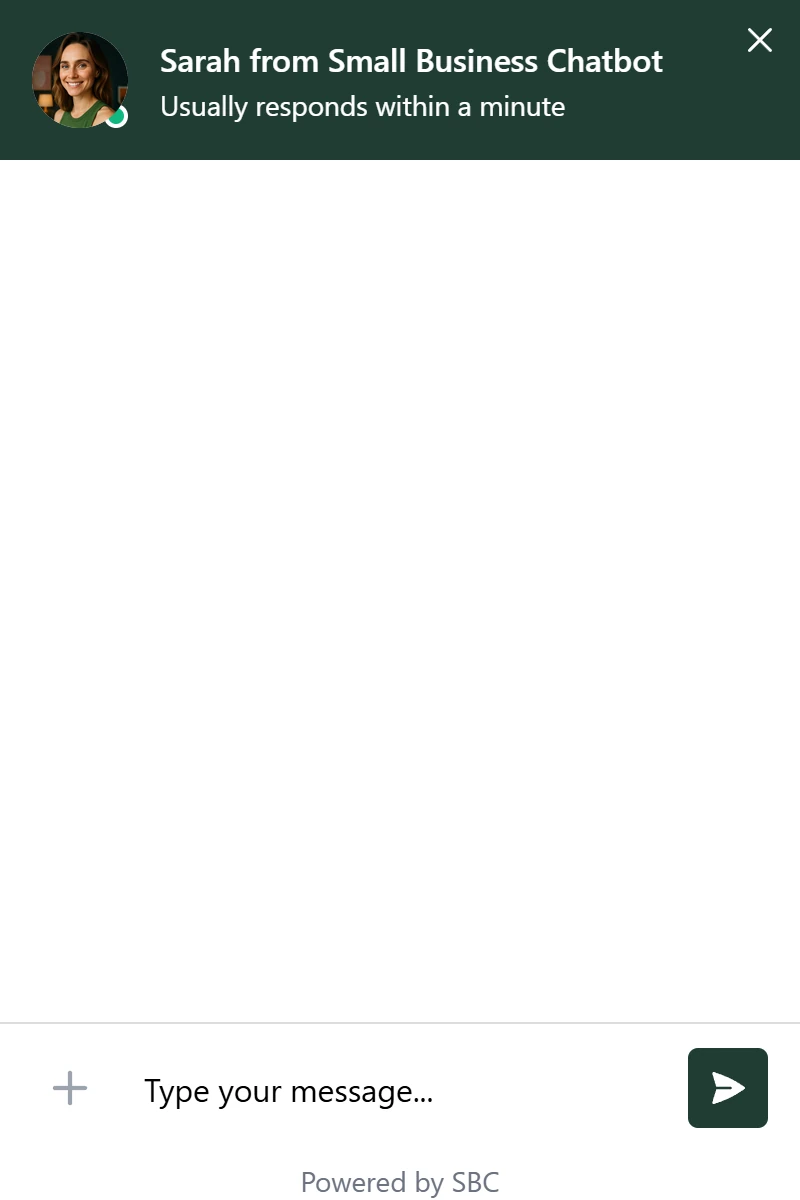
The chat widget on the sample site, October 2026
Settings
Profile Picture
Choose an image file, drag the square to crop it, then click Confirm Crop. The photo shows in the widget's header and beside the pop-up bubble.
Primary Color
Colours the round launcher, the widget's header and the send button.
Outbound Text Colour
Colours the visitor's own message bubbles. The default is #0056b3.
Chat widget design template
Sets the short video in the round launcher that shows while the chat is closed. Hover over a template to preview it and click to select it. Default is an animation. The other seven are preset intro videos, each with its own name and photo.

Choosing any template except Default also sets Assistant Name and Profile Picture to the template's name and photo when you save. To use your own, set them again and save a second time.
Assistant Name
The name in the widget's header.
Company Name
Shows in the widget's header, after the assistant's name. The chatbot also uses it when it talks about your business.
Intro Message
The first message in every chat. It is also the text of the pop-up bubble.
Collect phone and email upfront?
Yes shows a form before the chat starts: Please enter your email and phone so we can respond if we get disconnected. Both fields are required before Start Chat. No lets visitors type straight away.
Show intro message as pop-up bubble?
Yes shows the intro message in a bubble beside the closed launcher, with the profile picture.
Allow photo uploads?
Yes adds a photo button to the message box. Visitors can send JPEG, PNG or WebP photos up to 10 MB each. The photos come to you with your summary email, for your team to look at. The default is No.
Photo upload response
The reply a visitor gets after sending a photo. Left empty, it is: "Thank you for sending over this photo. I'll make sure that one of our experts looks it over carefully."
Allow Lead Grading in the Summary?
Yes adds a lead grade to each conversation's summary. The field that appears, Lead grading system message programming, says how to grade. By default it grades A, B, C or D from the visitor's intent and how complete their contact details are. This field changes the grade only.
Personality
The Change the personality of… section (it shows your assistant's name) holds Goals, Principles and Ideal Steps to Take. They have their own page: Goals, principles and ideal steps.
Embedded widget customizations
These fields change the always-open Q&A widget, which sits inside a page instead of in the corner. Add to your website explains how to install it.
| Field | What it changes | Default |
|---|---|---|
| Embedded background colour | The widget's background | White |
| Embedded submit button colour | The submit button. Use primary colour matches Primary Color. | Primary Color |
| Embedded header | The heading. Leave it blank to remove it. | Get the answers you need |
| Embedded subheader | The line under the heading. Leave it blank to remove it. | A sentence inviting questions |
What visitors see
The round launcher sits in the bottom-right corner of every page with the code. On screens 768 px wide or narrower, the open chat fills the screen. On wider screens it opens as a 400 x 600 px window in the bottom-right corner.