
Your first workflow
Build a workflow that texts and emails a visitor after a website chat, publish it, and switch on sending.
What this does
In Small Business Chatbot, a workflow starts on an event and runs its steps in order. This one starts when a website chat with your AI chatbot ends. It waits ten minutes, texts the visitor, then emails them.
A new workflow is a draft and sends nothing. It sends only after you publish it and switch outbound sending on.
- Where
- Workflows
- Time
- About ten minutes
Before you start
- A business phone number. Texts go out from the number the AI receptionist answers calls on. See Phone number and voice.
- An address to send email from. See Sending domain.
Build it
- Create a workflow
In the app, open Workflows. Click the workflow menu at the top left, then New workflow +. The app creates a draft called "New Workflow" and opens it in the Editor.
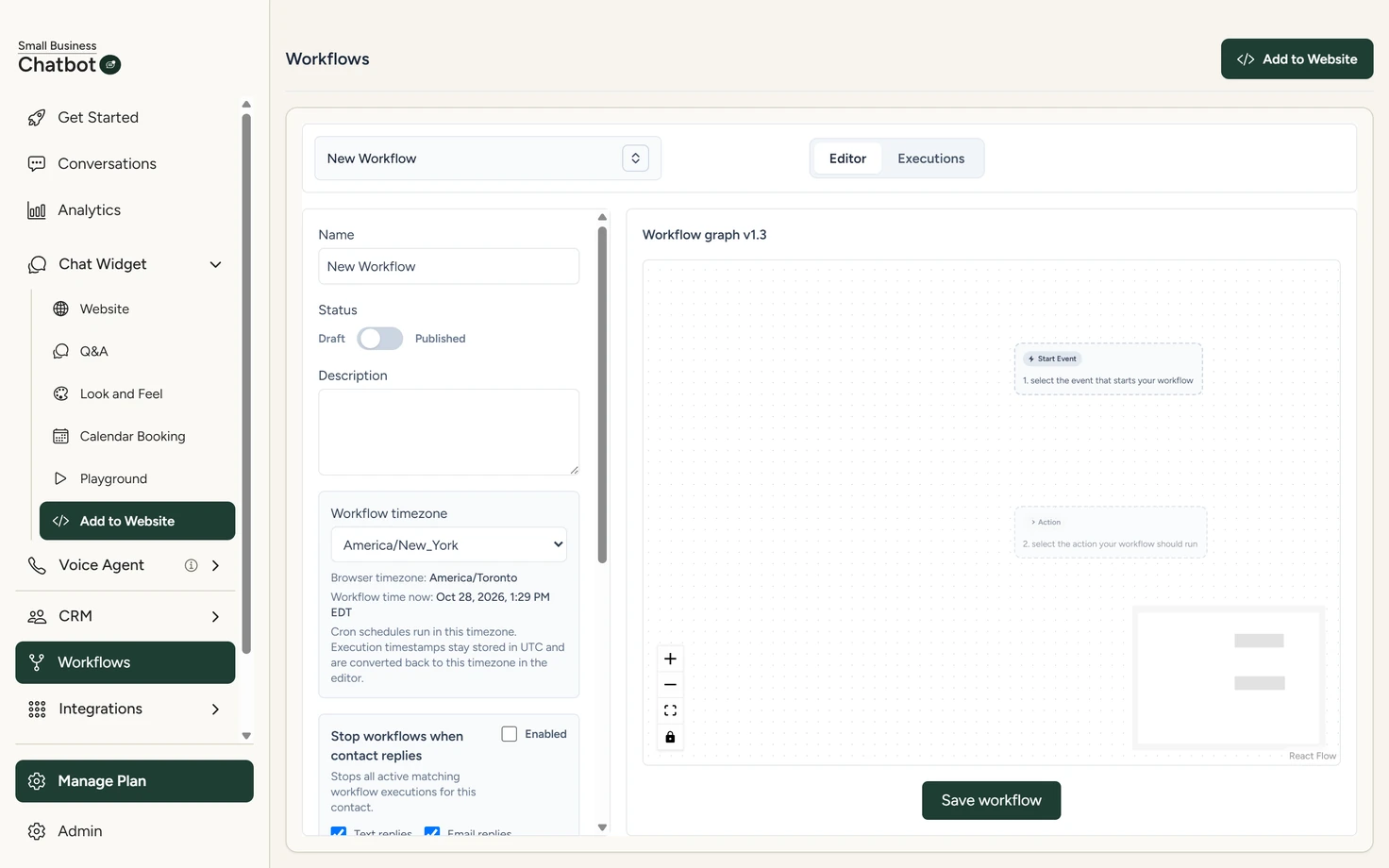
Workflows › Editor, October 2026 - Name it
In the left column, under Name, type a name you'll recognise, such as "After-chat follow-up".
- Pick the trigger
On the canvas, click the Start Event card. In Select a start event, click Chat Widget Conversation Ended. Its window opens. This trigger has no settings, so click Close.
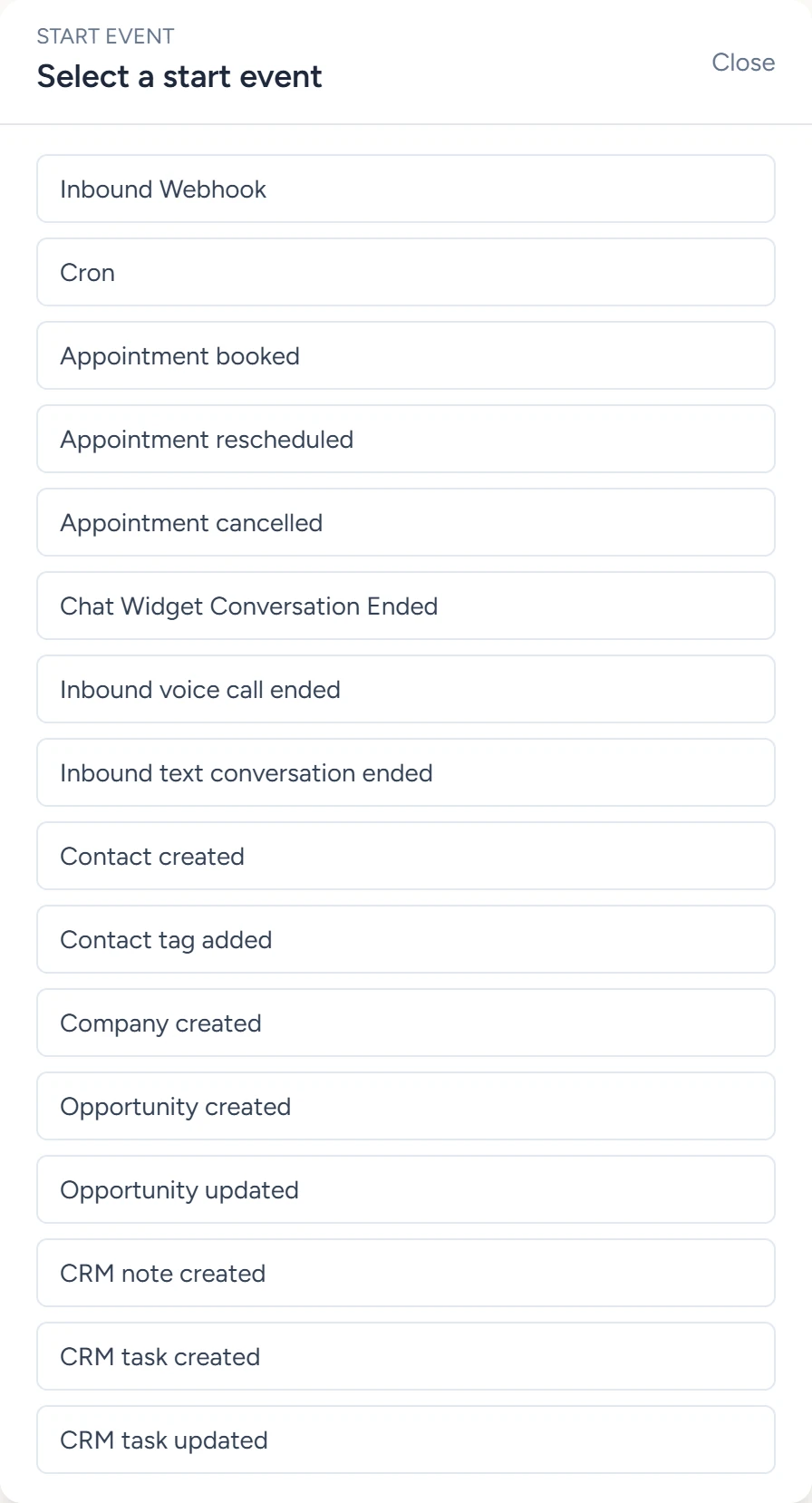
Workflows › Editor, October 2026 - Add the wait
Click the Action card under the trigger and pick Wait. Under Wait time, type
10and pick Minutes. Click Close. - Add the text
Click the round + under the wait. A new step opens as Variable. Under Node type, pick Send Text. Under Recipient phone, type
{{trigger.phone}}. Under Message, type your text, for example:Hi {{trigger.first_name}}, thanks for chatting with us today. Text us here with any other questions.Click Close.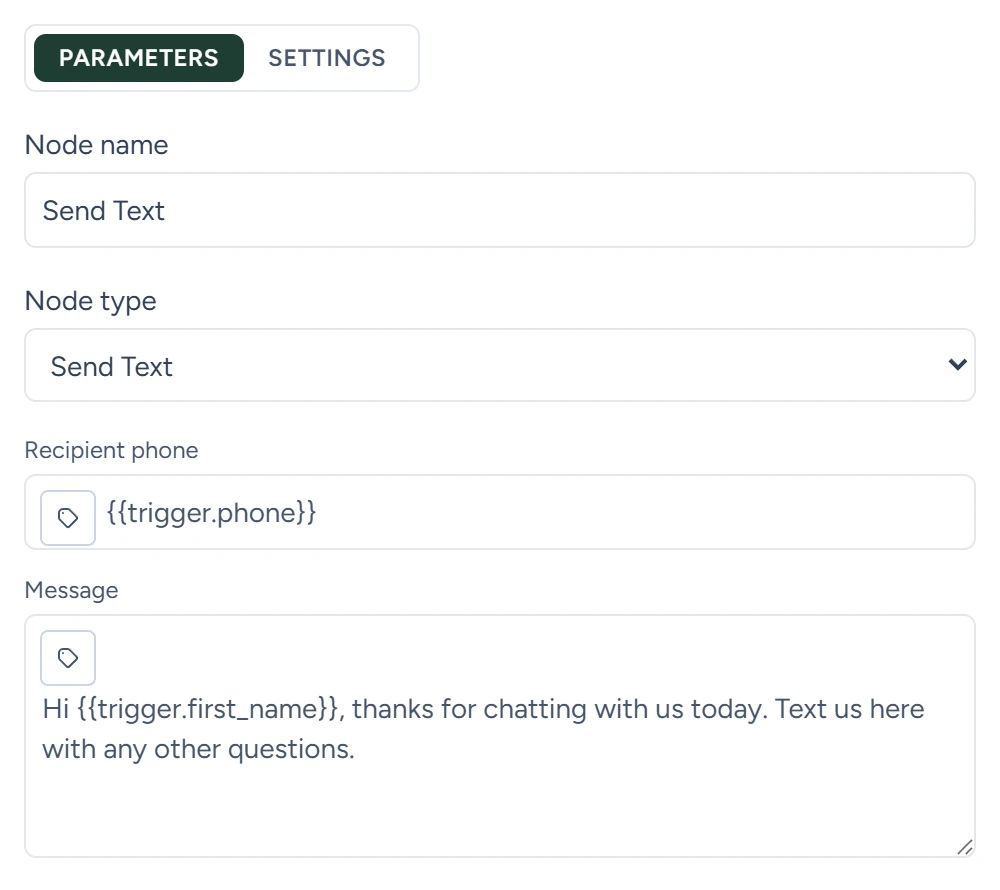
Workflows › Editor, October 2026 - Add the email
Click the + under the text step. Under Node type, pick Send Email. Fill in To with
{{trigger.email}}, then From email, Sender name and Subject. Click the Body text tab and write the message. Click Close. - Save it
Click Save workflow under the canvas. A red dot on the button means there are unsaved changes. The page shows "Workflow saved."
The {{trigger.…}} values are filled in from the chat when the workflow runs. Chat ended lists every one.
Publish it and switch sending on
- Publish the workflow
In the left column, under Status, click the switch so it moves from Draft to Published. Click Save workflow. The switch changes nothing until you save.
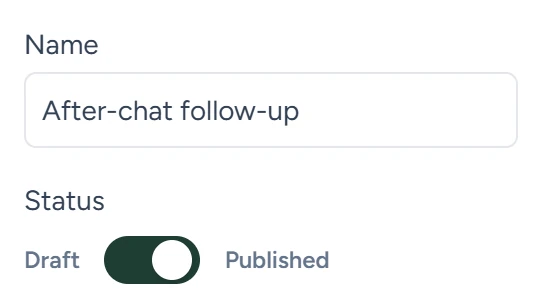
Workflows › Editor, October 2026 - Switch on texts and emails
In the app, open CRM › Contacts and click the Settings tab. Under Outbound automation, switch on Text messages and Emails. Click Save settings. The bar reads "Settings saved."
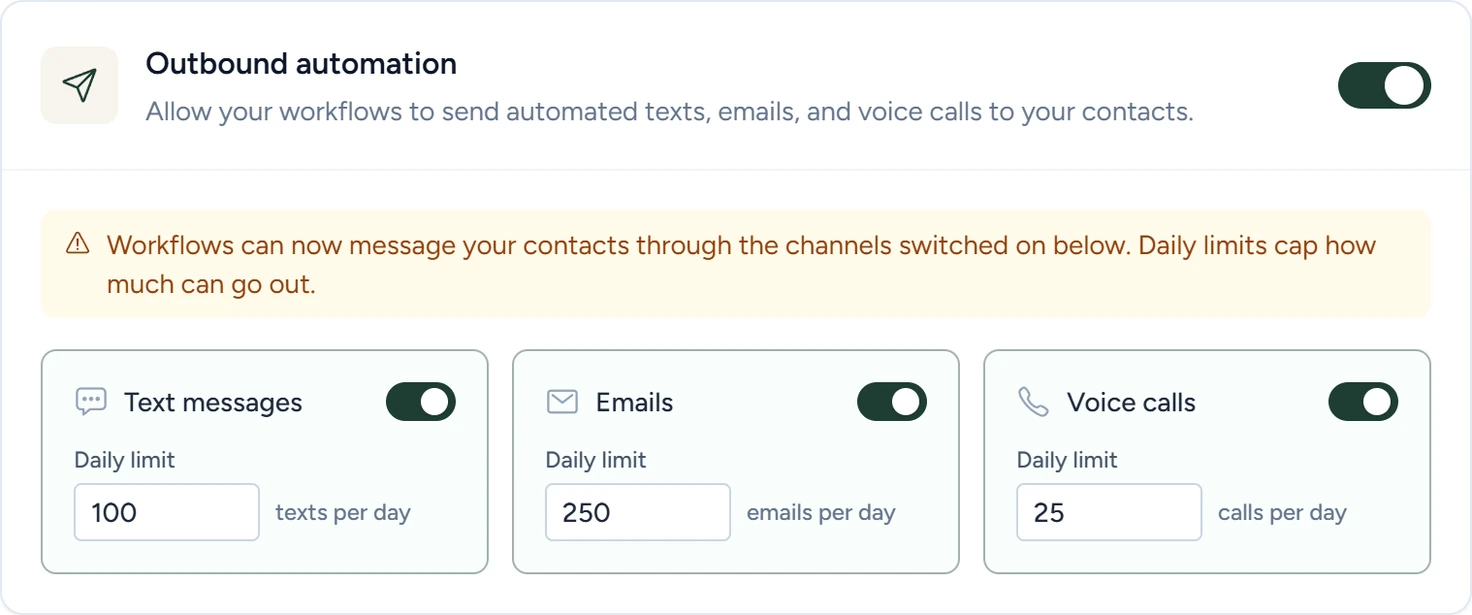
CRM › Contacts › Settings, October 2026 - Test it
In the app, open Chat Widget › Playground and chat with the chatbot. Give it your own name, phone number and email. Then open any other panel to end the chat. About a minute later, a run appears under Executions, waiting at the Wait step. Ten minutes after that, the text and the email arrive.
Once Outbound automation is on, every published workflow can text and email your contacts, up to each channel's daily limit. A Playground chat counts as a real chat, so it starts the workflow too.
Fine-tune it
- To skip visitors who gave no phone number or email, put an If step before the text or the email.
- To stop the workflow when the visitor replies, tick Enabled under Stop workflows when contact replies in the left column. See Outbound switches and limits.
If something goes wrong
| What you see | Why | What to do |
|---|---|---|
| No run under Executions | The workflow isn't saved as Published, or the chat hasn't ended yet | Check that the workflow menu shows Published beside the name. Leave the chat, wait a minute, then click Refresh. |
| The run fails at Send Text and Last error says outbound delivery is disabled | Outbound automation or Text messages is off | Switch it on under CRM › Contacts › Settings and click Save settings. |
| The run fails at Send Text and Last error asks for a phone number | The visitor gave no phone number | Add an If step before the text: Left side {{trigger.phone}}, Operator Not equal, Right side empty. Put the text on the TRUE branch. |
| Last error says the voice agent phone number is missing | The account has no business number | Set one up, as in Phone number and voice. |
Executions shows each step's input, output and error.