
Set up the AI chatbot
Train the AI chatbot on your website, check its answers in the Playground, and put the chat widget on your site.
What this does
Three panels take Small Business Chatbot from sign-up to your live website: Chat Widget › Website, Chat Widget › Playground and Chat Widget › Add to Website. The app scans your site when you sign up, so the first part may already be done.
Train the chatbot on your website
- Open the Website panel
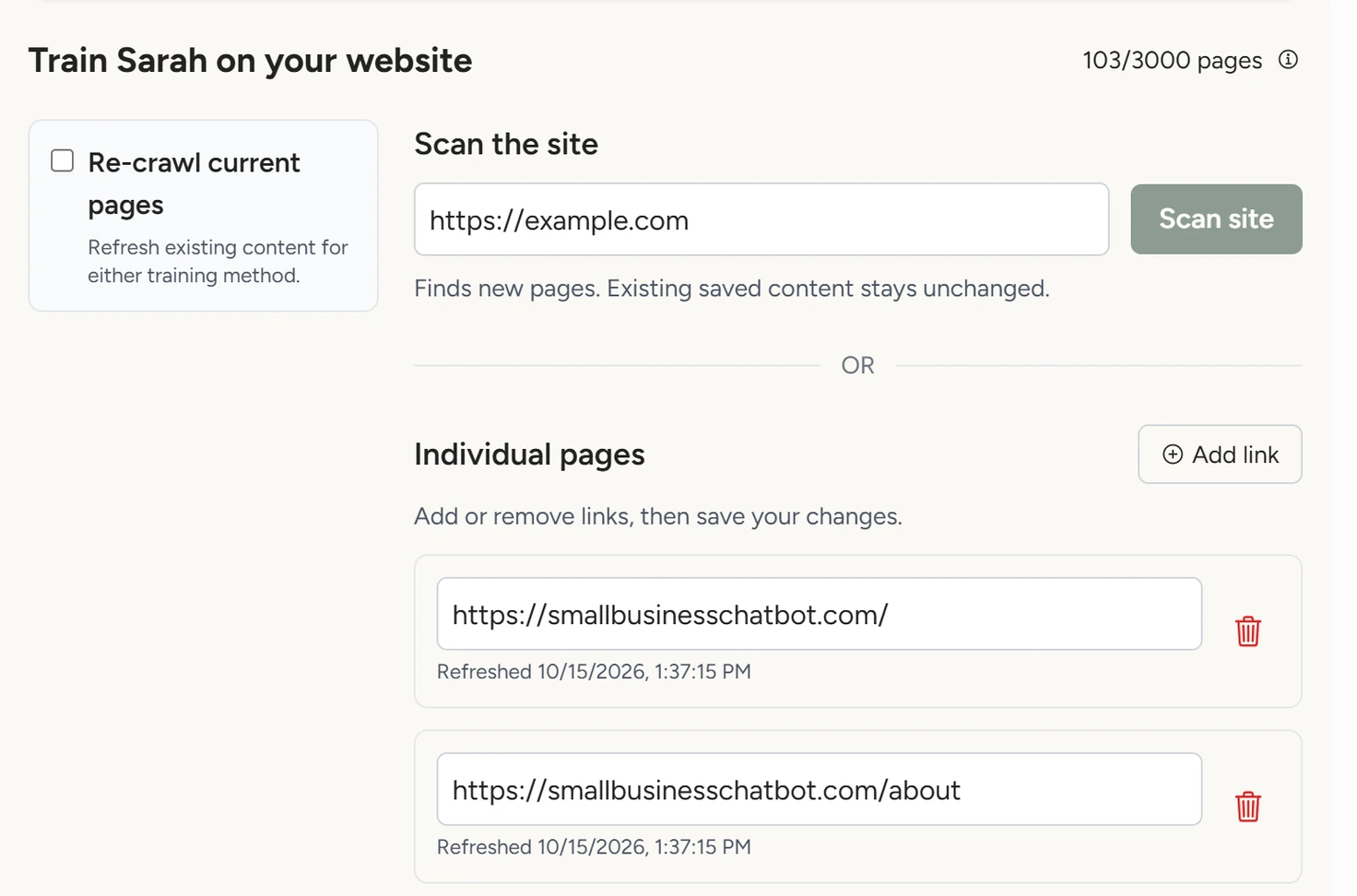
In the app, open Chat Widget › Website. The counter beside the panel heading shows how many pages the chatbot has read out of your page limit.
Chat Widget › Website, October 2026 - Scan the site
Under Scan the site, type your home page address and click Scan site. Skip this step if the counter already shows pages. A progress bar appears at the top of the panel with the latest page read.
- Read the result
When the scan finishes, the top of the panel shows Website training complete with a summary such as "Trained 42 pages · 3 obsolete links skipped." If some pages couldn't be read, a line under it gives the number and Details lists them.
- Add pages the scan missed
Under Individual pages, click Add link and paste the page's full address. Click Save link changes.
Train the chatbot on your website covers re-scans, refreshes and page limits.
Check its answers in the Playground
- Open the Playground
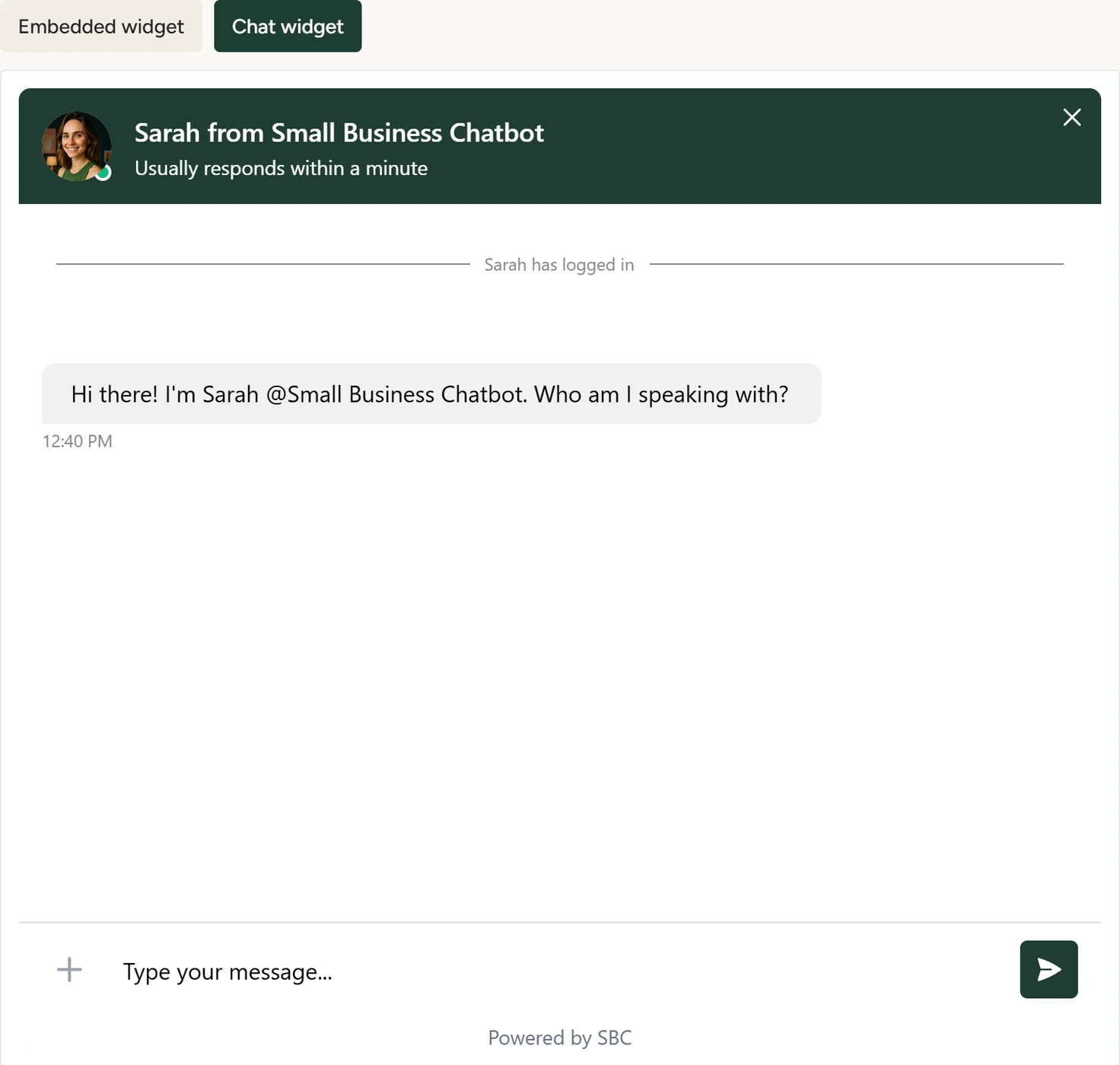
In the app, open Chat Widget › Playground and click Chat widget. The widget opens the way your visitors see it.
Chat Widget › Playground, October 2026 - Ask what your customers ask
In the chat, ask about your services, prices, hours and the area you serve. Each test chat is saved under Conversations, like a real one.
- Fix wrong or missing answers
In the app, open Chat Widget › Q&A and write the right answer. Then start a new chat in the Playground and ask again.
Send a message that says only TESTMODE, in capitals, and the app skips the summary email for that chat. Text notifications set under Admin still go out.
Questions and answers shows how to write them.
Put the widget on your website
- Copy the installation code
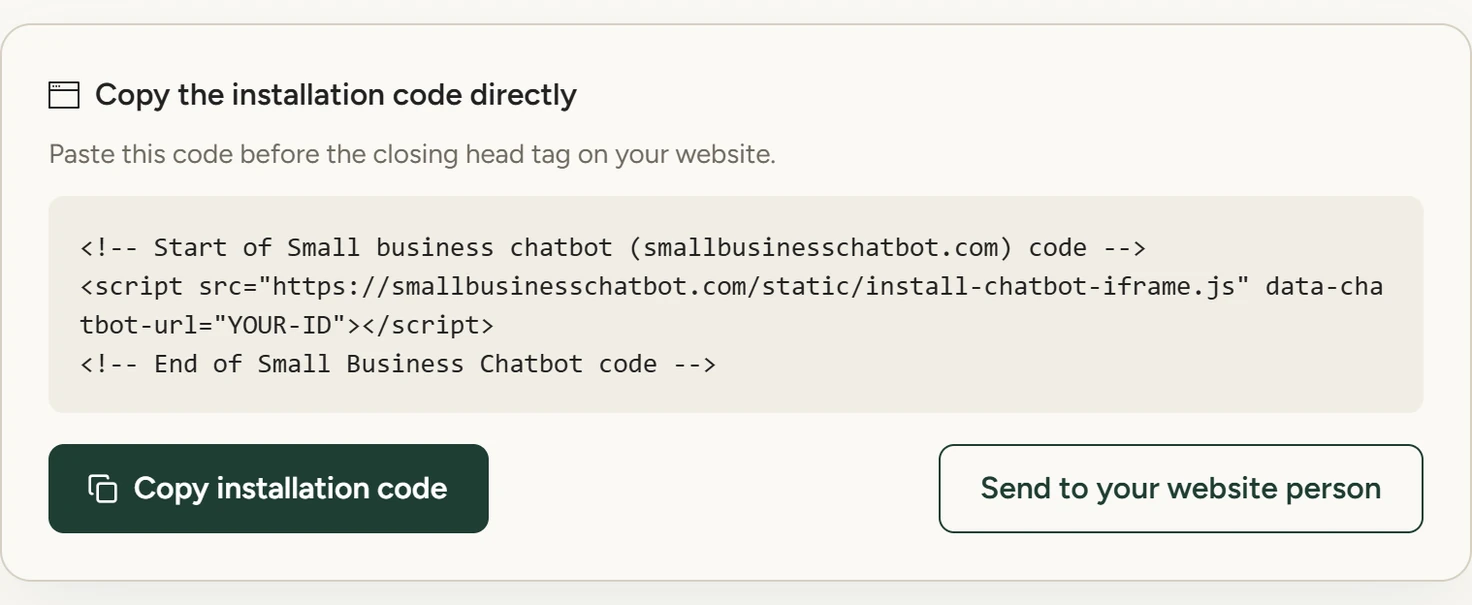
In the app, open Chat Widget › Add to Website and click Copy installation code. The button changes to Installation code copied!
Chat Widget › Add to Website, October 2026 - Paste it into your site
In your website's code, paste it before the closing
</head>tag, on every page where the chatbot should appear. - Or send it to your website person
On the same panel, click Send to your website person, type their email address and click Send invite. The app emails them the installation instructions.
- Check your site
Open your website in a new browser tab. The chat launcher sits in the bottom right corner. Click it and send a message.
On WordPress, install the Small Business Chatbot plugin from wordpress.org instead. Connect with WordPress, under Other ways to install, opens the same page. WordPress walks through the setup.
The Get Started panel
Get Started offers two other ways in. Book an Onboarding Call opens our booking page for a call with the team. Start Product Tour walks through four panels in order: Website, Look and Feel, Calendar Booking and Add to Website.
If something goes wrong
| What you see | Why | What to do |
|---|---|---|
| No launcher on your website | The code isn't on the page, or its data-chatbot-url value was changed. |
Copy the code again from Add to Website and replace the old one. |
| The chatbot replies "We're not able to chat right now. Please check back later." | The account has no active plan. | Choose a plan under Manage Plan, as Manage your plan shows. |
| Scan site is greyed out | The address is empty, a scan is running, or link changes aren't saved. | Type the address, wait for the scan, or click Save link changes. |
Troubleshooting lists more causes.