
Workflow run history
See every run of a workflow, read what each step received and produced, find why a step failed, and replay or stop a run.
What this does
Each time a trigger fires, a workflow in Small Business Chatbot starts a run. The app calls a run an execution. Executions lists the latest 150 runs of the open workflow, with each run's contact, status and current step. From a run you can read every step's input and output, replay it with the current workflow, or stop it.
Read a run
- Open Executions
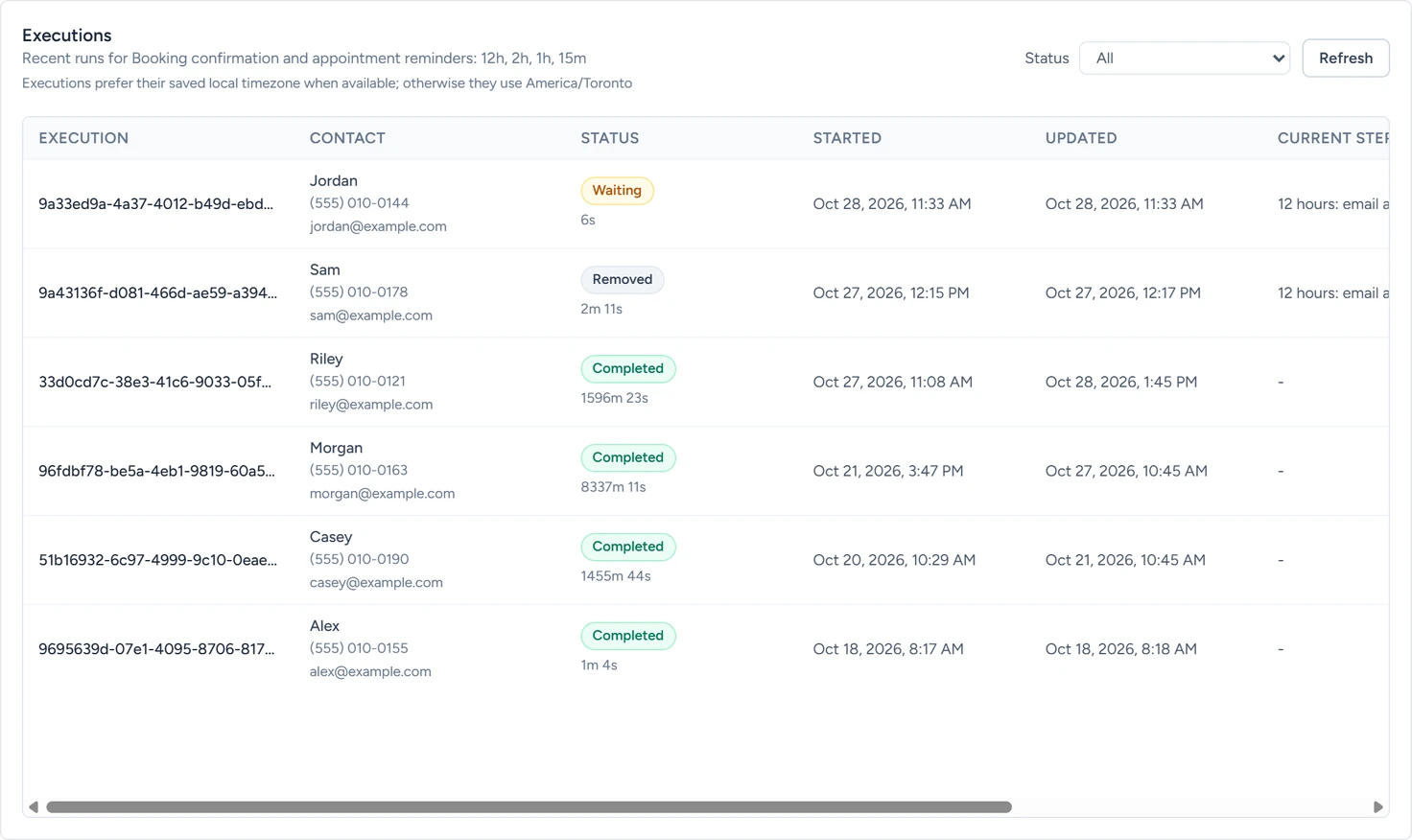
In the app, open Workflows and pick the workflow from the menu at the top left. Click Executions at the top, beside Editor. The list shows "Recent runs for" the workflow's name.
Workflows › Executions, October 2026 - Filter the list
Pick a status from the Status menu. Click Refresh to load runs that started since you opened the list.
- Open a run
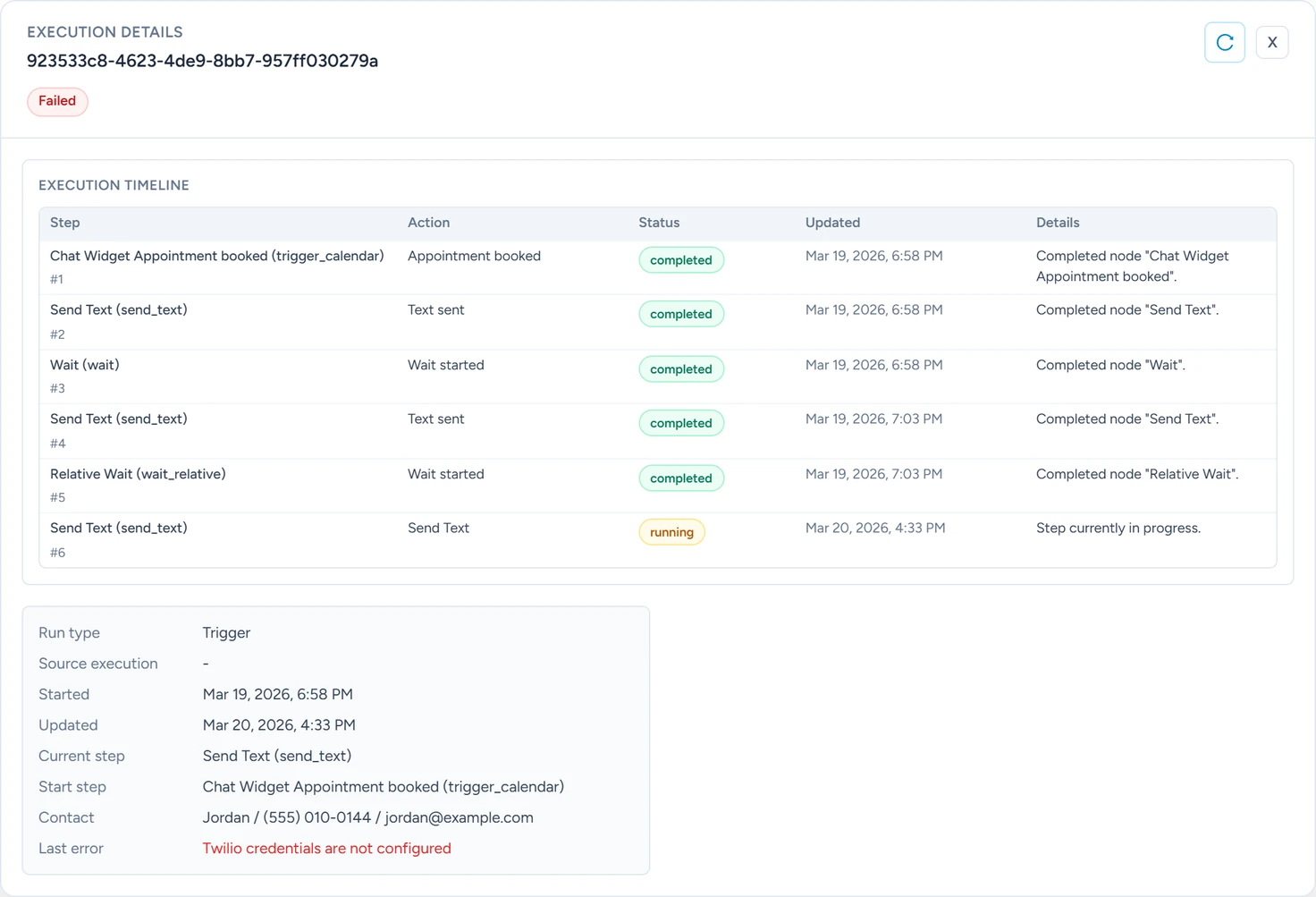
Click a row. Execution details opens with the Execution timeline: one row per step, with its Action, Status, Updated time and Details. Under it, Last error says why a run failed. In the example, Send Text ran before the workspace had a phone number, so the error reads "Twilio credentials are not configured".
Workflows › Executions, October 2026 - Read a step's input and output
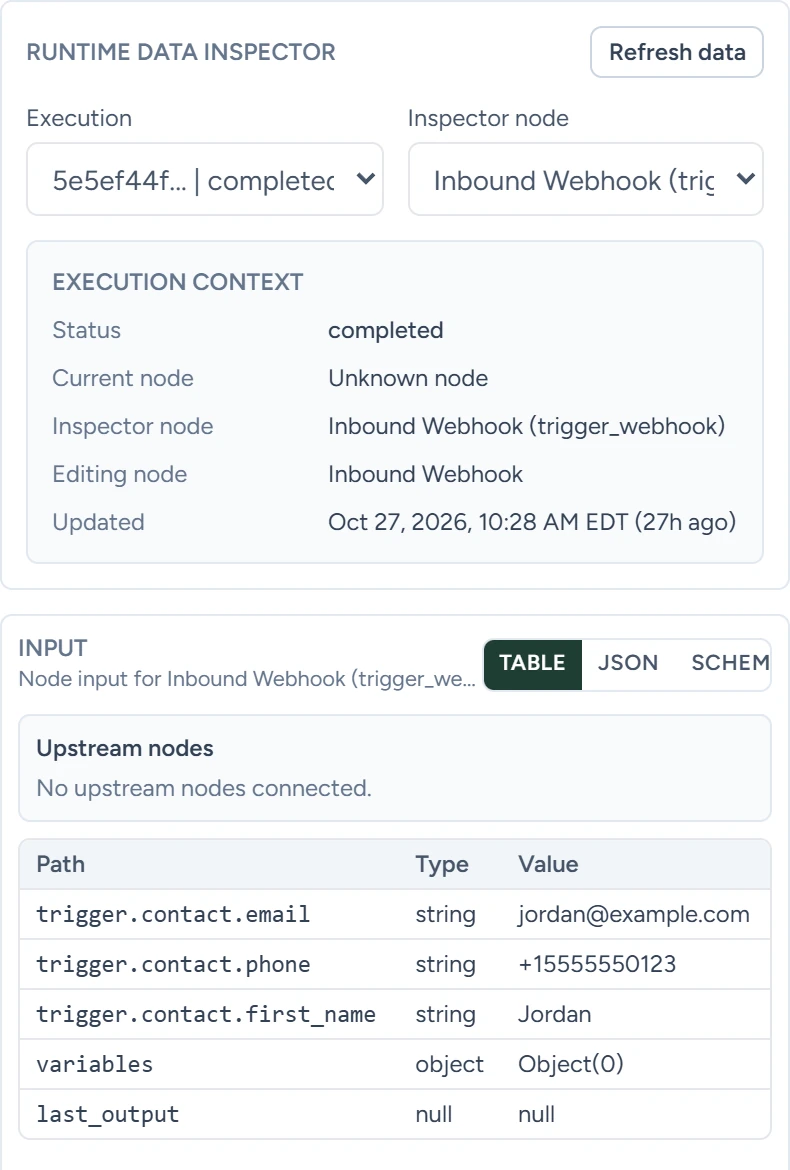
Click X to close the details, then Editor. Click the step on the canvas. In its window, under Runtime data inspector, pick the run under Execution. Input shows what the step received and Output what it produced, as table, json or schema. Secret header values in HTTP requests are masked.
Workflows › Editor, October 2026
The list
| Column | What it shows |
|---|---|
| Execution | The run's id. A Replay label marks a replayed run. |
| Contact | The run's contact, when it has one: from the trigger or from a CRM step |
| Status | Where the run stands, and the time from its start to its last change in minutes and seconds |
| Started, Updated | When the run began and last changed. Appointment runs use the appointment's time zone; others use the workflow timezone. |
| Current step | The step the run is on, or ended on |
| Start step | The trigger that started it |
| Actions | Fast-forward, replay and stop buttons |
Statuses
| Status | Meaning |
|---|---|
| Queued | The run has started, but its first step hasn't |
| Running | A step is running |
| Waiting | Held at a wait until its time, or before trying a failed step again |
| Paused | The workflow was switched back to Draft. Publishing it again resumes the run. |
| Completed | The run reached the end of its branch |
| Failed | A step failed and the run stopped. Last error says why. |
| Blocked due to re-enrol | Only enrol each contact once kept the contact out. No step ran. |
| Removed | Stopped early by a contact's reply, a Remove From Cadence or Stop Current Workflow step, or a cancelled appointment |
| Cancelled | You stopped it with Remove from workflow |
The Status menu also lists Retry wait and Timed out. A run waiting to try a failed step again shows as Waiting. Removed and Cancelled runs show under All.
Executions in the Workflows reference lists the common Last error messages.
Actions
The buttons in the Actions column carry no text. Hover over one to read its name.
Fast-forward current wait
Shown on Waiting runs. Ends the wait now, so the next step runs straight away.
Replay with current workflow
Starts a new run with the same trigger details and the workflow's current saved steps. The workflow must be published. In the new run's details, Run type reads Replay and Source execution names the original run.
Remove from workflow
Shown on runs still in progress. Stops the run before its next step. It then shows Cancelled.
Replay and fast-forward send for real. A replay texts, emails and calls the contact again, and a fast-forward sends the next message now. Both act as soon as you click.
Deleting a workflow deletes its run history too.
If something goes wrong
| What you see | Why | What to do |
|---|---|---|
| "No executions found for this filter." | No run matches the status, or the workflow hasn't started one | Pick All under Status and click Refresh. |
| A run sits at Waiting longer than its wait | A failed step is waiting to be tried again | Open the run and read Last error. |
| Replay shows an error that the workflow must be active | The workflow is a draft | Switch Status to Published, click Save workflow, then replay. |
| The Input and Output panes are empty | No run is picked under Execution | Pick a run, then click Refresh data. |