Troubleshooting
Find why the widget doesn't show, the calendar won't connect, a workflow sent nothing, the number doesn't ring or the scan missed pages.
The Small Business Chatbot widget loads from one line of code on each page of your site, as Add to your website shows.
| What you see |
Why |
What to do |
| No launcher in the bottom right corner |
The installation code isn't on that page. |
In the app, open Chat Widget › Add to Website, click Copy installation code and paste it before the closing </head> tag. |
| A blank or error box where the launcher should be |
The data-chatbot-url value in the code was changed, so the app can't find your chatbot. |
Replace the code on your site with a fresh copy from Add to Website. |
| The launcher went away after a visitor clicked its × |
The close button removes the widget until the page reloads. |
Reload the page. |
| The launcher shows, but the chatbot replies "We're not able to chat right now. Please check back later." |
The account has no active plan, or a payment was disputed. |
Choose a plan under Manage Plan. After a disputed payment, ask through Support. |
The calendar won't connect
| What you see |
Why |
What to do |
| Calendar settings could not be loaded with Please allow pop-ups to connect your calendar. |
The browser blocked the sign-in window. |
Allow pop-ups for smallbusinesschatbot.com, click Retry, then click Connect Calendar. |
| Unable to start the calendar connection. Try again. |
The app couldn't open the sign-in. |
Click Retry, then Connect Calendar again. |
| The panel still shows Connect Your Calendar after you signed in |
The sign-in window closed before it showed Calendar Connected. |
Click Connect Calendar and finish every screen until the window reads Calendar Connected. |
| The calendar is connected, but the chatbot doesn't offer times in the chat |
The switch beside Turn on calendar booking for the chat agent. reads Inactive. |
Turn the switch on. It reads Active. |
| Booking link temporarily unavailable |
Your public booking page has been suspended. |
Ask through Support. |
 Chat Widget › Calendar Booking, October 2026
A workflow sent nothing
In the app, open Workflows, open the workflow and click Executions. Each run shows its status, and a failed step shows its message.
| What you see |
Why |
What to do |
| No run in Executions |
The workflow is a draft, or its trigger hasn't happened since you published it. |
In the editor, switch Status from Draft to Published and click Save workflow. Then cause the trigger again, for example by ending a test chat. |
| A step failed with "Workflow outbound delivery is disabled for this workspace" |
The Outbound automation switch is off. |
In CRM › Contacts, click the Settings tab, turn on Outbound automation and the channel, then click Save settings. |
| A step failed with "Workflow outbound sms delivery is disabled", or the same for email or voice |
That channel's switch (Text messages, Emails or Voice calls) is off. |
Turn the channel on under Outbound automation and click Save settings. |
| A step failed with "rolling 24-hour limit ... was reached" |
The channel's Daily limit was used up in the last 24 hours. |
Wait, or raise the Daily limit for that channel. |
| A step failed with "CRM destination has opted out" |
The contact, or another contact with the same phone or email, is marked Do not text, Do not email, Do not call or Do not contact. |
Nothing to fix. The app skips contacts who opted out. |
| Status Blocked due to re-enrol |
Only enrol each contact once is on, and the contact has been through this workflow before. |
Turn the setting off if the contact should go through again. |
| Status Waiting |
The run is at a wait step. |
Nothing to fix. It continues when the wait ends. |
| An email step failed with "Mailgun domain is not configured for this tenant" |
There's no sending domain for workflow emails. |
Connect one under Admin › Workflow Email (Mailgun). |
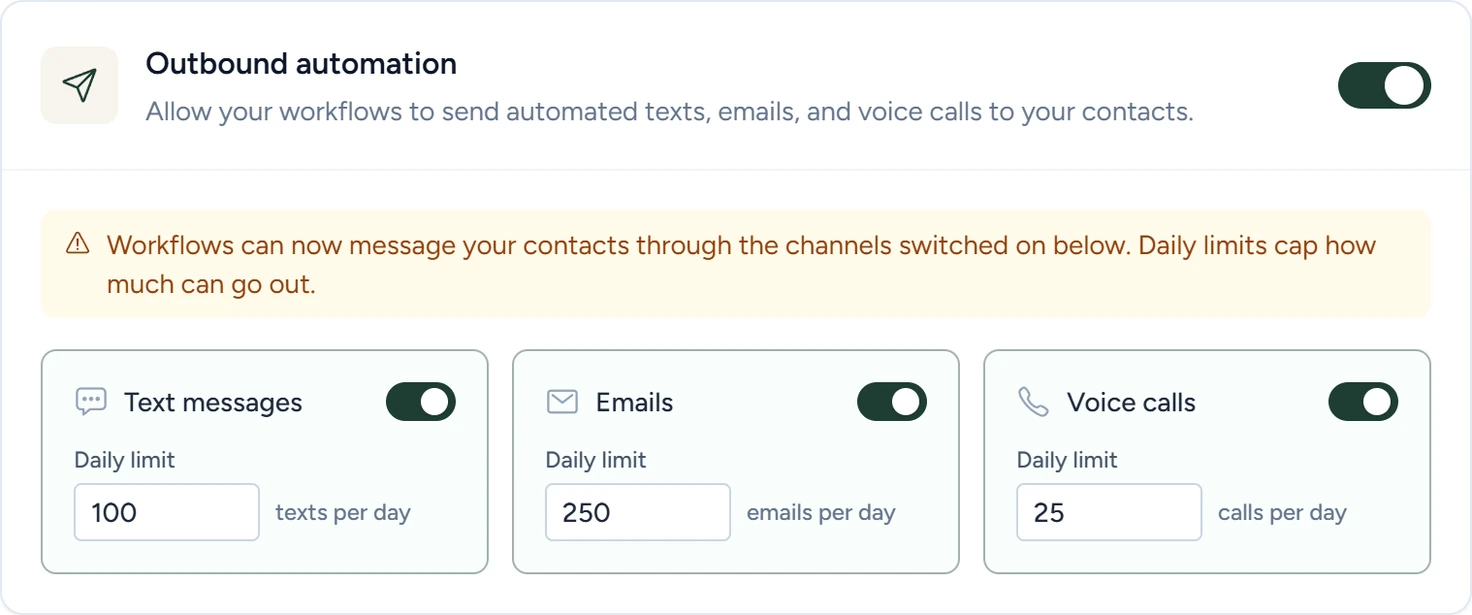 CRM › Contacts › Settings, October 2026
The number doesn't ring
| What you see |
Why |
What to do |
| Voice Agent › Settings shows Get Started instead of a number |
The account has no number. None was chosen, or it was released. |
Click Get Started, type an area code, click Search and pick a number. |
| Sorry, no numbers available for that area code. |
That area code has no free numbers. |
Search a nearby area code. |
| Calls to your business line don't reach the AI receptionist |
Your carrier isn't forwarding the line to your Small Business Chatbot number. |
Set forwarding at your carrier, all the time or only when you don't pick up. Then call that number directly to check it answers. |
| The number stopped working after a cancellation or a disputed payment |
The app released it when the subscription ended. |
After you subscribe again, pick a new number under Voice Agent › Settings. |
| Your own phone doesn't ring when a caller asks for a person |
Transfer callers to a human when requested is off, or Human transfer number is empty. |
Turn it on, type your number and click Save. A transfer rings for up to 30 seconds, then the call ends if nobody answers. |
The scan missed pages
| What you see |
Why |
What to do |
| The scan stopped before all your pages |
It reached your plan's page limit. The address you typed is read first, then the pages in your sitemap. |
Check the counter in Chat Widget › Website. Plans lists each limit. |
| A page isn't in the list at all |
The scan finds pages through your sitemap and a map of your site's links. A page in neither isn't found. |
Under Individual pages, click Add link, paste the address and click Save link changes. |
| Pages on another subdomain are missing |
The scan stays on the address you typed and its www version. |
Add those pages under Individual pages. |
| A page that changed still has its old content |
A scan without Re-crawl current pages skips pages the chatbot already has. |
Tick Re-crawl current pages, then click Scan & refresh site. |
| A page is listed under Details on the Website training complete card |
The page returned an error, redirected to another site or couldn't be read. Pages trained before are kept. |
Fix the page, or add its current address under Individual pages. |
Admin › Chatbot Brain Crawl Jobs lists your last 10 scans, with how many pages each processed, skipped and failed.
 Chat Widget › Website, October 2026
