
Variables
How {{...}} tokens are filled in when a step runs, what trigger, data and step outputs hold, and what happens when a value is missing.
What this does
A variable is a path between double curly braces, such as {{trigger.email}}. When a step runs, Small Business Chatbot replaces each variable with the value at that path in the run's data. Every text field of every step takes variables.
- Where
- any text field in a step, or the tag button at its left
- Format
{{root.key.key}}, with a number for a list item, such as{{trigger.messages.0}}
Inserting a variable
The tag button at the left of a text field opens the Reference picker. It lists the data of the run chosen under Execution in the step's runtime data inspector, the latest run by default: Trigger first, then Variables when the run has saved any, each step's output by name, Last Output and Execution. + opens a branch and Insert adds the path as {{...}} where you are typing.
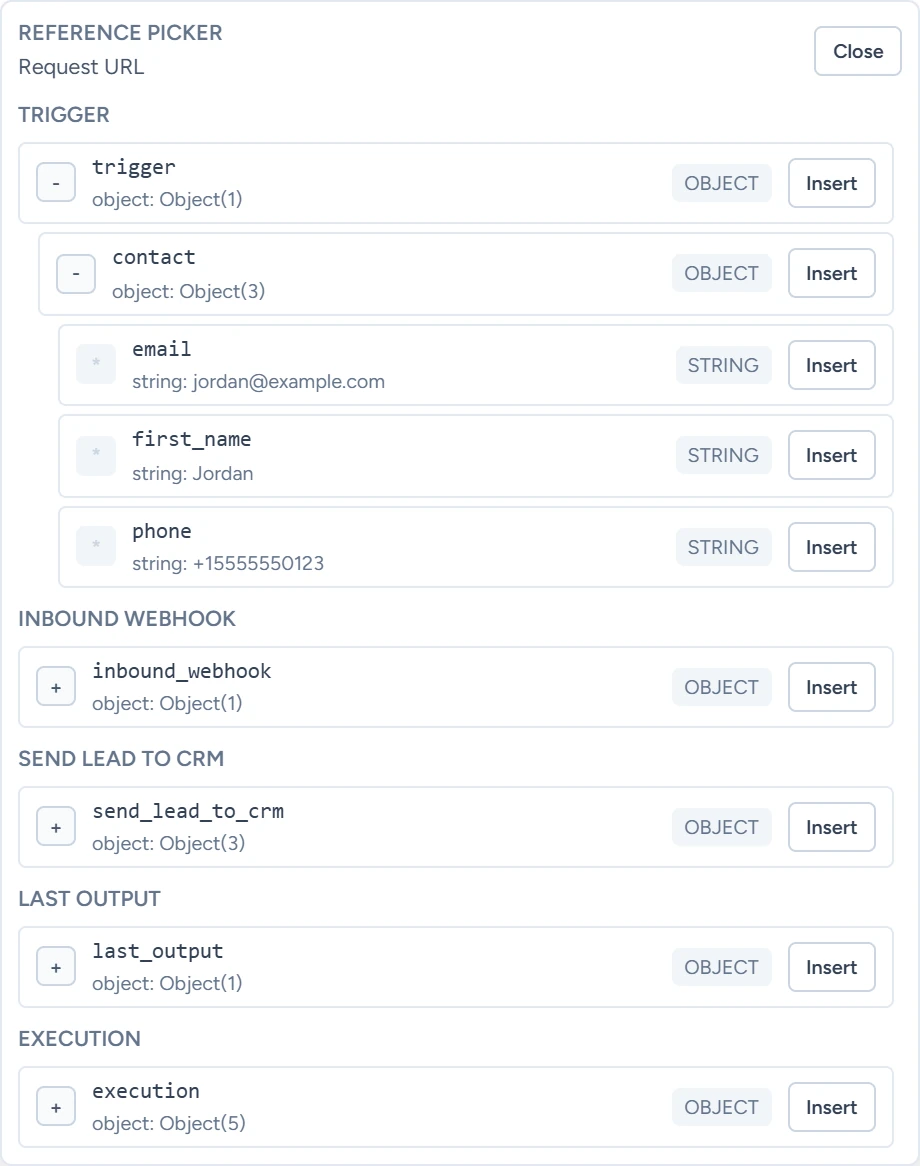
With no run yet, Trigger is empty, except in a workflow with an appointment trigger, which shows a sample appointment. Type the path by hand until a run exists.
The roots
| Root | What it holds | Example |
|---|---|---|
trigger |
What the trigger carried. For an Inbound Webhook with mapping rules, only the mapped fields. | {{trigger.email}}, {{trigger.contact.phone}}, {{trigger.appointment.start_at_iso}} |
data.trigger_raw |
What the trigger carried, before any mapping rules | {{data.trigger_raw.customer.name}} |
data.variables |
Values saved by Variable steps, under their Variable name | {{data.variables.customer_name}} |
node_outputs_by_name |
Each finished step's output, under its Node name | {{node_outputs_by_name.http_request.response.status_code}} |
data.last_output |
The output of the step that ran before this one | {{data.last_output.contact_id}} |
workflow |
The workflow's ID and name | {{workflow.name}} |
execution |
The run's ID and state | {{execution.execution_id}} |
What each trigger carries is on its page under Triggers. What each step saves is on its page under Steps.
Step names in paths
A step's Node name becomes its key under node_outputs_by_name: lowercase, with each run of spaces and other characters turned into one underscore.
| Node name | Key |
|---|---|
| HTTP Request | http_request |
| AI Agent | ai_agent |
| Send 24-hour reminder | send_24_hour_reminder |
Only steps that have already run in this run are there. When two steps share a name, one of them gets _2 at the end, so give each step its own name. Renaming a step changes its key, so update the variables that use it.
How a variable is filled in
| The field holds | It becomes |
|---|---|
Only one variable, such as {{trigger.number_of_messages}} |
The value with its own type: a number, a list or an object stays one |
A variable inside text, such as Hi {{trigger.first_name}} |
Text |
| A variable whose path has no value | Empty text |
| A path with a typo | Empty text. Insert paths from the Reference picker to avoid typos. |
To fall back to another value, use an If step on the empty value, or a default in the webhook's mapping rules. To do arithmetic or change text, use an AI Agent, Date Formatter or Text Extractor step.
A field that ends up empty can fail its step. A Send Text with an empty Recipient phone fails, and so does a Send Email with an empty To.
In an HTTP Request's JSON body
Quote every token, such as "email": "{{trigger.email}}". A token alone inside quotes keeps its type, so a number stays a number. HTTP Request has the full rules, including tokens without quotes.
In an If step
The Left side keeps the value's type when it is one variable. The Right side reads true, yes, false, no and numbers as values, not text. If has the details.
The Variable step
Variable saves one value under a name, for later steps to read from data.variables.
| Field | What it does | Default or options |
|---|---|---|
| Variable name | The name to save under, such as customer_name. |
Empty |
| Value | The value. It can hold variables, which are filled in when the step runs. | Empty |
A later Variable step with the same name replaces the value. A new step added with + starts as a Variable step until you change its Node type.