
Contacts
Find, add and edit the people who chat with, call and text your business, set statuses and tags, start a sequence and read each timeline.
What this does
The CRM in Small Business Chatbot keeps a contact for each person who reaches your business through website chat, calls or texts. Contacts save themselves from website chats where the visitor gives a phone or email, calls the AI receptionist answers, text conversations, replies to workflow emails and bookings. Each contact holds the person's details, a status, tags, notes, tasks and a timeline.
Where contacts come from
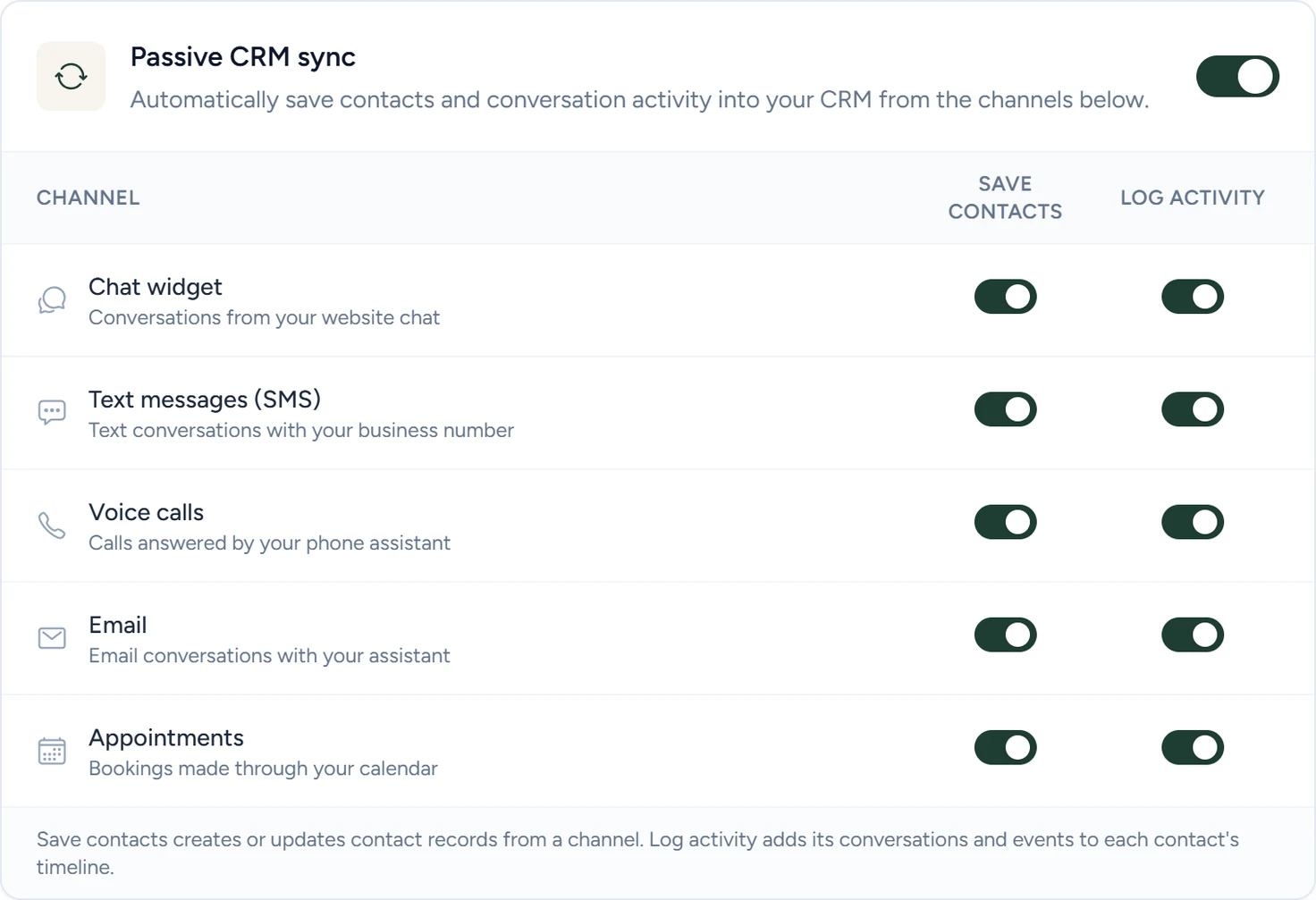
Under CRM › Contacts › Settings › Passive CRM sync, each channel has two switches. Save contacts creates or updates contacts. Log activity adds the channel's conversations to the timeline. New accounts start with all of them on, and turning one off deletes nothing. Click Save settings after a change.
| Channel | What saves a contact |
|---|---|
| Chat widget | A website chat where the visitor gave a phone or email |
| Text messages (SMS) | A text conversation with your business number |
| Voice calls | An answered call to your business number, matched by the caller's number |
| A reply to a workflow email | |
| Appointments | A booking in your connected calendar |
A chat whose details don't clearly match one contact waits in the Needs review tab. That tab appears next to Contacts when something is waiting. Export and duplicates covers it.
Find and edit a contact
- Open the list
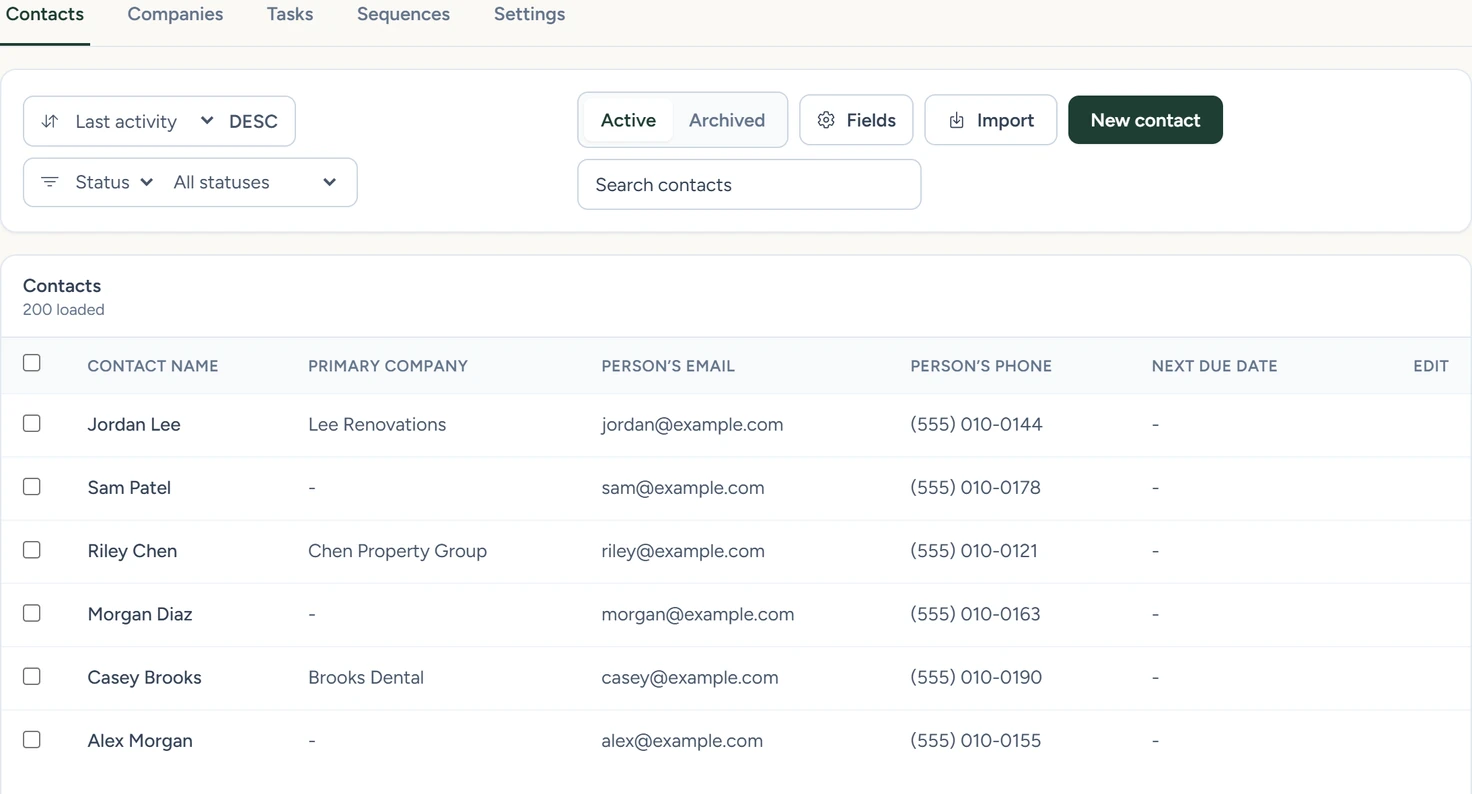
In the app, open CRM › Contacts. Next due date is the date of the contact's earliest open task. Fields chooses the columns.
CRM › Contacts, October 2026 - Search, filter and sort
Search contacts finds a name, phone, email, website, LinkedIn URL, business or tag. The filter menu narrows the list by Status, Source or Tag. The sort menu orders it by Last activity, Contact name, Created or Next due date.
- Open a contact
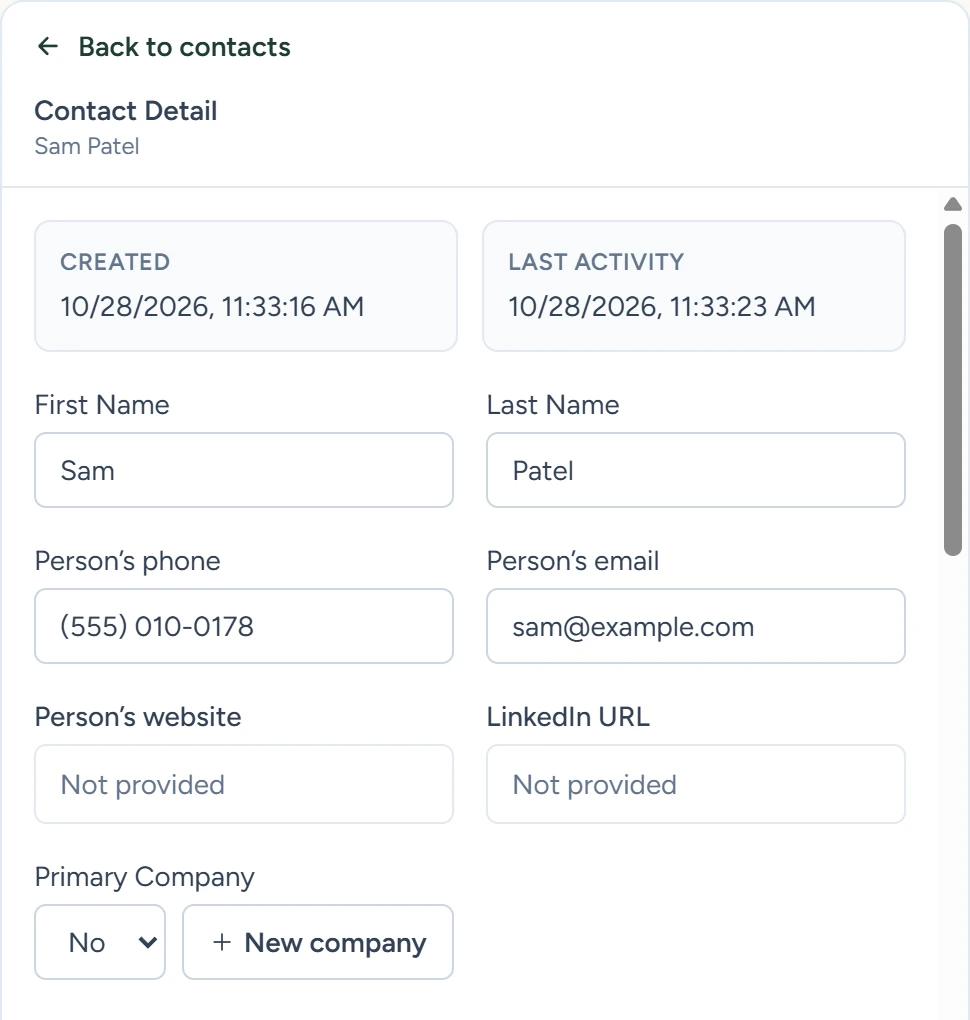
Click a row. Contact Detail opens with the Activity timeline beside it. Change any field, then click Save Contact.
CRM › Contacts, October 2026
To add someone, click New contact, fill in Email or Phone at least, and click Create Contact. If a contact already has that phone or email, the app updates it and shows Existing contact found and updated. To change several contacts at once, tick their boxes and use Edit selected, Add tag or Archive.
Contact fields
| Field | What it holds |
|---|---|
| First Name, Last Name | The person's name |
| Person’s phone, Person’s email | Their own phone and email. Chats, calls and texts match contacts on these. |
| Person’s website, LinkedIn URL | Links that open in a new tab. The pencil edits them. |
| Primary Company | Their company. New company creates one. |
| Status | One choice from your status list |
| Source | Where the contact came from, such as manual |
| Tags | Type a tag, then press Space, Tab, Enter or a comma. |
| Communication preferences | Do not contact (all channels), Do not text, Do not email, Do not call. A checked box blocks that channel's workflow messages. Replying STOP to a text checks Do not text. |
| Custom Fields (JSON) | Your own fields, written as JSON |
Statuses
The defaults are Open, Contacted, Do not contact, Non-target industry, Booked and Bad contact information. To change them, open CRM › Contacts › Settings › Contact statuses. Rename one in place, drag rows to reorder, or type a name and click Add status, then click Save settings. Renaming keeps contacts on that status. Contacts keep a removed status until you change it.
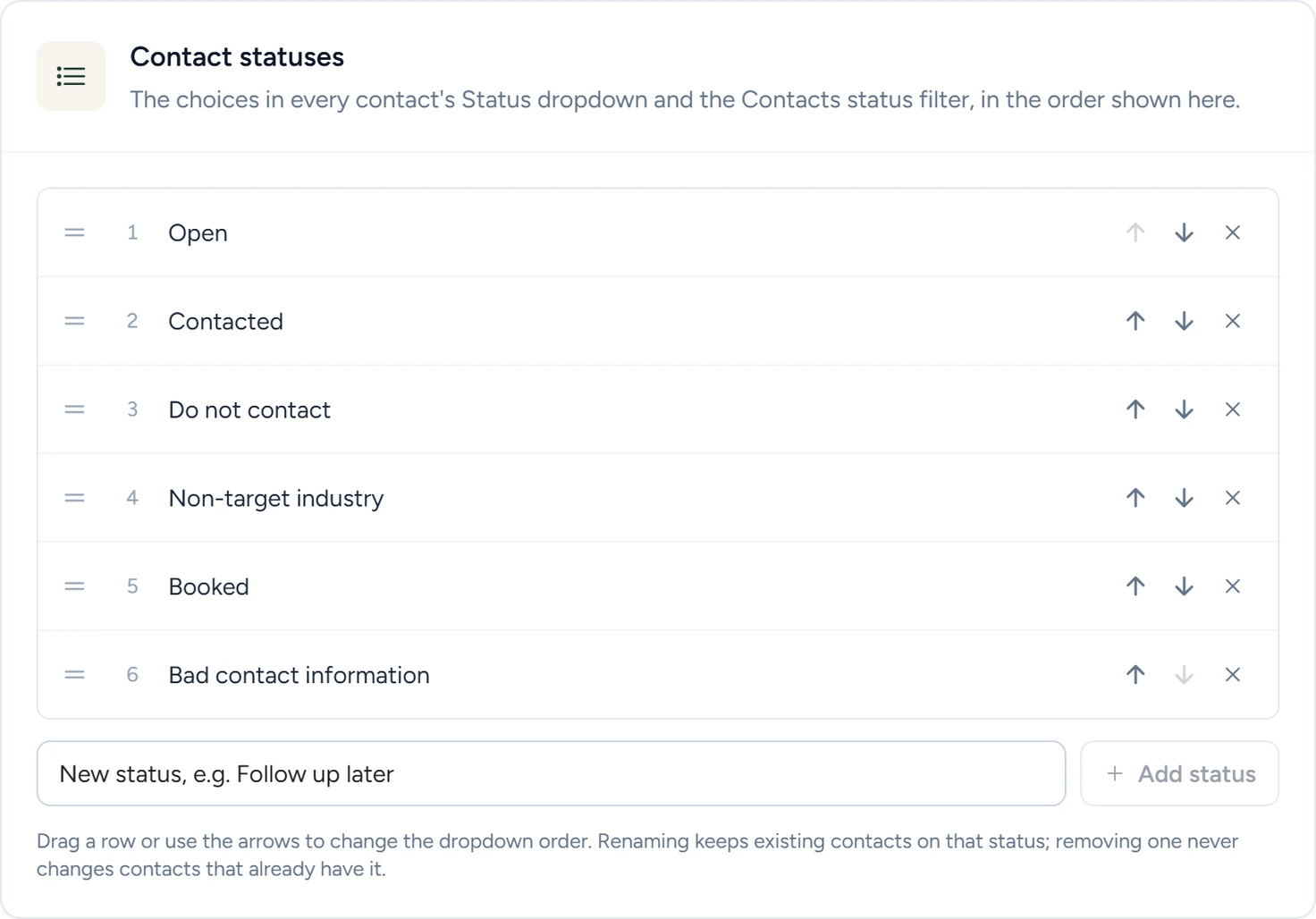
The Do not contact status is a label. To stop workflow messages, check a box under Communication preferences.
Tags start workflows
A tag you add in Contact Detail or with Add tag starts every published workflow whose Contact tag added trigger watches that tag. Tags from a CSV import never start workflows. Triggers lists the others.
Sequence
The Sequence card in Contact Detail gives the contact a set of dated tasks for you to do. It creates tasks and sends nothing.
- Choose the sequence
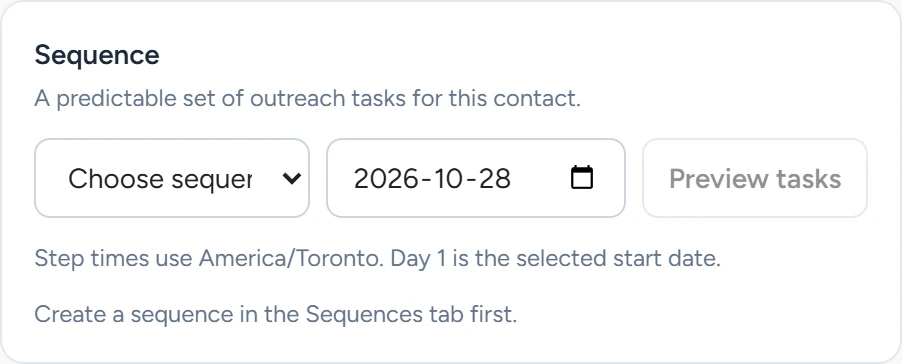
On the Sequence card, pick one under Choose sequence… and set the start date, which is Day 1.
- Preview the tasks
Click Preview tasks. If a task uses a field the contact doesn't have, tick I understand these fields will be left blank. The button then reads Start with blank fields.
CRM › Contacts, October 2026 - Start it
Click Start sequence. The tasks appear in the Tasks tab, and the card shows the next due date.
Stop sequence cancels the open tasks and keeps the closed ones. A contact can be in one sequence at a time. You build sequences in Notes and tasks.
The Activity timeline
Activity lists the contact's chats, calls, texts, bookings, workflow messages, notes and tasks, newest at the bottom. A conversation shows its AI summary. The full transcript is in Conversations.
Archive a contact
Archive Contact takes a contact out of the list and out of automatic matching. Their history stays, and the Archived view has Restore.
Other CRMs
To send contacts to another CRM, use a workflow's HTTP Request step or Zapier. To bring contacts in from one, use an inbound webhook. Integrations shows how.
If something goes wrong
| What you see | Why | What to do |
|---|---|---|
| A chat didn't create a contact | The visitor gave no phone or email, Save contacts is off for Chat widget, or the chat is in Needs review. | Check Settings, and the Needs review tab if it shows. |