
Outbound switches and limits
Control whether workflows can text, email and call, how many go out a day, and when a contact's reply stops a workflow.
What this does
Small Business Chatbot workflows can text, email and call only through the channels you switch on. Outbound automation is off on a new account, and so is every channel. Each channel has a daily limit counted over the last 24 hours.
Each workflow also has its own settings: whether a contact's reply stops it, whether a contact can go through it twice, and its time zone.
Switch sending on
- Open CRM settings
In the app, open CRM › Contacts and click the Settings tab.
- Switch on Outbound automation
Click the switch beside Outbound automation. It turns all three channels on. A note appears: "Workflows can now message your contacts through the channels switched on below."
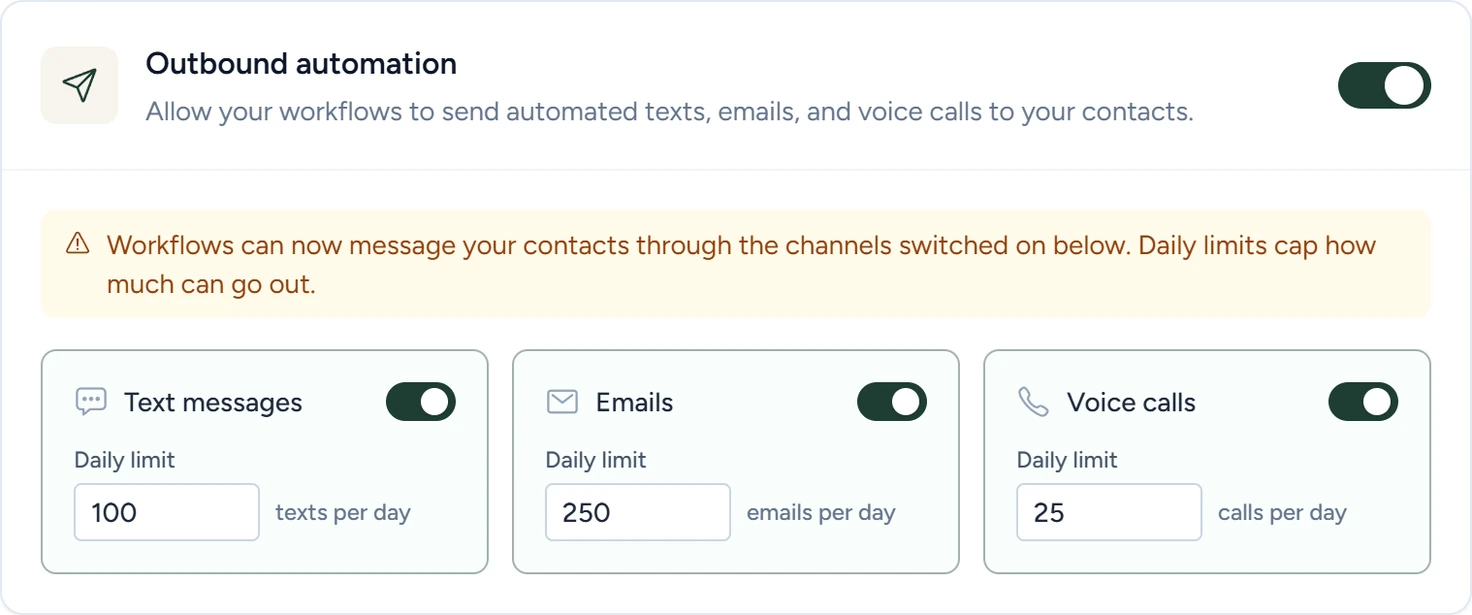
CRM › Contacts › Settings, October 2026 - Choose the channels
Switch off any of Text messages, Emails or Voice calls you don't want workflows to use. Switching one channel back on turns Outbound automation on again.
- Set the daily limits
Under each channel, type a number in Daily limit.
- Save
Click Save settings at the bottom. The bar reads "Settings saved." Nothing changes until you save.
Switching Outbound automation on lets every published workflow send through the channels that are on. To stop all sending at once, switch it off and click Save settings. Sends then fail at their step until it's on again.
Settings in CRM › Contacts › Settings
Outbound automation
The master switch. While it's off, "no workflow can send any outbound message." Off by default.
Text messages, Emails, Voice calls
One switch per channel. A Send Text, Send Email or AI voice call step sends only when its channel is on. All three are off by default. HTTP Request steps run whatever these switches say. To stop them, switch their workflow back to Draft.
Daily limit
The most that channel can send across all your workflows in any 24 hours. Defaults: 100 texts per day, 250 emails per day, 25 calls per day. Any number from 1 to 10,000. A send past the limit fails at its step.
Settings in each workflow
In the app, open Workflows and pick the workflow. These sit in the left column of the Editor. Click Save workflow after changing any of them.
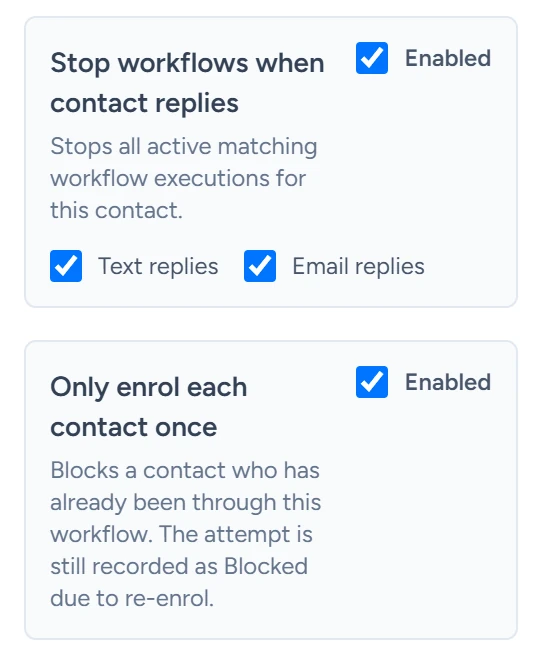
Stop workflows when contact replies
Off by default. When Enabled is ticked, a text or email reply from a contact stops their runs in every workflow where this is on. Text replies covers texts to your business number. Email replies covers replies to a workflow's email. Both are ticked by default.
Only enrol each contact once
Off by default. When Enabled is ticked, a contact goes through this workflow only once. A later start shows under Executions as Blocked due to re-enrol. Replays always run.
Execution timeout (seconds)
How long a run may last. "Set to 0 to disable workflow execution timeout." The default is 0. If you set it, make it longer than the workflow's longest wait.
Workflow timezone
The time zone for Cron schedules and for allowed hours on waits. A new workflow takes your browser's time zone. Use browser timezone appears when the two differ.
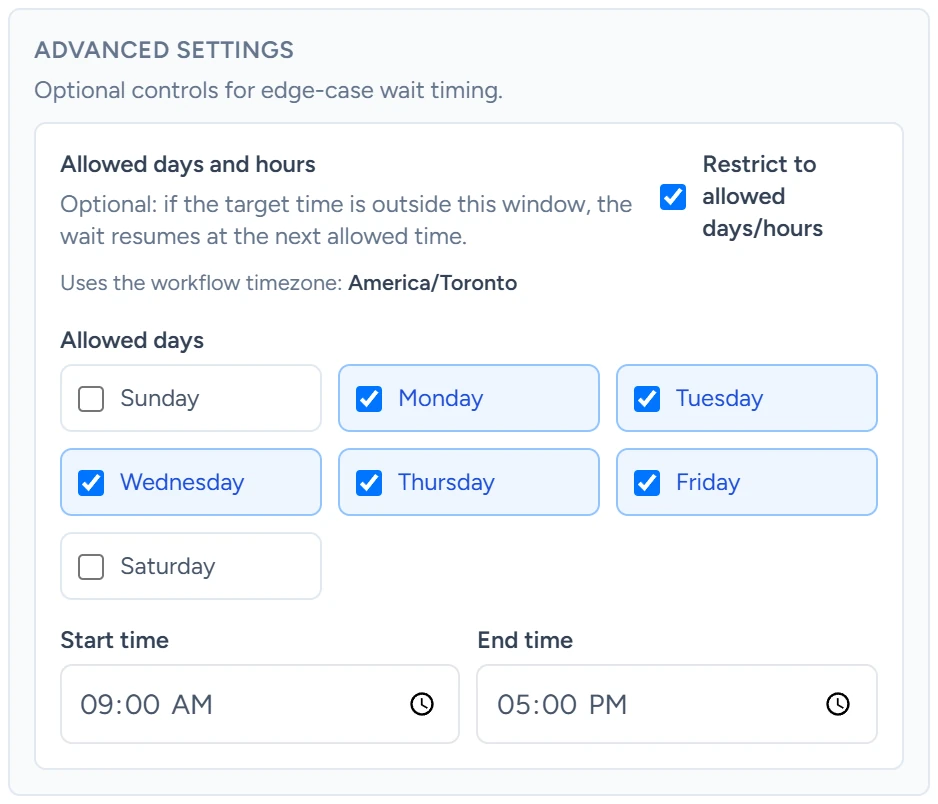
Allowed days and hours on a wait
A Wait step can hold its end time to working hours. Open the step and find Allowed days and hours under Advanced settings. Tick Restrict to allowed days/hours, then pick the days and the Start time and End time. A wait that would end outside them ends at the next allowed time instead. It's off by default. When ticked, it starts at Monday to Friday, 09:00 to 17:00, in the workflow timezone.
Opt-outs
Every send checks the contact's Communication preferences in CRM › Contacts first: Do not contact (all channels), Do not text, Do not email and Do not call. A contact who texts STOP gets Do not text. A send to an opted-out contact fails at its step. See Opt-outs and STOP.
If something goes wrong
| What you see | Why | What to do |
|---|---|---|
| A step fails and Last error says outbound delivery is disabled | Outbound automation or that channel is off | Switch it on and click Save settings. |
| A step fails and Last error names the rolling 24-hour limit | The channel hit its Daily limit | Raise the limit, or wait for older sends to fall out of the 24 hours. |
| A step fails and Last error says the destination has opted out | The contact opted out of that channel | Nothing. The opt-out is working. |
| A reply didn't stop the workflow | The run had no contact phone or email to match. Its trigger carried an empty trigger.contact |
Switch on Save contacts for that channel under Passive CRM sync, or add a Find Contact step early in the workflow. |
| A busy workflow stops starting new runs | It already has 100 runs in progress, the most one workflow holds | Shorten its waits so runs finish sooner. |