
Summary emails
Choose who gets the email sent after each chat, call and text, and see what each email contains.
What this does
When a conversation ends, Small Business Chatbot emails its summary and transcript to the address in Primary Email for Conversations and to every address under Additional Emails. Both fields are in the Admin panel. Every address gets every email: website chats, calls the AI receptionist answered, AI calls from workflows and text conversations.
Add the people who get the emails
- Open Admin
In the app, open Admin at the bottom of the sidebar. The second card is Primary Email for Conversations.
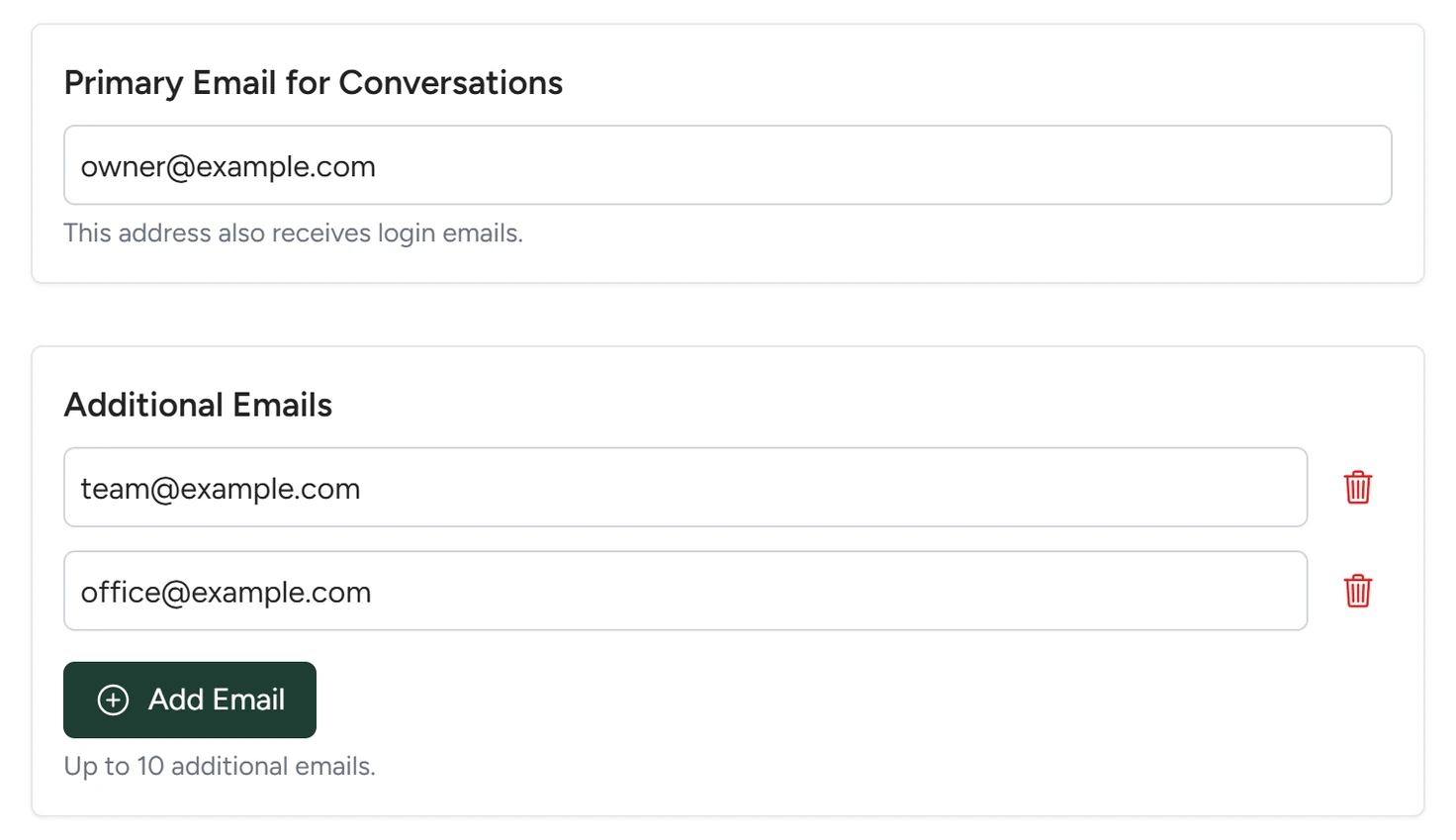
Admin, October 2026 - Check the primary address
In Primary Email for Conversations, type the address that should get every summary. The email you sign in with stays the same.
- Add more addresses
Under Additional Emails, click Add Email and type an address. Add one row per person, up to 10. The bin icon beside a row removes it.
- Save
Click Save at the bottom of the panel. The app shows Contact preferences saved! The next email goes to every address on the list.
When each email goes
| Conversation | When the email goes | Subject |
|---|---|---|
| Website chat | When the visitor leaves the page with the chat. If the chat is open in several tabs, one email goes after the last one closes. | New contact with action item when the visitor gave a phone or email, otherwise New conversation from Small Business Chatbot |
| Embedded chat | When the visitor leaves the page | New Q&A contact from web embedded widget or New Q&A conversation from web embedded widget |
| Phone call the AI receptionist answered | When the call ends, unless it was flagged as likely spam | New caller transcript with action items |
| Outbound call from a workflow | When a call that a person picked up ends | Outbound Call AI Transcription |
| Text conversation | Five minutes after the last message | The same two subjects as a website chat |
What the email contains
| Part | Chats and texts | Calls |
|---|---|---|
| Action items | When the visitor gave a phone or email | Always |
| Contact details | The phone, email and name the visitor gave | First name, phone and email |
| Lead quality score | A to D, when lead grading is on | Not included |
| Transcript | Under Conversation history | Under Conversation |
| Recording | Not included | A Listen link, when call recording is on |
| Earlier conversations | For a returning website visitor | Not included |
Photos from a chat show as links. A photo the image filter flagged shows as NSFW image detected with a link to log in and view it in Conversations.
Testing your widget in the Playground? Send TESTMODE in capitals as its own message in the chat. The chat is still saved in Conversations, and no summary email goes out for it.
Settings
Primary Email for Conversations
The one required address. Every summary email goes here, and so does the Mailgun test email. The app saves it only in email format.
Additional Emails
Up to 10 more addresses, for example a technician on call or an office manager. Each one gets the same emails as the primary address. Empty rows are dropped when you save.
Get text notifications
Add a phone number, with its country code, to get a short text after each website chat. The text holds the visitor's name, email, phone and summary. It comes from the app's own number, and the transcript stays in the email. Save stores the numbers with the email addresses.
If something goes wrong
| What you see | Why | What to do |
|---|---|---|
| No email after a test chat | The chat included the message TESTMODE, or it is still open in another tab. | Close every tab with the chat. Test again without TESTMODE. |
| No email after a call | The call matched a spam keyword. | Open Conversations and look for the Spam label. Change the keywords in Spam protection. |
| Primary email is required and must be valid. | The primary field is empty or not an email address. | Type a full address and click Save again. |
| One or more additional emails are invalid. | A row with a red border has a typo. | Fix or remove that row, then click Save. |