
Companies and opportunities
Keep the businesses your contacts work for, and track deals on a pipeline board you drag between stages.
What this does
A company in the Small Business Chatbot CRM holds the details its contacts share: the business's name, phone, email and website. An opportunity is a deal with one contact. It sits in a stage of a pipeline, and the pipeline is a board you drag cards across.
Add a company and link a contact
- Open Companies
In the app, open CRM › Contacts and click the Companies tab. The list shows Company, Website, Industry, Phone and Tags.
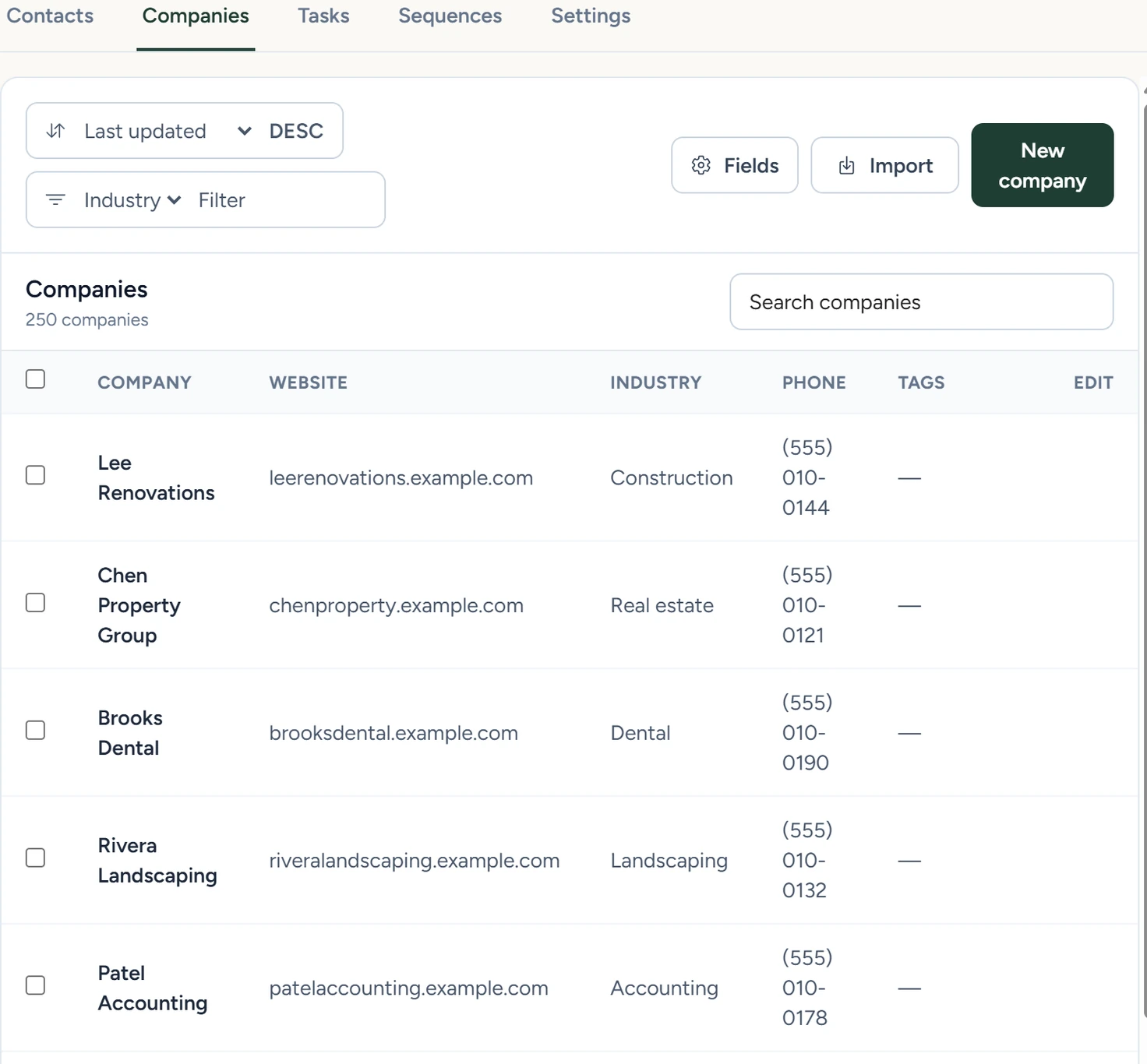
CRM › Contacts › Companies, October 2026 - Add the company
Click New company. Fill in Company name, the only required field, and any of Website, Email, Phone, Industry, Tags and Description. Click Save company.
- Link a contact
Open the contact in the Contacts tab. Under Primary Company, pick the company and click Save Contact. The contact now shows a Company details card with Company phone, Company email and Company website.
Opening a company shows its details beside its Activity timeline, where you add notes and tasks. Search companies searches the list. The sort menu orders it by Last updated, Company name, Industry or Created, and the filter menu narrows it by Industry, Name or Tag. Tick companies to use Edit selected, Add tag or Archive. Before you archive a company, change the company on its contacts and opportunities.
Automatically create and link companies
This switch is under CRM › Contacts › Settings. When it's on, a contact that arrives from a CSV import or a connected integration with a business name is linked to the company with exactly that name, and a missing company is created. Existing links stay in place. It's off by default.
Track opportunities on the board
- Create a pipeline
In the app, open CRM › Opportunities and click New pipeline. Type a Pipeline name. Under Stages, separated by commas, list every stage in order: the name and stages stay as you set them. The box starts with New lead, Qualified, Proposal, Won. Click Create pipeline.
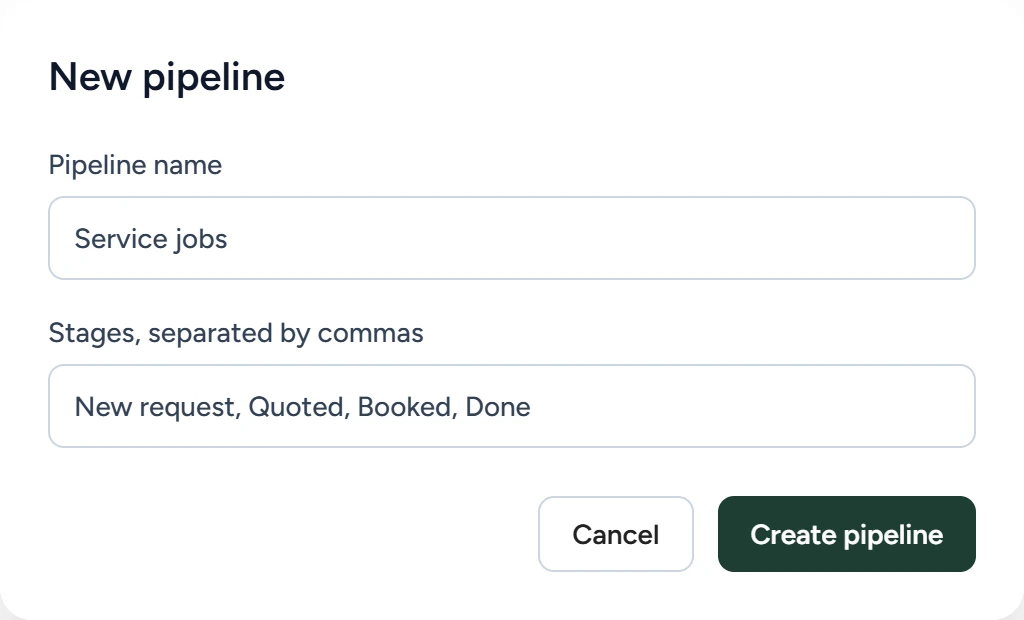
CRM › Opportunities, October 2026 - Add an opportunity
Click New opportunity, or + Add opportunity in an empty stage. Fill in the fields and click Save opportunity.
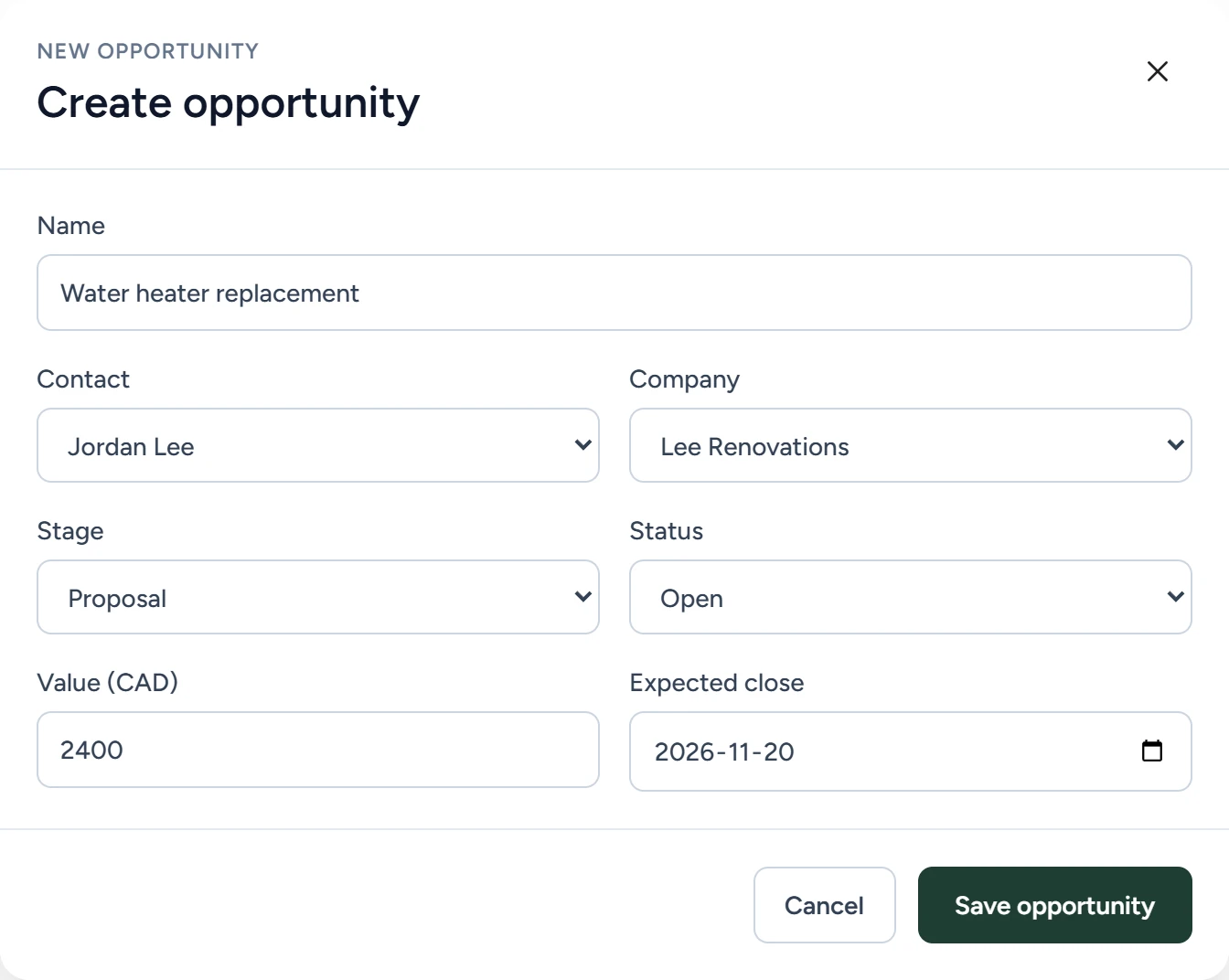
CRM › Opportunities, October 2026 - Move it between stages
Drag the card to another stage. The move saves when you drop it.
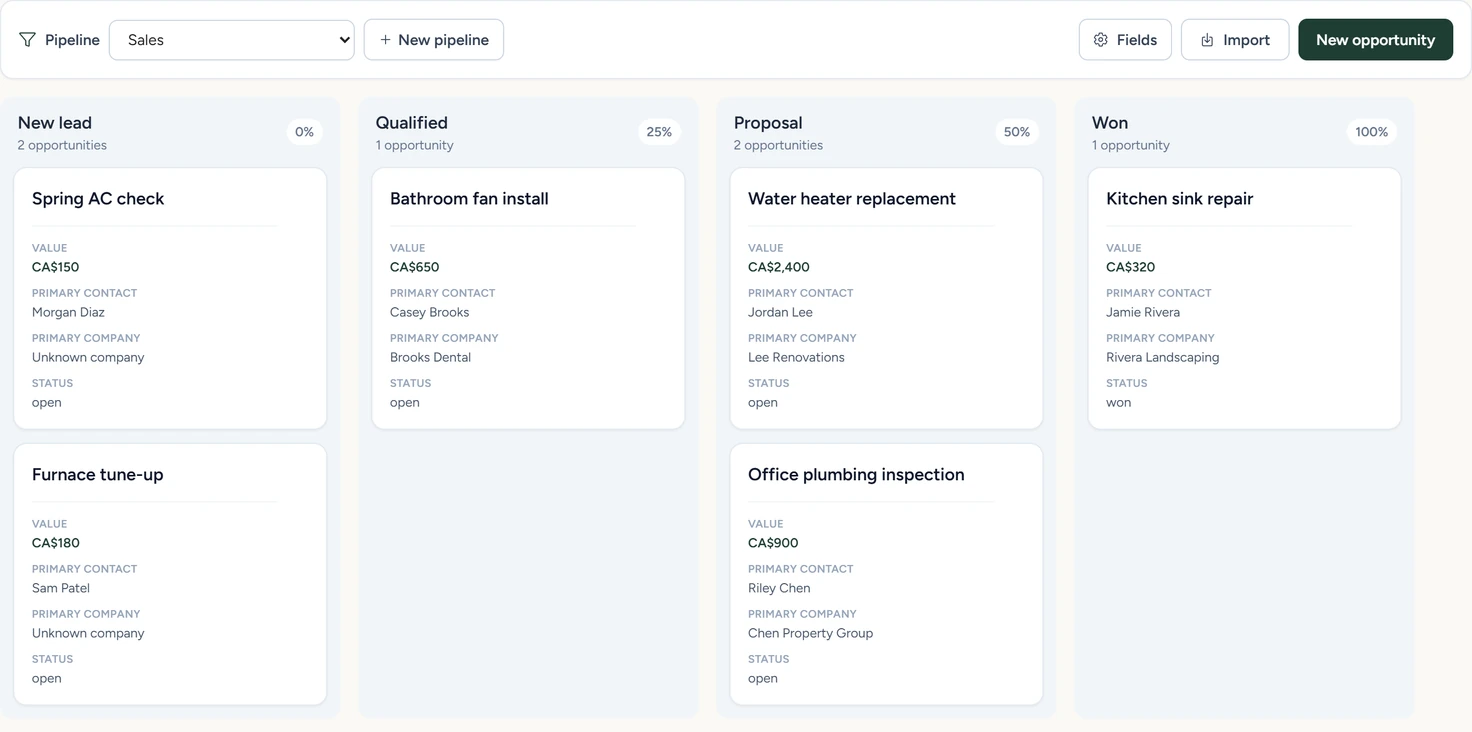
CRM › Opportunities, October 2026
Each stage shows how many opportunities it holds and a win percentage. The app sets the percentage from the stage's place in the list: 0% for the first stage, then 25 points more for each stage after it, up to 100%.
Fields chooses what each card shows: Value, Primary contact, Primary company, Status, Expected close, Next due date and Source. Pipeline switches between your pipelines.
On a contact, Related opportunities lists their deals. Clicking one opens the board with that card highlighted.
Opportunity fields
| Field | What it holds |
|---|---|
| Name | Required. The deal's name. |
| Contact | Required. The person the deal is with. |
| Company | The business, if any |
| Stage | The board column it sits in |
| Status | Open, Won, Lost or Abandoned. Moving the card keeps the status, so set it here. |
| Value (CAD) | The deal's value, in Canadian dollars |
| Expected close | The date you expect to close |
To close a deal, set its status to Won, Lost or Abandoned.
Creating a company or an opportunity, or changing an opportunity, can start a workflow. CRM changes lists those triggers.
If something goes wrong
| What you see | Why | What to do |
|---|---|---|
| Create or select a pipeline to begin organizing opportunities. | No pipeline exists or none is selected. | Click New pipeline, or pick one under Pipeline. |
| New opportunity or Save opportunity is greyed out | No pipeline is selected, or Name or Contact is empty. | Pick a pipeline and fill in both fields. |
| The card moves back and an error shows, such as Opportunity changed since it was loaded | The save failed, for example because the opportunity changed in another tab. | Reload the page and drag the card again. |