
Send Email
The Send Email step's fields, how its sender and replies work, the checks before it sends, and what it saves.
What this does
When a run reaches Send Email, Small Business Chatbot sends one email through the sending domain connected under Admin › Workflow Email (Mailgun). The email is logged on the matching CRM contact's timeline as Email sent: and its subject.
- Where
- Workflows › a step's Node settings › Node type: Send Email
- Needs
- Outbound automation and Emails on, and a sending domain
- Counts toward
- the daily limit for emails, once per step whatever the number of recipients
Fields
The step's editor has three parts: Envelope, Message and Email editor.
| Field | What it does | Default or options |
|---|---|---|
| To | The address to email. Type it or insert a variable such as {{trigger.email}}. |
Empty. In a workflow that starts with an appointment trigger: {{trigger.contact.email}} |
| CC (optional) | Copies another address. | Empty |
| BCC (optional) | Blind-copies another address. | Empty |
| From email | The sender. A full address is used as typed. A name with no @, such as hello, gets your sending domain added. |
Empty. Required |
| Sender name | The name shown before the sender's address. | Blank sends as Workflow |
| Subject | The subject line. | Empty. Required |
| Body HTML | The email as HTML. A tab in Email editor. | Empty |
| Body text | The email as plain text. A tab in Email editor. | Empty |
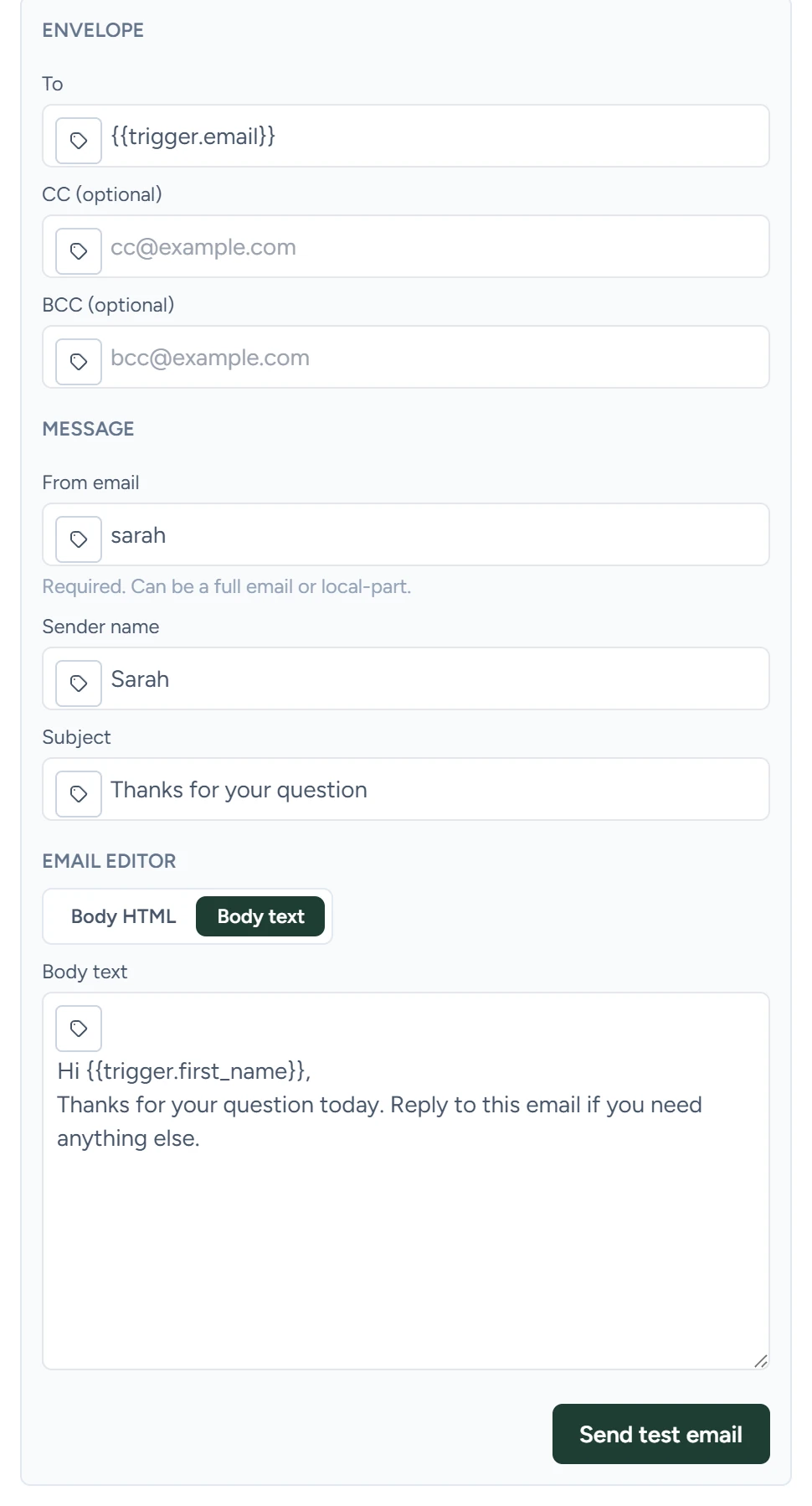
Fill in Body HTML, Body text or both. When both are filled, both go out in the same email and the reader's mail app picks one. Each step sends one email; to email several people separately, use one step per address. Variables work in every field; the rules are on Variables.
Send test email
Send test email sends one email now with the step's current values. Variables are filled from the run chosen under Execution in the step's Runtime data inspector, the latest run by default. With no run yet, type a real address in To. The test needs a connected sending domain. It skips the outbound switches, opt-outs and daily limits. Fill in Sender name to see the name your contacts will see.
Replies
Every email carries a Reply-To address on your sending domain, made from the From email name, for example hello@ and your sending domain. Replies come back to the app. When the workflow has Stop workflows when contact replies on with Email replies checked, a reply stops that contact's active runs of the workflow.
Before it sends
The step runs these checks in this order. The first one that fails stops the step, and nothing is sent.
| Check | When it fails |
|---|---|
| Required fields | To, Subject or both bodies are empty, or From email is empty. |
| Outbound automation and Emails | Either switch is off under CRM › Contacts › Settings. |
| Opt-outs | A contact with the To, CC or BCC address has Do not email or Do not contact (all channels) checked. Each address is checked. |
| Daily limit for emails | The emails sent or started by all your workflows in the last 24 hours have reached your limit. |
If a retry finds that an earlier attempt may already have reached Mailgun, the step fails instead of sending again, so nobody gets the email twice.
A published workflow with emails switched on emails real people. Test with your own address first.
What it saves
Later steps read these with the step's Node name, for example {{node_outputs_by_name.send_email.subject}}.
| Output | What it holds |
|---|---|
status |
success |
to_email |
The To address |
cc_email, bcc_email |
The copied addresses |
from_email |
The full sender address used |
from_display_name |
The sender name used |
reply_to |
The Reply-To address |
subject |
The subject as sent |
body_text, body_html |
The bodies as sent, with variables filled in |
mailgun_message_id |
The email's ID at Mailgun, which sends it |
summary |
A line such as "Email sent to [email protected] with subject ..." |
Guides that use it
- Your first workflow
- Calendar booking: the booking confirmation, reminder and cancellation workflows the calendar settings create are Send Email steps.
- Sending domain