
Notes and tasks
Log notes and tasks on contacts and companies, work through the Tasks list, and build sequences of dated tasks.
What this does
Notes and tasks in the Small Business Chatbot CRM sit on a contact or a company and show in its Activity timeline. A note is text you keep. A task is something to do, with a due date, a type and a priority. The Tasks tab lists every task, and the Sequences tab builds sets of dated tasks you start on a contact.
Log a note or a task on a record
- Open the record
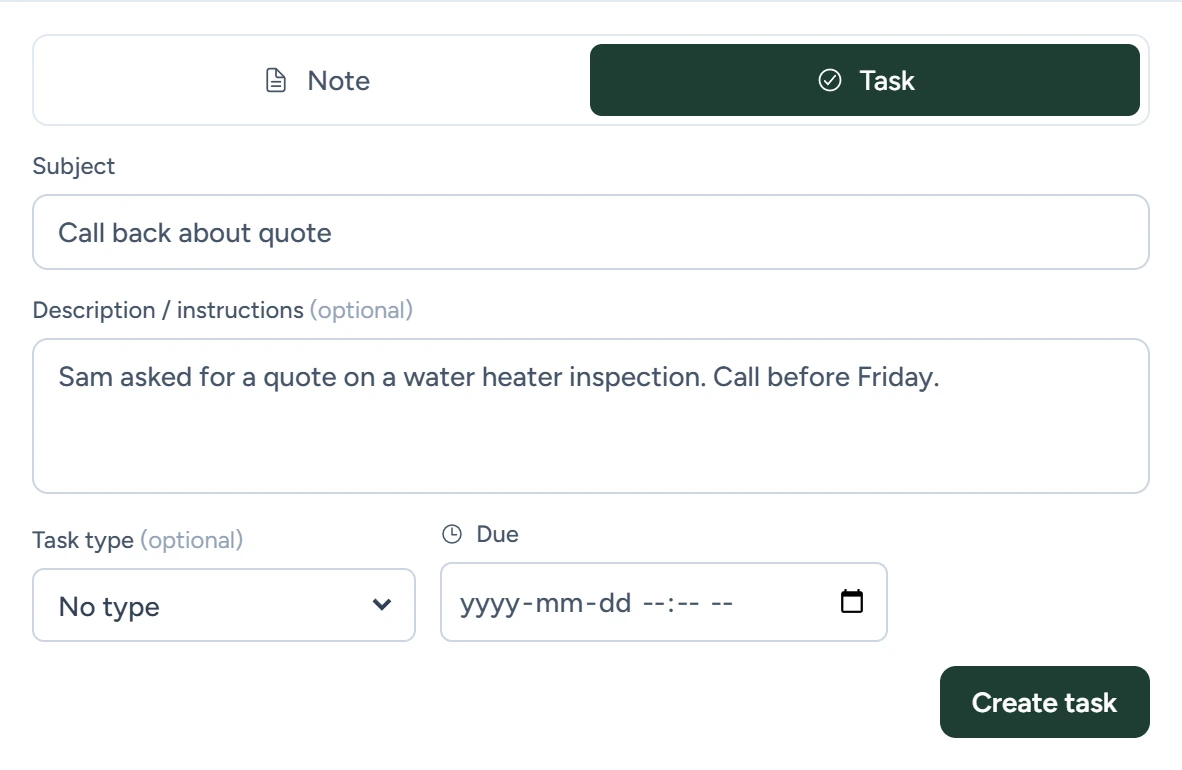
In the app, open CRM › Contacts and click a contact, or open a company from the Companies tab, covered in Companies and opportunities. The box at the bottom of Activity has Note and Task.
CRM › Contacts, October 2026 - Log a note
With Note selected, type in Write a note..., check the text, and click Log note. A logged note stays as written. The newest note also shows on a Notes card in the record's details. Click the card to read every note, newest first.
- Create a task
Click Task. Fill in Subject, and add Description / instructions, Task type and Due if you need them. Click Create task.
In Activity, a task with no Due date is saved as already closed, as a record of something you did. Set a due date for work still to do.
Workflows can add notes and tasks too, through CRM steps.
Work through the Tasks tab
Open tasks wait in the Tasks tab and on their record until you close them.
- Open Tasks
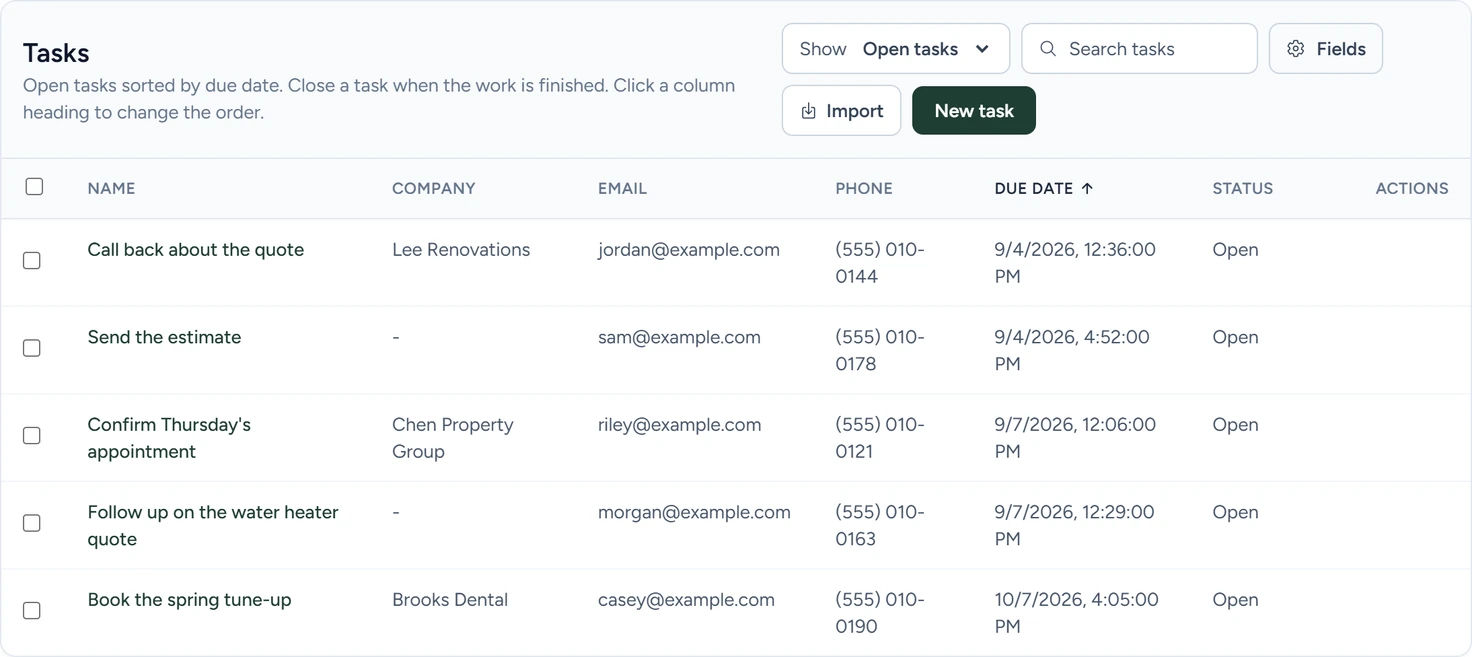
In the app, open CRM › Contacts and click the Tasks tab. Show picks Open tasks, Closed tasks or All tasks. Click a column heading to sort by it.
CRM › Contacts › Tasks, October 2026 - Add a task
Click New task. Fill in Name, then any of Contact, Company, Due date, Type, Priority and Description. New tasks always start open. Click Create task.
- Open a task
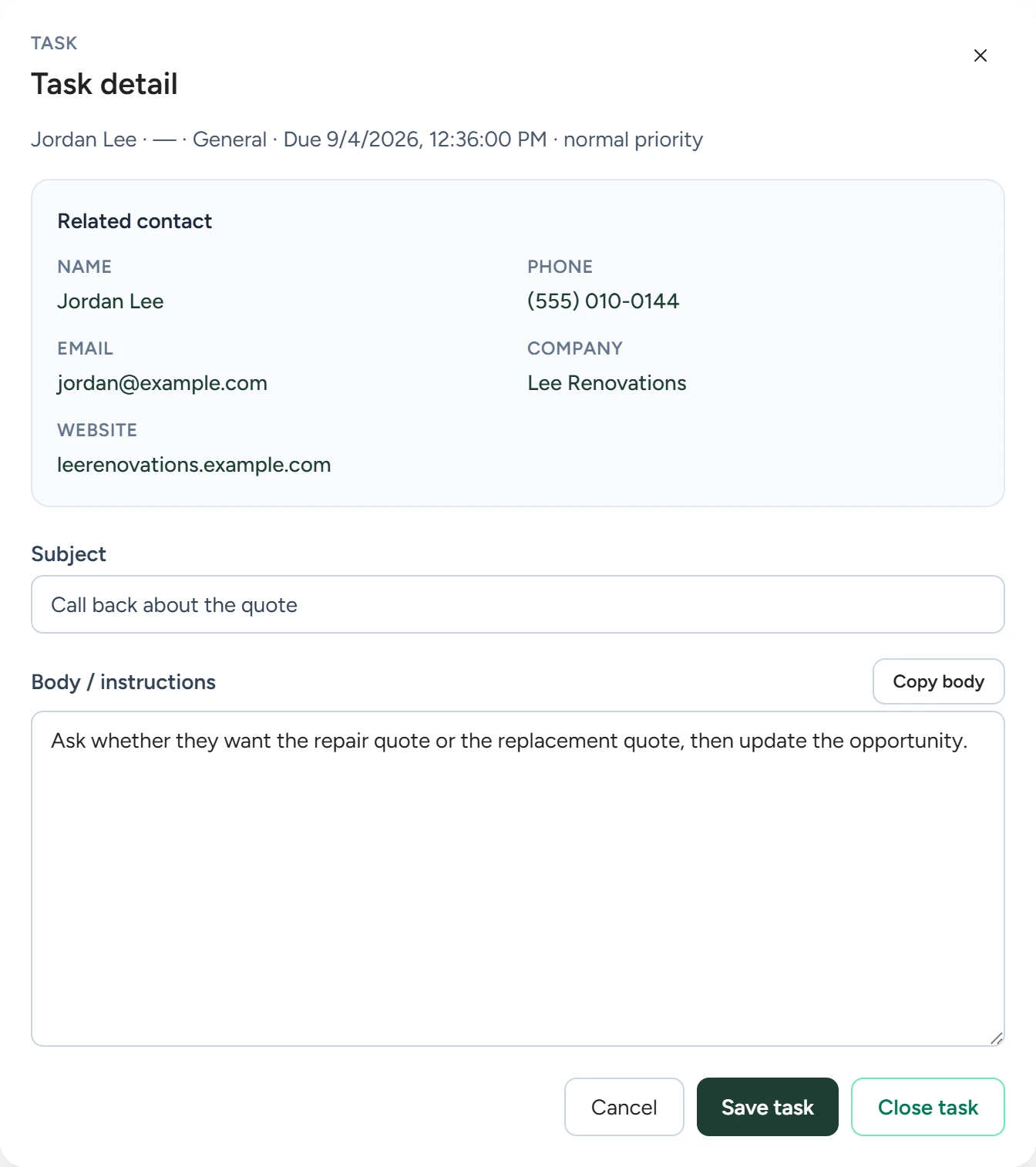
Click its name. Task detail shows the linked contact's name, phone, email, company and website, and lets you edit Subject and Body / instructions. Click Save task to keep your changes. Copy body copies the instructions.
CRM › Contacts › Tasks, October 2026 - Close it
Click Close task in Task detail, or the tick at the end of its row. A closed task has Reopen task.
Tick several tasks to use Close selected open tasks, Edit selected or Archive selected.
| Task field | What it holds |
|---|---|
| Name | Required. What needs doing. |
| Contact, Company | Who it's about. The contact's name opens their record. |
| Due date | Date and time |
| Type | No type, Call, Email, Text or Demo |
| Priority | Low, Normal, High or Urgent. The default is Normal. |
| Status | Open or Closed |
| Description | Instructions or text to copy |
Build a sequence
A sequence is a reusable set of tasks, each due a set number of days after a start date. Starting one on a contact creates the tasks. It sends nothing: an Email or Text step is a task for you, with the body ready to copy.
- Start a new sequence
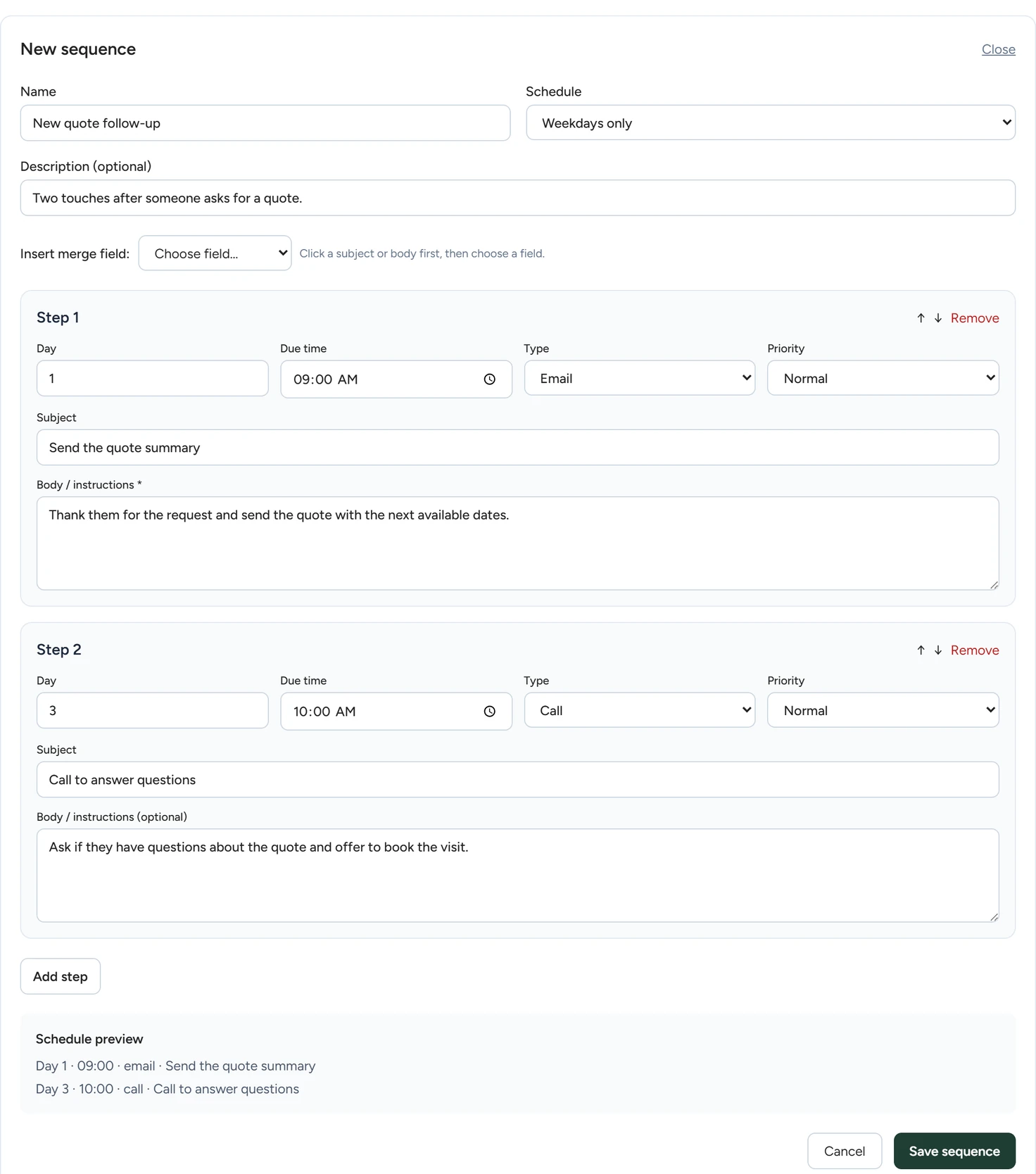
In the app, open CRM › Contacts, click the Sequences tab, then New sequence.
CRM › Contacts › Sequences, October 2026 - Name it and pick the schedule
Fill in Name and Description (optional). Under Schedule, Weekdays only skips Saturdays and Sundays when counting days, and Calendar days counts every day.
- Add the steps
For each step set Day (1 to 365), Due time, Type, Priority, Subject and Body / instructions. Email and Text steps need a body. Add step adds the next one, up to 30.
- Save
Check the Schedule preview, then click Save sequence.
Insert merge field puts a contact or company field, such as {{contact.first_name}}, where you last clicked in a subject or body. When the sequence starts, the contact's own value fills it in. Start a sequence from the contact's Sequence card, covered in Contacts. Clone copies a sequence under a new name. Archive retires it and keeps the tasks it already created.
If something goes wrong
| What you see | Why | What to do |
|---|---|---|
| Close this sequence task or stop its sequence before archiving it | An open task from a running sequence can't be archived. | Close the task, or click Stop sequence on the contact. |
| Step 2 body is required for email. | An Email or Text step has no body. | Write the body for that step and save again. |
| A note or task shows Needs attention: | It didn't save. | Copy your text, reload the page and add it again. |