
Questions and answers
Write the answers to the questions people ask most. The AI chatbot uses them in website chats and the AI receptionist on phone calls.
What this does
In Small Business Chatbot, each Q&A pair is a question and the answer you want your assistant to give. When a visitor asks something close to one of your questions, the AI chatbot gets your answer along with the matching pages from your website, and writes its reply from them in its own words. The same list is used on phone calls.
Add a question and answer
- Open the Q&A panel
In the app, open Chat Widget › Q&A. The panel shows one card per question and answer.
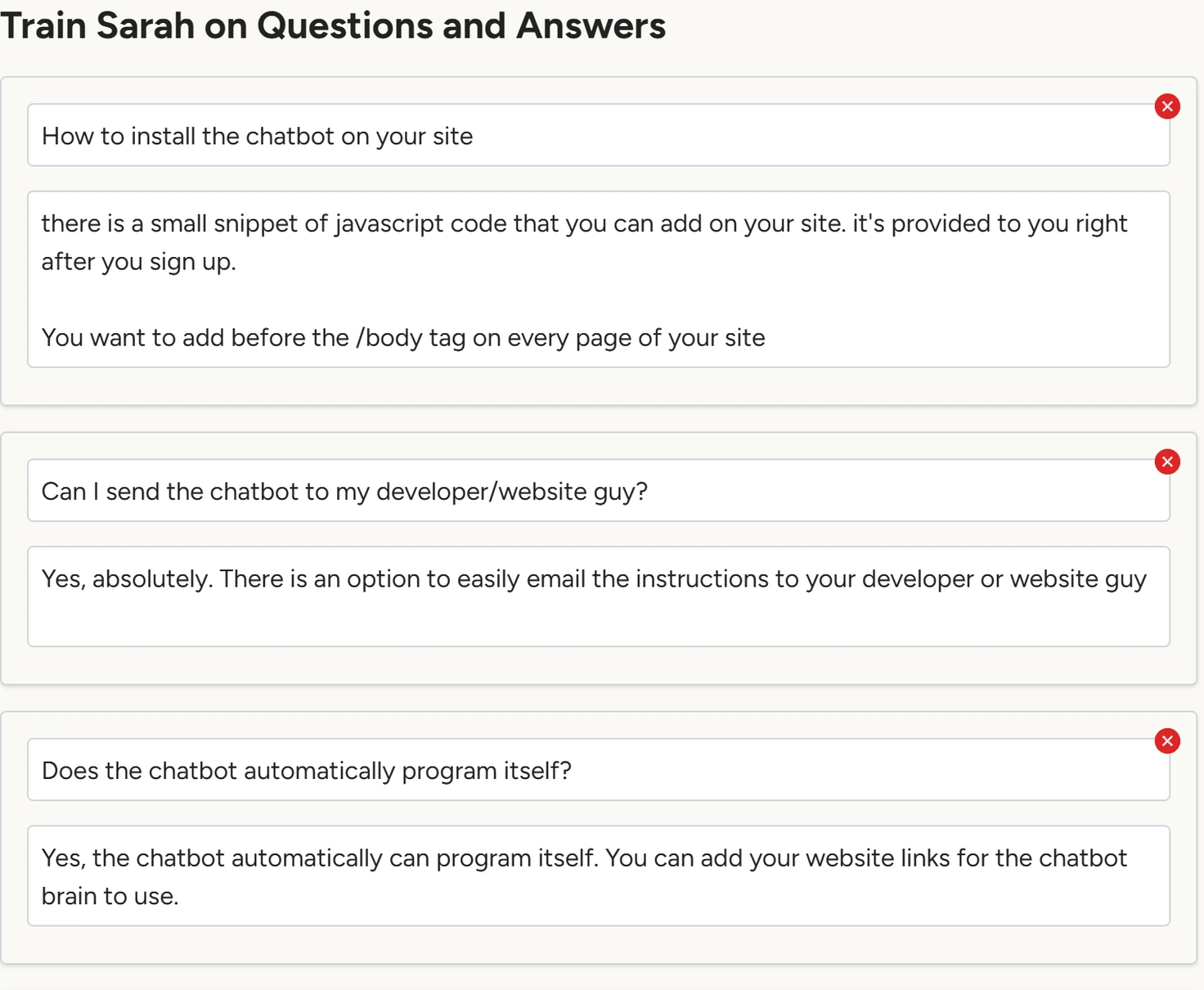
Chat Widget › Q&A, October 2026 - Add a pair
At the end of the list, click Add Question. In the new card's first box, type the question the way a visitor would ask it. In the second box, type the answer.
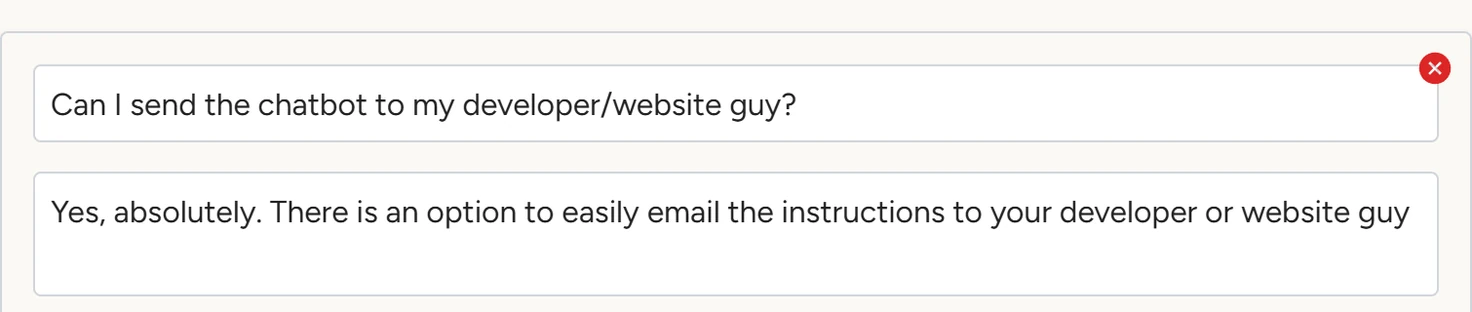
Chat Widget › Q&A, October 2026 - Save
At the bottom of the panel, click Save. The app shows Questions saved! The chatbot uses the new answers in chats within five minutes.
Write one question per card. Put the facts that must be exactly right here: prices, hours, service areas, policies.
Edit or delete a pair
- To change an answer, edit the text in its card, then click Save.
- To delete a pair, click the red circle with an × at the top right of its card, then click Save.
- Cards left empty are dropped when you save.
Nothing changes for visitors until you click Save.
Links in answers
An answer can include a link to a page. When the panel opens, and after each save, the app checks every link in your answers. A link that no longer works gets a yellow warning under its card, starting This link no longer works.
The chatbot leaves out links whose page is gone, errors, or redirects to your home page or to another site. Update or remove the link, then click Save.
On phone calls
The Voice Agent › Q&A panel shows this same list. Editing it in either place changes both. The AI receptionist loads up to 40 pairs when a call starts and answers callers from them, with links left out.
With Let the voice agent look up answers from your website pages switched on under Voice Agent › Settings, it can also search the pages under Chat Widget › Website when a caller asks something outside your Q&A. It first says a short line such as "Let me check that for you." Greeting and call rules covers the rest of its phone instructions.
If something goes wrong
| What you see | Why | What to do |
|---|---|---|
| Failed to save questions. | The save didn't reach the server. | Check your connection and click Save again. |
| The chatbot still gives an old answer | New answers reach the chat within five minutes, and your website may say something different. | Wait five minutes and test in the Playground. Refresh any page that is out of date in Website. |
| A yellow warning under a card | A link in that answer is gone or redirects. | Update or remove the link, then save. |