
Triggers
Pick the event that starts a workflow, set its options, and know what each trigger hands to the steps after it.
What this does
Every workflow in Small Business Chatbot begins with one trigger. The app calls it the Start Event. When that event happens, every published workflow with that trigger starts a run.
The trigger also hands the event's details to the steps after it. A step reads them as variables, such as {{trigger.phone}} or {{trigger.contact.email}}. Each trigger's reference page lists what it carries.
Pick a trigger
- Open the workflow
In the app, open Workflows and pick the workflow from the menu at the top left. The Editor shows its canvas.
- Click Start Event
In a new workflow, click the Start Event card. Select a start event lists every trigger. Click one, and its window opens.
- Set its options
Four triggers have options: Appointment booked (Booking source), Contact tag added (Tag to watch), Cron (Run every) and Inbound Webhook (its URL and mapping rules). The others show "No settings for this node yet." Click Close.
- Change it later
Click the trigger on the canvas. Under Node type, pick another trigger. Its settings go back to their defaults. Click Close, then Save workflow.
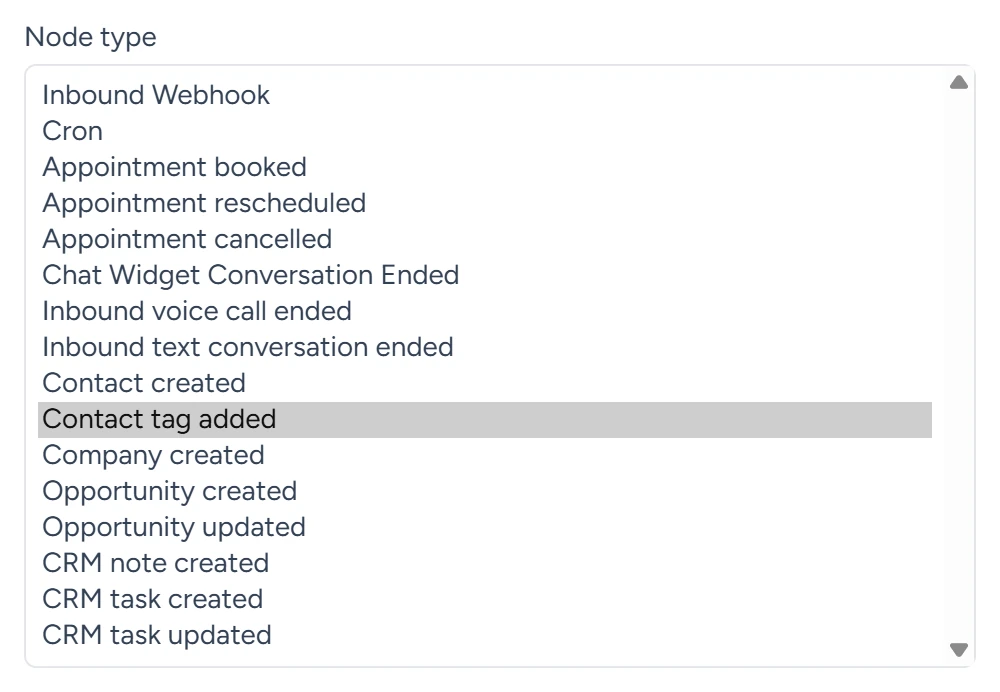
Workflows › Editor, October 2026
The triggers
| Trigger, as the app names it | Starts a run when |
|---|---|
| Chat Widget Conversation Ended | A website chat with the AI chatbot ends, about a minute after the visitor closes it |
| Inbound voice call ended | A call the AI receptionist answered ends and its summary is saved |
| Inbound text conversation ended | A customer stops texting your business number for 5 minutes, or texts "bye" |
| Appointment booked | Someone books through your booking page or with the chatbot in a website chat |
| Appointment rescheduled | That booking is moved |
| Appointment cancelled | That booking is cancelled |
| Contact created | A new CRM contact is saved |
| Contact tag added | You add a tag to an existing contact in the CRM |
| Company created, Opportunity created, Opportunity updated, CRM note created, CRM task created, CRM task updated | That CRM record is created or changed |
| Inbound Webhook | Another system sends a POST to the trigger's URL |
| Cron | Every N minutes, hours or days, in the workflow's time zone |
How runs start
- Only published workflows start runs. A draft ignores its trigger.
- Two published workflows with the same trigger each start their own run. Both send.
- To prevent loops, records a workflow step creates or changes start no other workflow.
- To start a workflow for contacts you already have, such as past customers or a CSV import, add a tag to them in CRM › Contacts. Each one starts any published workflow with Contact tag added.
- The trigger's details are saved with the run. Steps that run days later read the values from when it started. The one exception: when an appointment is rescheduled, its running Appointment booked runs get the new time.
If two published workflows share a trigger, the visitor gets the messages from both. Check the workflow menu for other Published workflows before you publish a new one.
If something goes wrong
| What you see | Why | What to do |
|---|---|---|
| The event happened, but no run appears under Executions | The workflow is a draft, or the change wasn't saved | Switch Status to Published and click Save workflow. |
| A Contact tag added workflow didn't start | The tag was on the contact when it was created, or came from an import or a workflow step | Add the tag to the existing contact in CRM › Contacts. |
| Steps read empty values | The trigger doesn't carry that variable | Check the trigger's reference page for the exact {{trigger.…}} names. |