
Import from a CSV
Bring contacts, companies, opportunities, notes and tasks in from a CSV file: map the columns, check the rows, import.
What this does
The importer in the Small Business Chatbot CRM reads a CSV file, lets you match each column to a field, checks every row, then imports the rows that pass. One row can hold a contact and their company, and the two are linked. Imports never send messages or start workflows. Triggers lists what does.
The file must be a .csv saved as UTF-8, up to 30 MB. In Excel, use Save As and choose CSV UTF-8.
Import a file
- Open the importer
In the app, open CRM › Contacts and click Import. The Companies, Tasks and Opportunities views have the same button. The page reads Import your contacts and companies.
- Upload the file
Drop the file on Drop your CSV here, or click it to choose one. The app lists each column with up to three sample values.
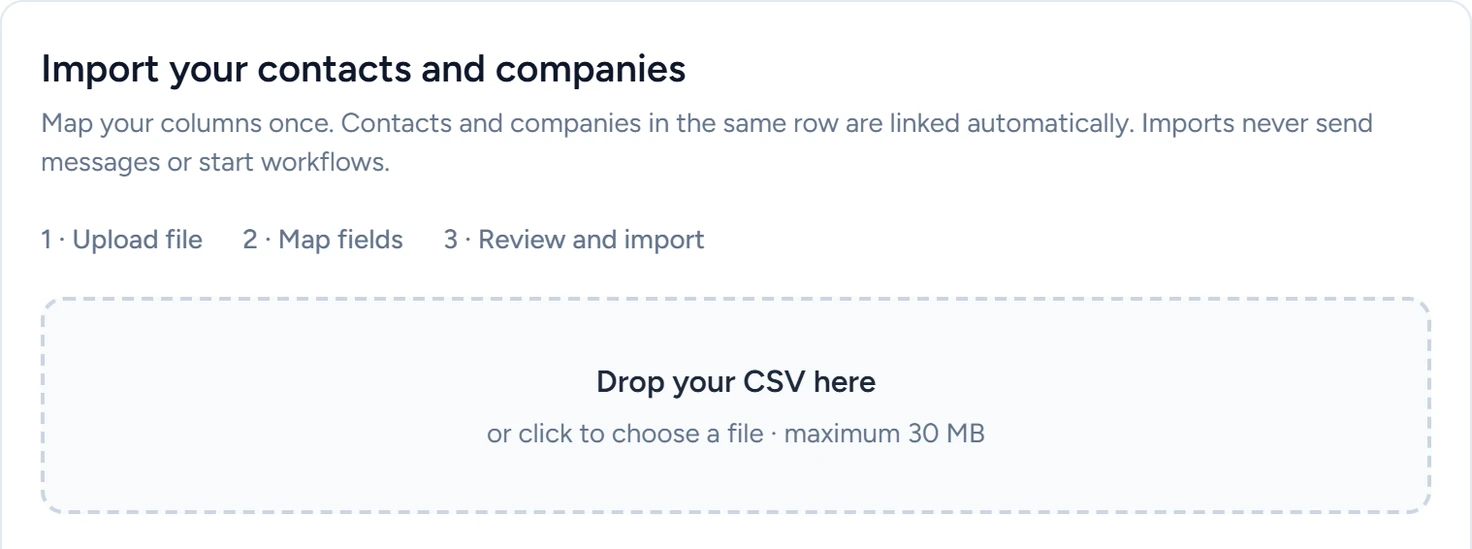
CRM › Contacts › Import, October 2026 - Map each column
In the table, each row is a column from your file. Pick its Record type, then its Field. Columns named like a field, such as Email, Phone or Company name, are matched for you. Pick Skip column for anything you don't want.
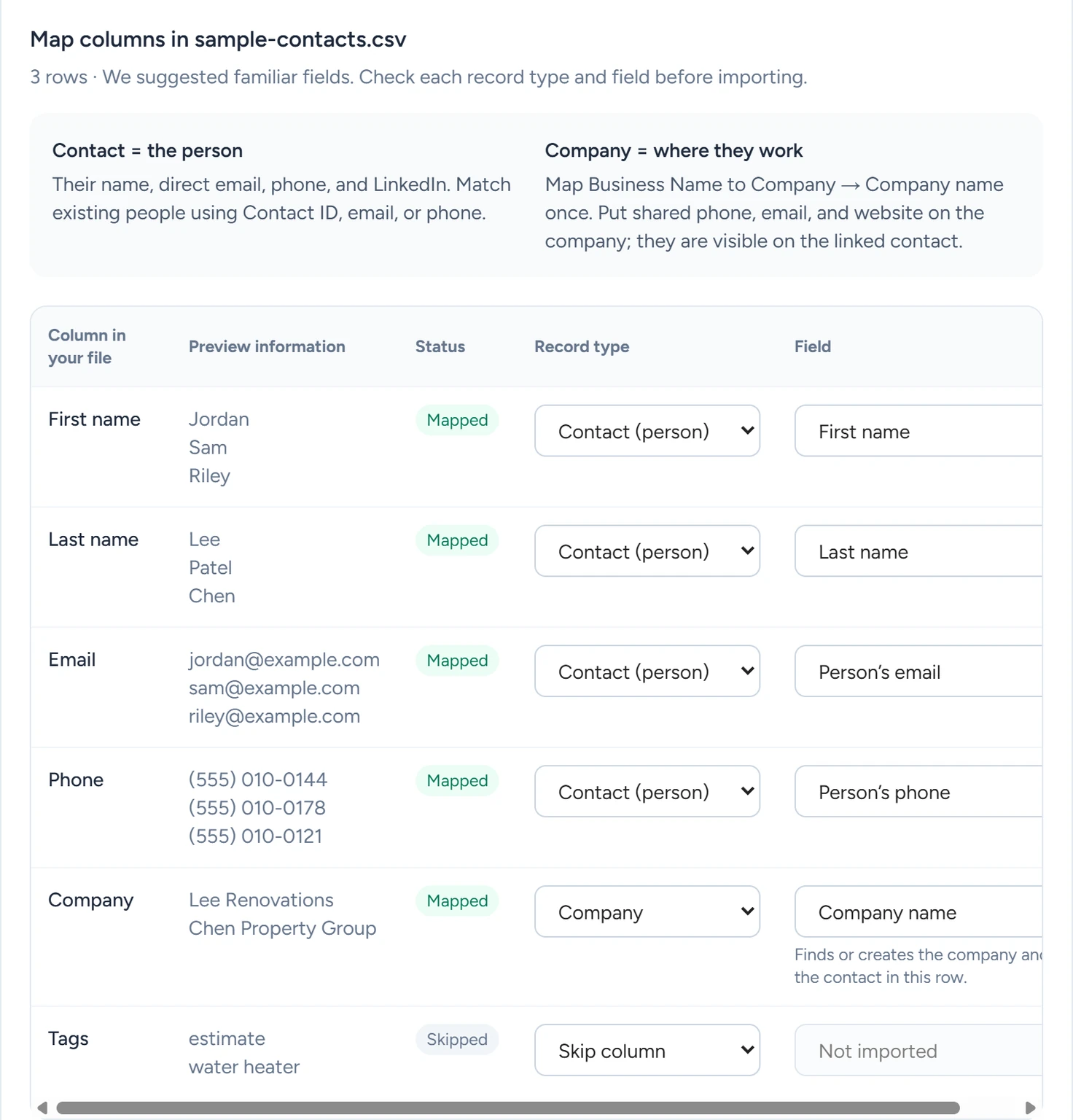
CRM › Contacts › Import, October 2026 - Choose how each record type is saved
Under the table, each record type you mapped has a mode: Create or update, Create only, Update only or Skip record type. Create or update is the default.
- Add tags if you want them
Under Tags for every imported contact, type any tags to put on every contact in the file.
- Read the check
Once a column is mapped, the app checks the file after each change. It shows N rows ready · M rows need attention and the reasons for up to ten rows. How your records will look shows the mapped values of up to three rows, record by record. For files over 50,000 rows, click Check file to run the check.
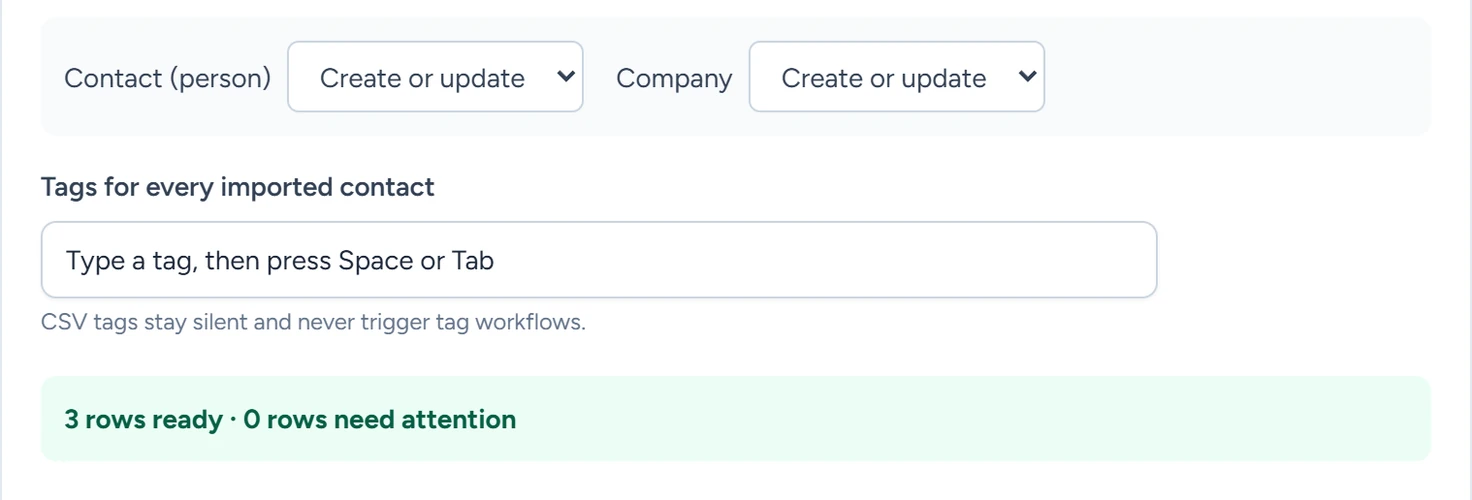
CRM › Contacts › Import, October 2026 - Import
Click Import. When some rows need attention, the button reads Import N valid rows, and those rows are left out. The result line counts successful and failed rows and ends with No workflows or messages were triggered.
Import history lists each file with its row count and status. Cancel stops an import that is still running. Download results gives a CSV of what happened to each row.
Record types and their fields
| Record type | Fields | Required |
|---|---|---|
| Contact (person) | Contact ID, First name, Last name, Full name, Person’s email, Person’s phone, Person’s website, Person’s LinkedIn, Contact status | At least one mapped value |
| Company | Company ID, Company name, Company phone, Company email, Company website, Industry, Company description | Company name |
| Opportunity | Opportunity ID, Opportunity name, Contact ID, Company ID, Pipeline ID, Stage ID, Opportunity status, Value | Opportunity name, Pipeline ID, Stage ID |
| Pipeline | Pipeline ID, Pipeline name | Pipeline name |
| Note | Note ID, Note text, Contact ID, Company ID, Opportunity ID | Note text |
| Task | Task ID, Task title, Task description, Contact ID, Company ID, Opportunity ID, Task type, Due date, Priority, Task status | Task title |
Tags come from Tags for every imported contact.
How rows match existing records
- A contact matches an existing contact by Contact ID, email or phone. With Create or update, a match is updated and anything else is created.
- Rows with the same company name link to the same company.
- To link each contact to their company, set your business-name column's Record type to Company and its Field to Company name.
- To import opportunities, you need the IDs of an existing pipeline and stage. An export of Pipelines and stages lists them.
If something goes wrong
| What you see | Why | What to do |
|---|---|---|
| CSV files must use UTF-8 encoding | The file was saved in another encoding. | Save it again as CSV UTF-8 and upload it. |
| Only .csv files are supported | The file is an Excel or other file. | Save it as a .csv file. |
| The CSV file is larger than the 30 MB import limit. | The file is too large. | Split it into smaller files. |
| More than one company has this name. Resolve the duplicate companies before importing. | Two companies in your CRM share that name. | Archive or rename one in Companies, then check the file again. |
| This contact already has a different company. | Automatic company linking is on, and the row's business name doesn't match the contact's current company. | Map Company name to change the link, or skip the company columns. |
| More than one contact matches this row. | The row's ID, email and phone point to different contacts. | Correct the ID, email or phone in that row. |