
Greeting and call rules
Set what the AI receptionist says first on a call, the rules it follows, and the answers and booking link it can give callers.
What this does
The AI answering service in Small Business Chatbot opens every call to your number with your greeting. It then follows three instructions you write in plain words: Goals and System Rules, Personality and Call Flow. It answers callers' questions from your Q&A, and from your website pages when you switch that on.
When it answers
The AI receptionist answers every call that reaches your number, day and night, in many languages, so calls after hours get answered too. Your carrier's forwarding decides which calls reach it: all of them, or only the ones you don't pick up. Phone number and voice covers forwarding.
Write the greeting and rules
Calls follow the fields on this page. Website chats and texts follow the chat widget's instructions in Goals, principles and ideal steps.
- Open the panel
In the app, open Voice Agent › Settings. The fields sit under the number card.
- Write the greeting
Under Greeting, type the first thing the voice agent says. It says it word for word at the start of every call.

Voice Agent › Settings, October 2026 - Write the rules
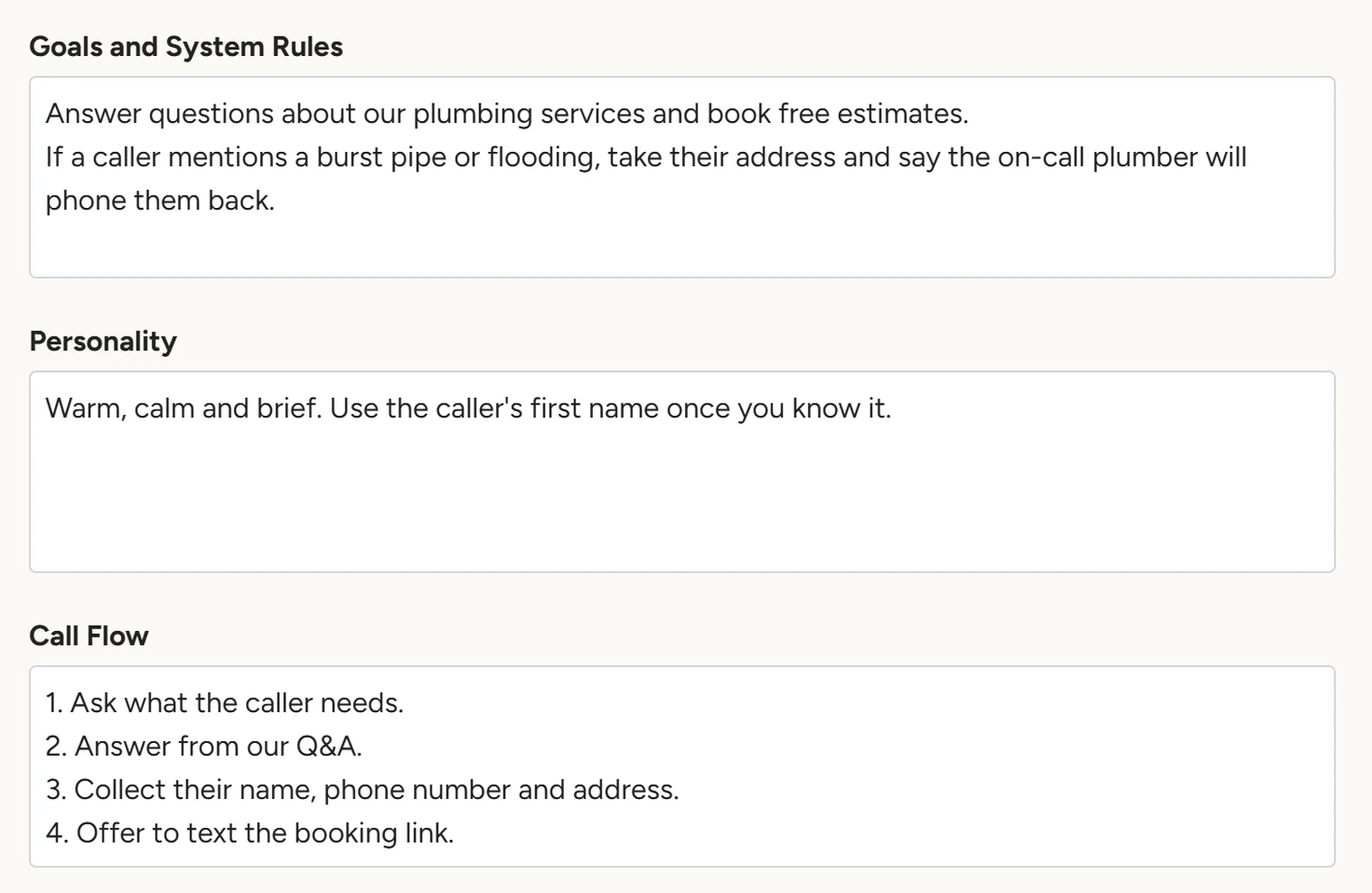
Fill in Goals and System Rules, Personality and Call Flow. Your emergency list and anything the voice agent must never say go in Goals and System Rules.
Voice Agent › Settings, October 2026 - Save
Click Save at the bottom of the panel. The app shows Voice agent saved! and the next call uses the new text.
Settings
Assistant Name, Company Name and AI Speaker are covered in Phone number and voice.
Business Email
An address the voice agent can give callers. When Call Flow is empty, it gives it to callers who want to sell to you or propose a partnership. Call summaries go to the addresses in Summary emails.
Greeting
The first sentence of every call. A new number starts with "Hi there! Thanks for calling. Who do I have the pleasure of speaking with today?", and an empty field uses the same sentence.
Goals and System Rules
What the voice agent is on the call to do, and the rules it keeps.
Personality
How it sounds: tone, pace and how formal it is.
Call Flow
The order of the call: what it asks first, what it collects and how it ends. When any of these three fields is empty, the voice agent falls back to a general default, so fill in all three.
Consultation Link
The link the voice agent texts when a caller agrees to get it. When you pick your number, it is filled with your booking page link if you have one. When your booking link changes, update this field.
Allow voice agent to send consultation link
Off by default. When on, the AI receptionist can offer to text the caller the Consultation Link during the call, and sends it only with the caller's OK. The text comes from your voice agent's number and reads, in English, "Here's your link to book a consultation with {Company Name}: {link}". Say in Call Flow when it should offer it.
Let the voice agent look up answers from your website pages
Off by default. When on, and a caller asks something outside your Q&A, the voice agent says a short line such as "Let me check that for you." and then searches the pages added under Chat Widget › Website. When nothing matches, it offers to pass the question to your team. Add your pages first, as training on your website explains.
Voice Q&A
Voice Agent › Q&A opens the same list as Chat Widget › Q&A, so an edit in either place changes both. Click Add Question, type the question and the answer, then click Save.
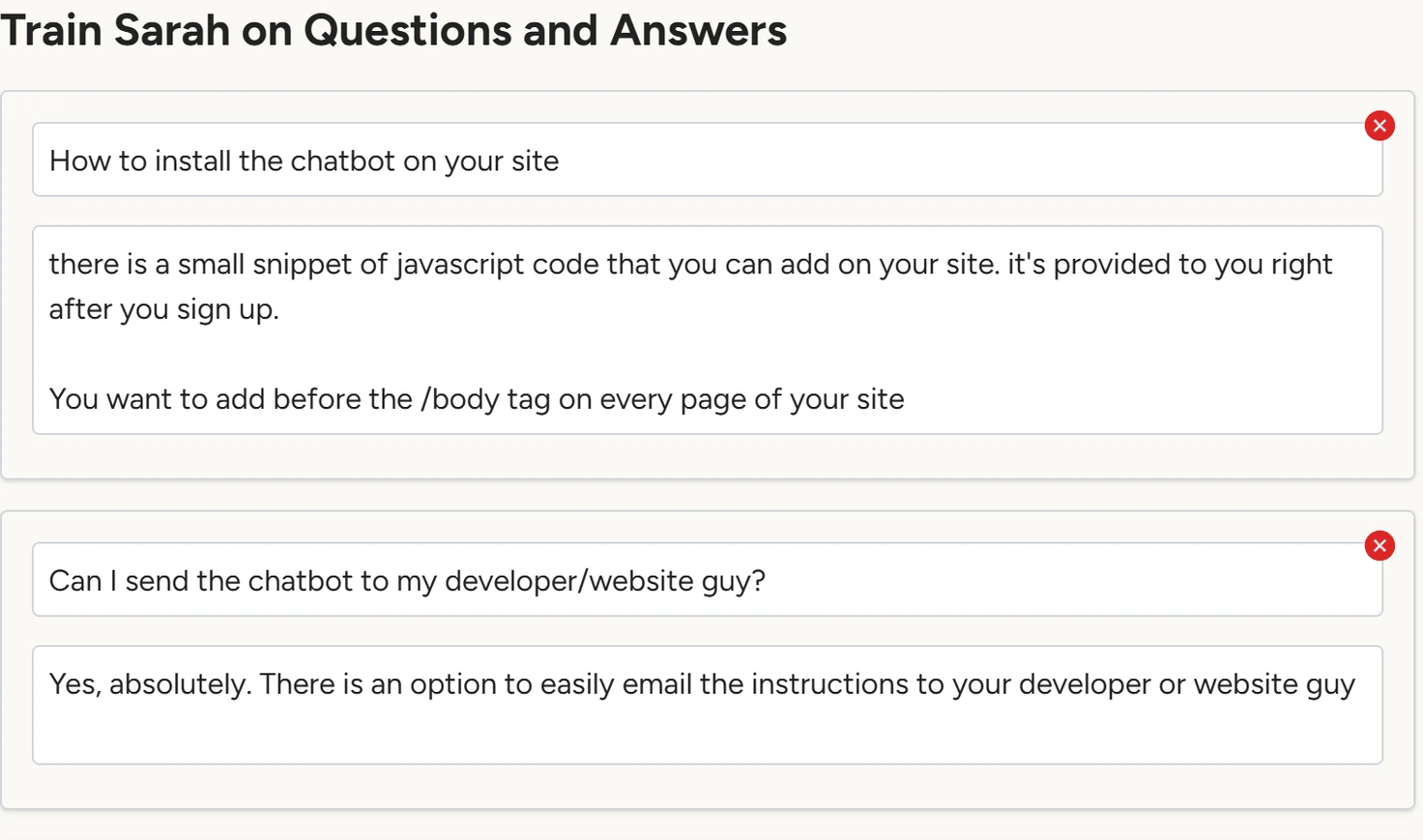
When a call starts, the voice agent loads up to 40 of your Q&A pairs. With the website lookup on, it also searches your website pages for questions outside them. Links are taken out of the answers for calls. To get a link to a caller, use the consultation link text.