
Opt-outs and STOP
See what happens when someone texts STOP, which contacts have opted out, and how to change a contact's opt-outs.
What this does
When someone texts STOP to your business number, Small Business Chatbot marks that phone number Do not text. From then on, workflow texts to it are blocked. You see and change each contact's opt-outs in CRM › Contacts, covered in Contacts.
What counts as STOP
A text counts only when the whole message is one of the words below. Capitals and punctuation are ignored. "Stop by the shop tomorrow" is an ordinary text.
| Customer texts | What the app does |
|---|---|
| STOP, STOP ALL, STOPALL, UNSUBSCRIBE, CANCEL, END or QUIT | Sets Do not text on every contact with that phone number, and records the number as opted out even if it has no contact yet. The texting agent stays quiet. |
| START, UNSTOP or RESUBSCRIBE | Clears Do not text for that number. The texting agent stays quiet. |
| YES | Clears Do not text for that number. The texting agent answers it like any other text. |
The confirmation the customer gets after STOP comes from Twilio, the texting provider the app uses. Like any reply, a STOP text also ends running workflows for that number that have Stop workflows when contact replies enabled with Text replies ticked.
See and change opt-outs
- Open the contact
In the app, open CRM › Contacts and click the contact's row.
- Find Communication preferences
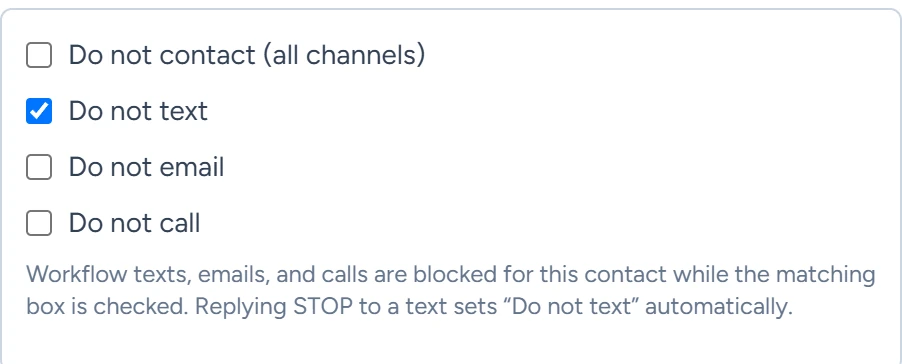
In the contact's details, go to Communication preferences. A checked box means that channel is blocked for this contact.
CRM › Contacts, October 2026 - Change a box and save
Check or clear a box, then click Save Contact.
Clear Do not text only when the person has asked for texts again. Texting START does it for them.
The four boxes
| Box | What it blocks |
|---|---|
| Do not contact (all channels) | Workflow texts, emails and AI calls to this contact. |
| Do not text | Workflow texts. STOP checks it, START clears it. |
| Do not email | Workflow emails. |
| Do not call | Workflow AI calls. Calls from this contact to your number are still answered. |
Only texts change Do not text on their own. Merging duplicates keeps every box that was checked on any of the merged contacts. Otherwise the boxes change only when you check or clear them.
When several contacts share a phone number, a check on any of them blocks workflow texts to that number.
Do not contact in a contact's Status list is a label for sorting. To block messages, use the boxes under Communication preferences.
If something goes wrong
| What you see | Why | What to do |
|---|---|---|
| A workflow's text step failed with "CRM destination has opted out of workflow sms delivery" | The number texted STOP, or a box that blocks texts is checked on a contact with that number. | Open the contact and check Communication preferences. Leave it as it is unless the person asked for texts again. |
| Do not text is checked but the person wants texts again | They texted STOP earlier. | Ask them to text START to your number, or clear the box and click Save Contact. |
| Texts to a number are blocked, but no contact with it has a box checked | The number texted STOP before it had a contact. | Ask the person to text START to your number. |