
Use your CRM
Add steps that add or remove a tag on the customer's contact, or create a task for your team, while the conversation is going on.
What this does
Two step types write to the CRM in Small Business Chatbot during a conversation: Change a tag and Create a task. They write only. The AI receptionist gets back a confirmation and, for a task, its due time, so it can tell the customer when someone will follow up.
- Where
- Conversation Actions › an action › Steps › Type
- Contact
- The CRM contact whose phone number matches the caller's or texter's number
- Counts as
- A change, so the limits on those runs apply
Which contact is changed
Change a tag works on the conversation's own contact: the one in CRM › Contacts whose phone number is the number the call or the text conversation comes from. The app finds the contact from that number, whatever the customer says. An action with this step runs on phone calls and in text messages, and its Website chat switch stays off. Create a task links the task to that contact when there is one, and creates the task either way, on all three channels.
Change a tag
Adds a tag to the contact, or removes it. In the action editor, under Steps, click Add step and change Type to Change a tag.
| Field | What it does |
|---|---|
| Change | Add or Remove. |
| Tag | The tag, typed as it should appear on the contact, such as Needs callback. Up to 60 characters. |
Adding a tag the contact didn't have starts every published workflow with the Contact tag added trigger, the same as adding it in the CRM.
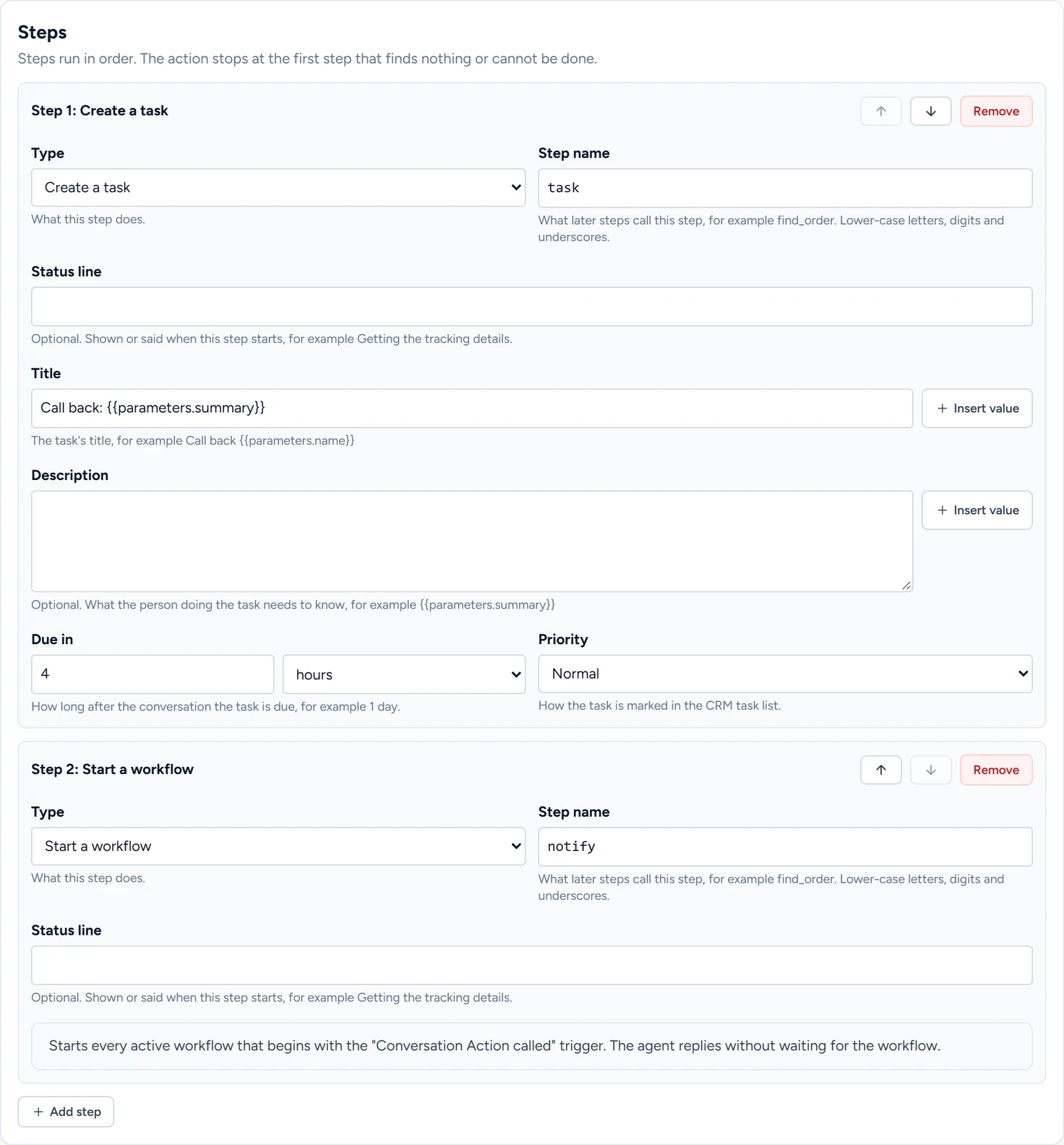
Create a task
Creates an open task. It shows in the Tasks tab of CRM › Contacts, covered in Notes and tasks.
| Field | What it does | Default |
|---|---|---|
| Title | The task's title. Takes values, such as Call back {{parameters.name}}. |
Empty |
| Description | Optional. What the person doing the task needs to know, such as {{parameters.summary}}. |
Empty |
| Due in | How long after the conversation the task is due, in hours or days, up to 60 days. | 1 day |
| Priority | Low, Normal or High. | Normal |
The description ends with a line that names the action and says the text came from a customer and is not verified.
The step keeps one field, due_at: the due time written out in your business's time zone, such as "Wednesday, November 18 at 3:30 PM". Tick it under What the agent gets back and write, in What to do with the result, "Tell the customer someone will call them back by that time."
Test a CRM step
- Name the contact to test with
In the action editor, under Test, fill in Contact's phone number or Contact's email with a contact from your CRM.
- Run it
Click Run for real. The step shows Done with a note such as "The tag was changed on the contact."
- Check the CRM
Open CRM › Contacts and find the contact, or open the Tasks tab for a task.
A test saves the CRM changes for real. Use a contact of your own.
If something goes wrong
| What you see | Why | What to do |
|---|---|---|
| This conversation has no contact yet, so there is nothing to tag. in a test | No contact matches the phone number or email given for the test. In a conversation, the same happens when no contact has the customer's number. | Test with a contact that exists. For customers with no contact yet, use Create a task. |
| Step 1: type the tag. It must be fixed text of up to 60 characters. | Tag is empty, too long or holds a value in curly brackets. | Type the tag itself. |
| Step 1: the task must be due between now and 60 days from the conversation. | Due in is 0, empty or more than 60 days. | Set a time within 60 days. |
| Step 1: give the task a title. | Title is empty. | Type a title. |