
Conversation Actions
Set up actions the AI receptionist runs during a chat, a text conversation or a call, such as an order lookup, a call transfer or a new task.
What this does
A Conversation Action is something the AI receptionist in Small Business Chatbot does during a website chat, a text conversation or a phone call, and gets an answer back from. You set it up once: when to use it, the details to collect from the customer, and a fixed list of steps. The AI receptionist decides when to run it from your description, fills in the details, and uses the values that come back in its reply.
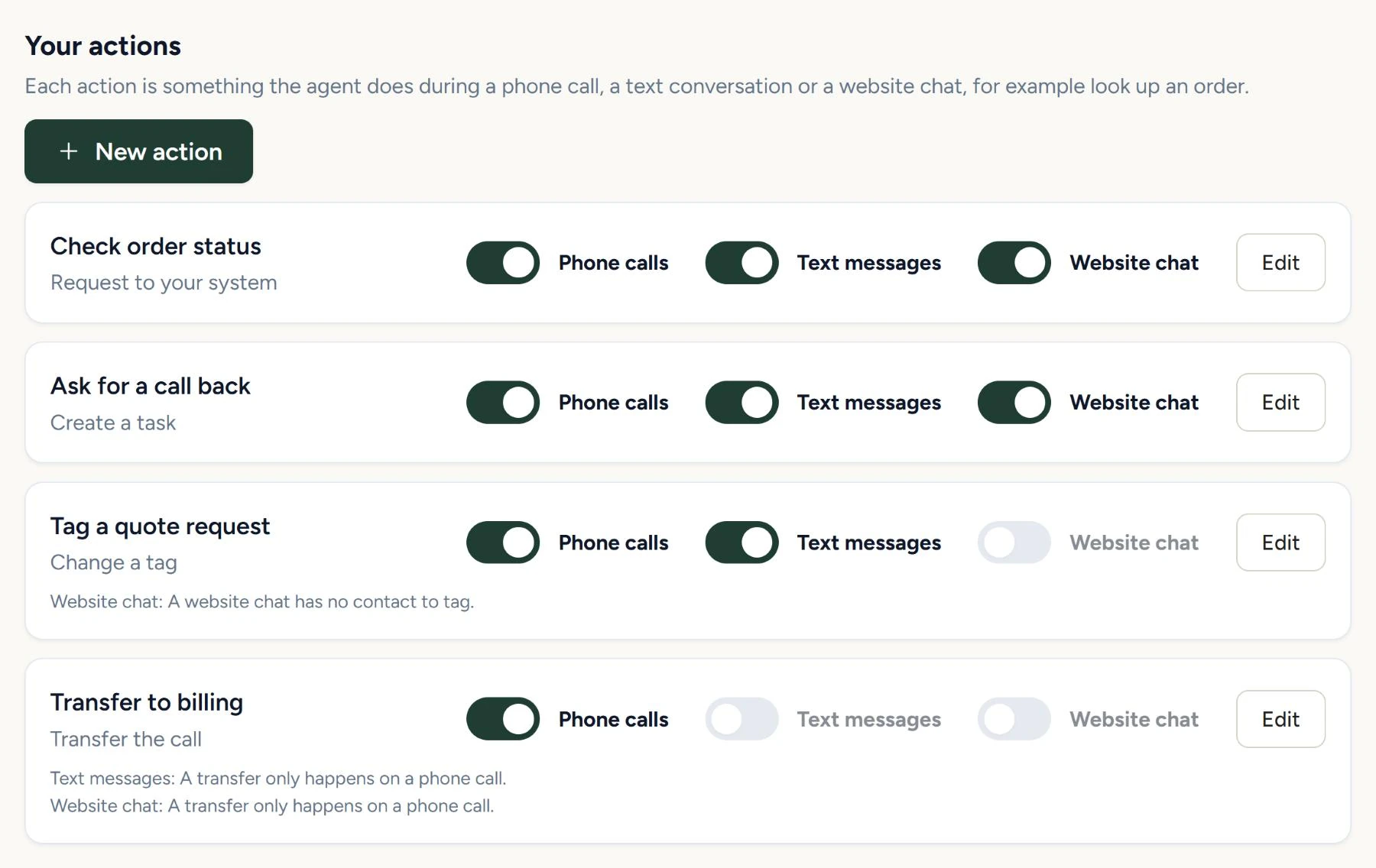
Four examples: check a postal code against your service area, look up an order in any tool with a public API, transfer the caller to billing, create a task for your team.
- Where
- Conversation Actions, in the lower part of the app's sidebar
- Works in
- Website chats, text conversations and phone calls
- Each action
- 1 to 10 steps, run in order
The page
Conversation Actions has two sections.
| Section | What it holds |
|---|---|
| Built in | Website Research, which searches your own website during a chat. |
| Your actions | One card per action. New action opens the editor, covered in Create an action. |
CSV files your actions look values up in are uploaded and managed from the step that reads them, covered in Lookup tables.
Set up your first action
- Open the page
In the app, open Conversation Actions, in the lower part of the sidebar.
- Create the action
Under Your actions, click New action and fill in the editor. Create an action covers each field.
- Choose where it runs
In the editor under Where it runs, or on the action's card, set the Phone calls, Text messages and Website chat switches.
- Try it
In Playground, ask for what the action does. For a phone action, call your number.
Switch an action on for calls, texts and website chat
Each card under Your actions shows the action's name, its steps in one line, such as "Look up in a table, then start a workflow", three switches and Edit.
- Phone calls offers the action on calls.
- Text messages offers it in replies to text messages.
- Website chat offers it in the chat widget on your website.
A new action starts with all three on. A change takes effect on the customer's next message or on the next call.
Two step types set a switch for you:
| Step in the action | Switches that stay off | What the card says |
|---|---|---|
| Transfer the call | Text messages and Website chat | "Text messages: A transfer only happens on a phone call." and "Website chat: A transfer only happens on a phone call." |
| Change a tag | Website chat | "Website chat: A website chat has no contact to tag." |
Step types
| Step, as the app names it | What it does |
|---|---|
| Look up in a table | Finds one row of an uploaded CSV and returns the columns you tick. See Lookup tables. |
| Send an API request | Calls any tool with a public API during the conversation: one GET, POST, PUT, PATCH or DELETE request, with a saved credential or none, and keeps the fields you name from the reply. See Connect any API. |
| Transfer the call | Transfers the phone call to a number you set. See Transfer a call. |
| Start a workflow | Starts your workflows that begin with Conversation Action called. See Start a workflow. |
| Change a tag | Adds or removes a tag on that contact. See Use your CRM. |
| Create a task | Creates a CRM task for your team. See Use your CRM. |
Two more guides cover jobs that span steps: Verify the customer before an action answers, and Actions across two messages for look up, confirm, then act.
What the customer sees or hears
Each action has a Status line, such as "Checking that order for you now.", and each step can have its own.
| Channel | While the action runs |
|---|---|
| Website chat | The status line shows under the last message with moving dots. It changes in place when a step with its own line starts. After 10 seconds on the same line, the widget adds "Still working on it." The answer replaces the line. |
| Phone call | The AI receptionist says a short line such as your status line, then runs the action. The caller is still heard while it runs. When the call has been quiet for 4 seconds, it says the current step's status line, or "Still checking, one moment." It says up to three of these per action. |
| Text conversation | The reply arrives when the action finishes. No status line is sent. |
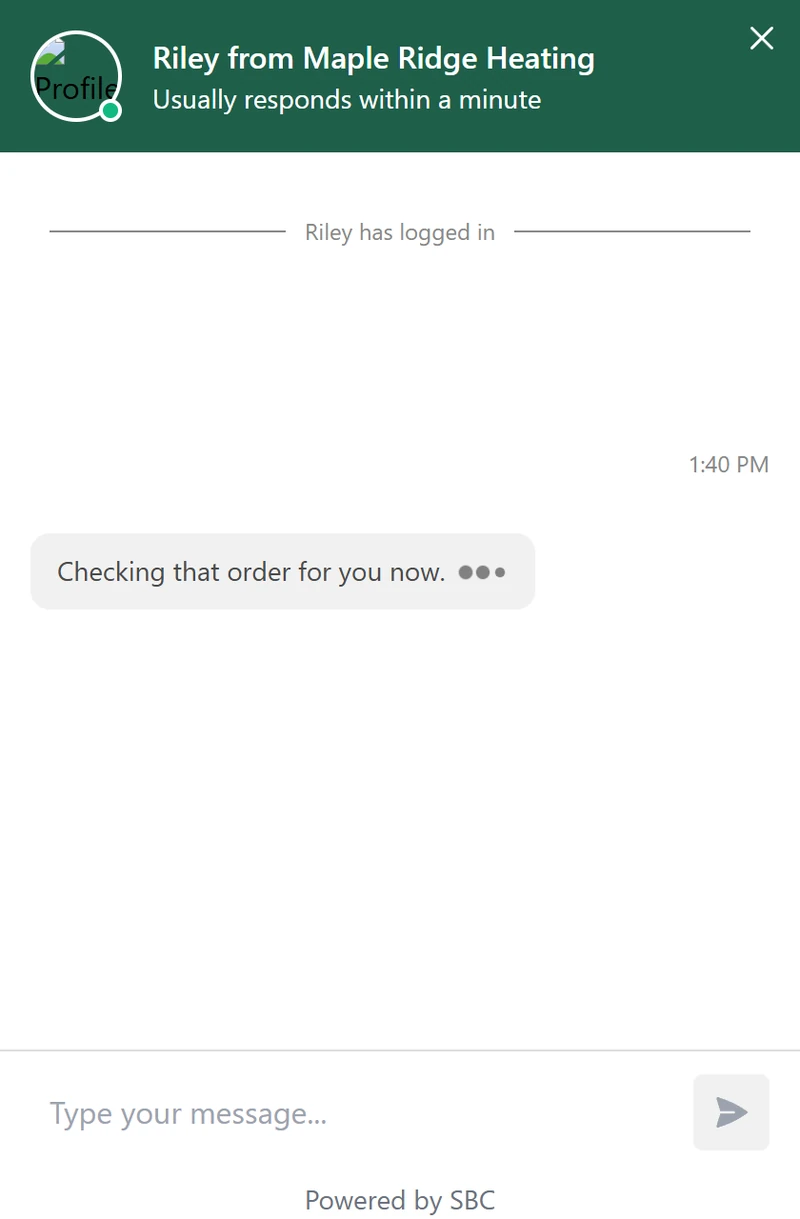
An action with an empty Status line uses "One moment while I check that." An action with an Only answer if row shows or says only its own status line, and leaves its steps' lines out.
When an action finds nothing or cannot run
The AI receptionist gets a fixed instruction for each case.
| What happened | What the AI receptionist does |
|---|---|
| Nothing matched | Tells the customer it could not find a match with those details and asks them to check them. |
| A step could not be done, or the action ran out of time | Says it cannot do this at the moment and offers to take the customer's details so your team can follow up. |
| A detail is missing or in the wrong form | Asks the customer for it again, then runs the action again. |
| A limit was reached | Tells the customer your team will follow up. |
Limits
| Limit | Value |
|---|---|
| Steps in one action | 10 |
| Parameters in one action | 12 |
| Actions switched on for phone calls | 10 |
| Actions switched on for text messages | 10 |
| Actions switched on for website chat | 10 |
| Actions in a workspace | 40 |
| Time for one step | 20 seconds |
| Time for a whole action | 60 seconds in a website chat, 30 on a call, 6 in a text conversation |
| Runs of actions that change something | 1 per customer message, 3 per conversation in 24 hours, 150 per workspace in 24 hours |
| "Not found" answers from one action in one conversation | 3 when the action has a Send an API request step or an Only answer if row, 10 for a plain lookup table |
| Values returned to the AI receptionist | 2,000 characters on a call, 4,000 in chat and text |
An action changes something when it has a request with a method other than GET, a CRM step or a Start a workflow step.
See which actions ran
In Conversations, an open conversation lists the actions that ran under Conversation Actions. Each one shows how it ended: "ran", "not found", "could not run", "limit reached", "a detail was missing" or "already running". The Conversations view covers the rest of that panel.
If something goes wrong
| What you see | Why | What to do |
|---|---|---|
| Part of this page could not be loaded. Refresh to try again. | The actions and lookup tables did not load. | Click the refresh icon beside Built in. |
| 10 actions are already switched on for website chat. Switch one off first. | Ten actions already have Website chat on. For the other two switches, the message says phone calls or text messages. | Switch another action off, then switch this one on. |
| The switch could not be changed. | The change did not save. | Flip the switch again. |
| No active workflow is listening for this action. Add the "Conversation Action called" trigger to a workflow and switch the workflow on. | The action has a Start a workflow step, and no published workflow uses that trigger. | Follow Start a workflow. |
| The AI receptionist doesn't run an action | Its switch for that channel is off, or When to use it doesn't match what customers ask. | Turn the switch on. Rewrite When to use it in the words your customers use, then try it in Playground. |