
Start a workflow
Add a Start a workflow step to an action, and build the workflow that sends the text or email after the AI receptionist has replied.
What this does
A Start a workflow step starts your workflows while the conversation carries on. The AI receptionist in Small Business Chatbot replies without waiting for the workflow. Use it for work that follows the reply: a text to you that a call is being transferred, an email to your team with a new ticket, a confirmation text to the caller.
- Where
- Conversation Actions › an action › Steps › Type: Start a workflow
- Starts
- Every published workflow whose trigger is Conversation Action called
- In one action
- One such step, anywhere in the list
- Counts as
- A change, so the limits on those runs apply
Add the step to an action
- Open the action
In the app, open Conversation Actions and click Edit on the action's card.
- Add the step
Under Steps, click Add step and change Type to Start a workflow. The step has no settings of its own.
- Place it
Move the step with the arrow buttons. It starts the workflows when the action reaches it, with the values of the steps before it.
- Save
Click Save. Until a published workflow uses the trigger, the card shows "No active workflow is listening for this action."
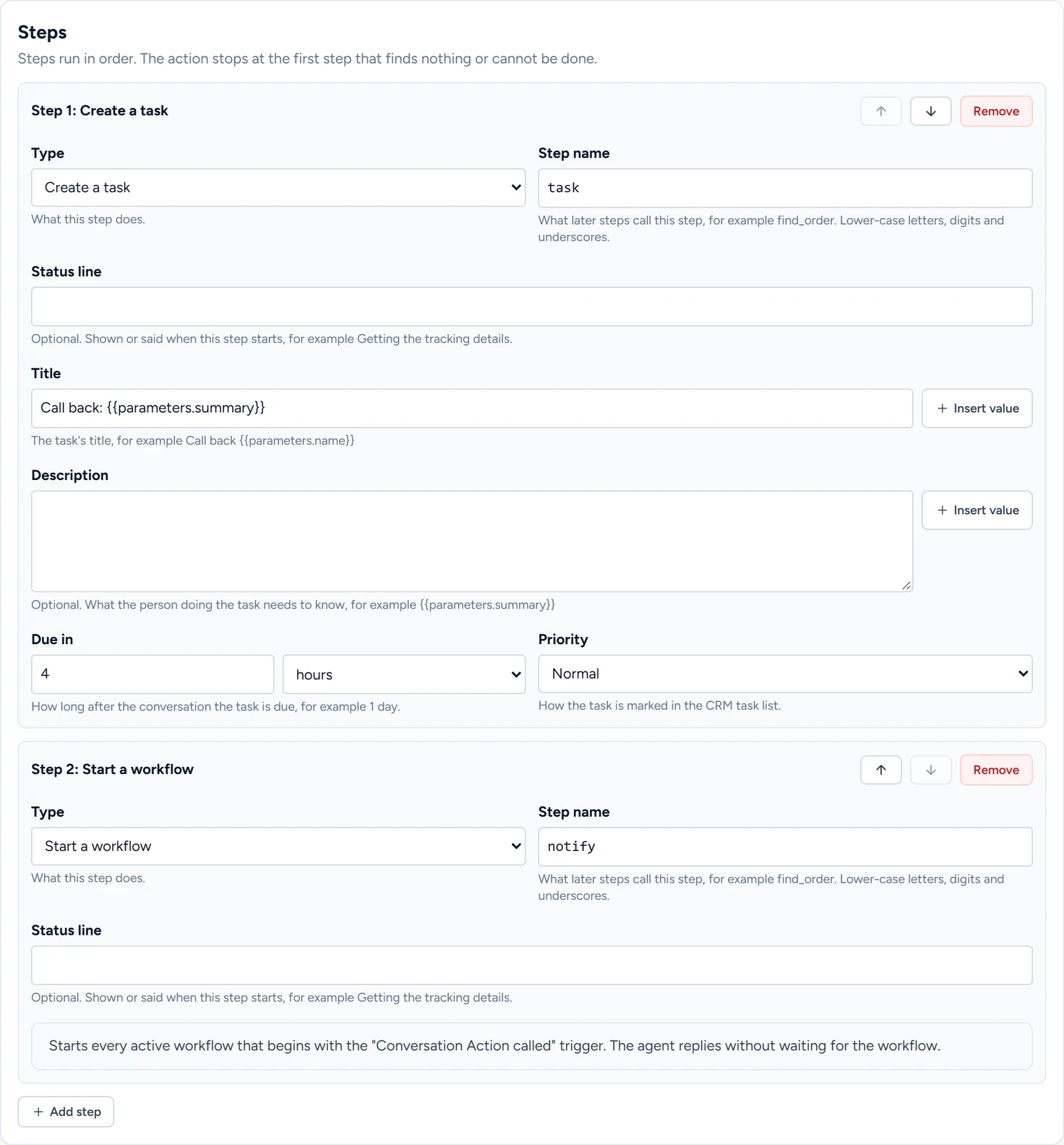
Where the step can sit
| Place | When the workflows start | What they get |
|---|---|---|
| First | As soon as the action runs | The parameters |
| After a lookup or a request | Only when that step found its record and passed its Only answer if rows | The parameters and the fields that step kept |
| Last, or before a Transfer the call step | Only when every step before it succeeded | The parameters and every kept field |
Build the workflow
- Pick the trigger
In the app, open Workflows, open a workflow and click the Start Event card. Pick Conversation Action called.
- Choose the action
Under Action, keep All Conversation Actions with a workflow step, or pick one action by name to start the workflow for that action only.
- Add the steps
Add the steps the workflow runs, such as Send Text to
{{trigger.contact.phone}}. Steps covers each one. - Publish
Switch Status to Published and click Save workflow.
- Test it
In the action editor, under Test, fill in Contact's phone number and click Run for real. The workflow starts, and its run shows under Executions.
A workflow's texts, emails and calls go out only while its switches in Outbound switches and limits are on.
What the workflow receives
| Group | What it holds | Where it comes from |
|---|---|---|
trigger.action |
The action's name and id | The action |
trigger.channel |
chat, text or phone |
The conversation |
trigger.contact |
The phone number of the caller or of the person texting. It is empty for a website chat. | The phone carrier |
trigger.parameters |
The details the AI receptionist collected | The customer, as said or typed |
trigger.steps |
The fields each earlier step kept | Your lookup table or your system |
Send texts and emails to contact. A phone number or an email under parameters is whatever the customer said, so use parameters for the content of a message and contact for where it goes. Conversation Action called lists every field.
If something goes wrong
| What you see | Why | What to do |
|---|---|---|
| No active workflow is listening for this action. Add the "Conversation Action called" trigger to a workflow and switch the workflow on. | No published workflow has the trigger set to all actions or to this action. | Publish the workflow, then reload Conversation Actions. |
| An action can have one "Start a workflow" step. | The action has two of these steps. | Remove one. One step can start several workflows. |
| The action this workflow listened for was deleted. Choose another action, or all actions. | The trigger's Action was an action that has since been deleted. | Pick another option under Action and click Save workflow. |
| The action ran, and no run shows under Executions | The action stopped at a step before this one, or the workflow is a draft. | Run Test in the action editor to see which step stopped it, and check the workflow's Status. |