
Lookup tables
Upload a CSV, pick its key column, and let an action find the matching row, such as a service area by postal code or a price by model.
What this does
A lookup table is a CSV file a Conversation Action looks a value up in. A Look up in a table step takes a value from the conversation, finds the one row whose key matches it, and returns the columns you tick. Small Business Chatbot returns that exact row or nothing, so it suits service areas by postal code, prices by model, stock by SKU and the rep for each territory.
You upload a table from the step that reads it. After that, the table is in the Table list of every action's lookup steps, so a second action can use the same file.
- Where
- Conversation Actions › an action › Steps › Look up in a table
- File
- A CSV of up to 5 MB, 20,000 rows and 30 columns
- Tables in a workspace
- Up to 10
Prepare the CSV
- Put the column names in the first row. Each column needs a name, and each name appears once.
- Choose one column as the key, such as
postal_code. Every row needs a key of up to 100 letters and digits, and each key appears once. - Save the file as CSV in UTF-8.
postal_code,in_service_area,travel_fee
K1A,yes,0
K2P,yes,25
K0A,no,
Upload a table
- Open the upload
In the action editor, add or open a Look up in a table step. Under Table, pick Upload CSV. Upload a lookup table opens.
- Choose the file
Click Choose a CSV file and pick your file. The app shows its row and column counts and its first 10 rows.
- Name it and pick the key column
Name is filled in from the file name. Under Key column, pick the column a value is looked up in.
- Pick how keys match
Under How keys match, pick Exact or Starts with.
- Save
Click Save table. The step selects the new table and shows its row count, last upload and key column.
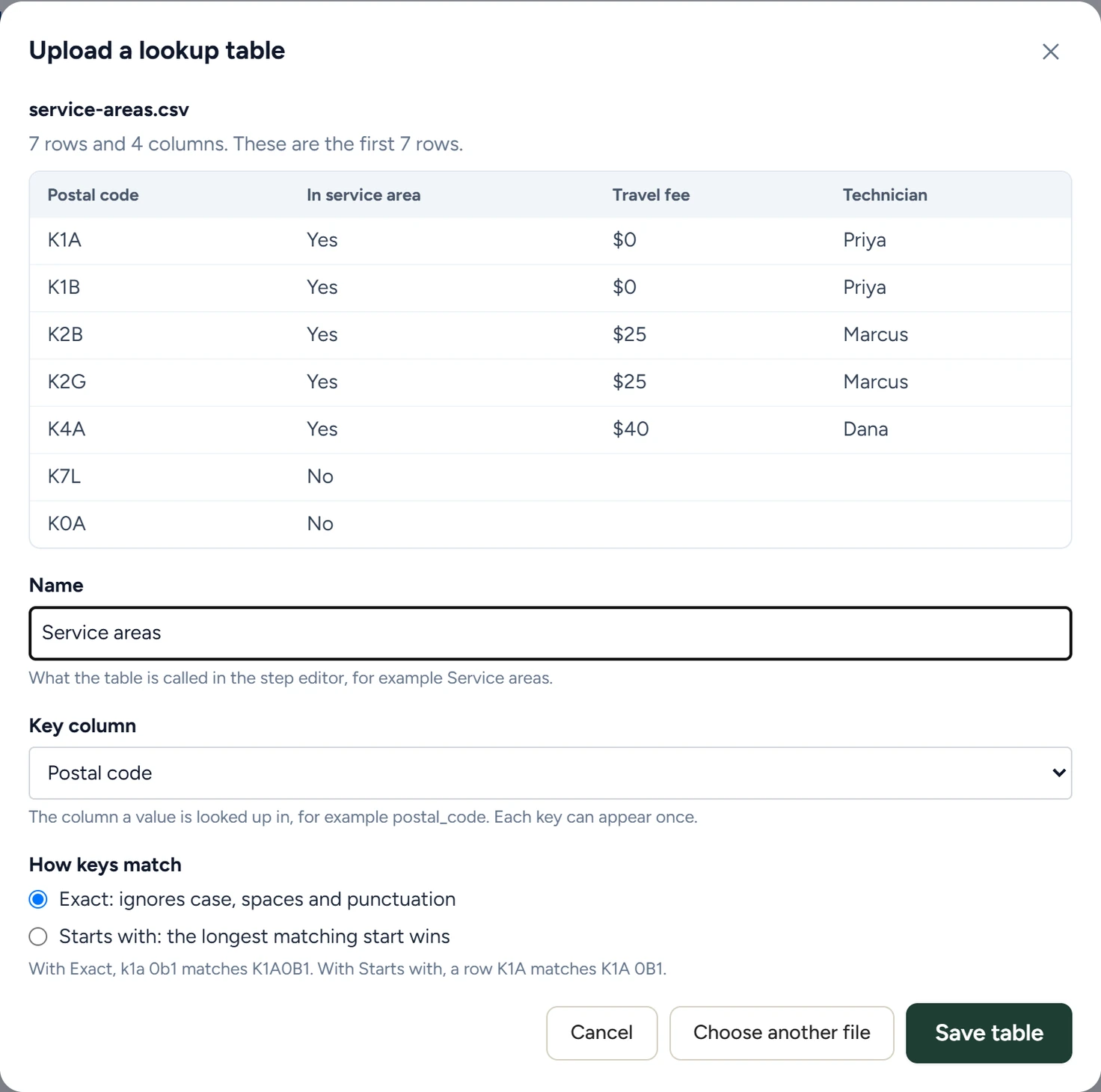
How keys match
| Option | How it matches | Example |
|---|---|---|
| Exact: ignores case, spaces and punctuation | The customer's value and the row's key are the same once case, spaces and punctuation are ignored. | A row K1A0B1 matches k1a 0b1 and K1A-0B1. |
| Starts with: the longest matching start wins | The row's key is the start of the customer's value. | A row K1A matches K1A 0B1. When rows K1 and K1A both match, K1A is used. |
Use a table in a step
- Add the step
In the action editor, under Steps, click Add step. A new step starts as Look up in a table.
- Choose the table
Under Table, pick the table. The list holds every table in the workspace. Upload CSV in the same list uploads a new one and selects it.
- Set the value to look up
In Value to look up, click Insert value and pick the parameter, such as
{{parameters.postal_code}}. - Tick the columns
Under Columns to return, tick the columns of the matching row that later steps or the AI receptionist use.
- Pass them on
Under What the agent gets back, tick the values for the reply.
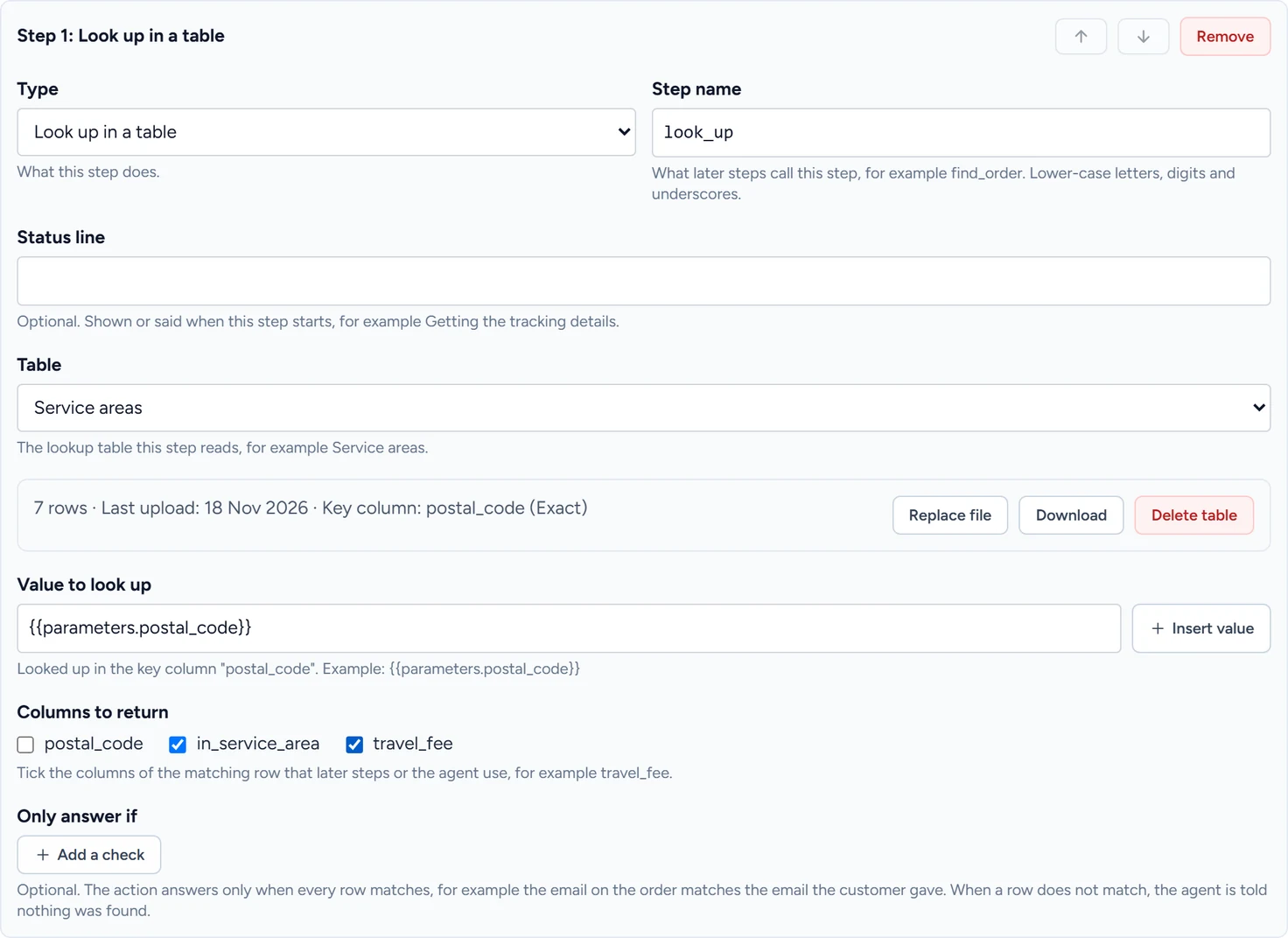
Later steps read a ticked column by the step's name and the column's name in lower case with underscores. The column "Travel fee ($)" of a step named look_up is {{steps.look_up.travel_fee}}. Insert value lists them.
When no row matches, the AI receptionist tells the customer it could not find a match and asks them to check the detail. After 10 such answers from one action in one conversation, it says it cannot check at the moment and offers to take their details. An action with an Only answer if row stops after 3, as Verify the customer explains.
Replace, download or delete a table
The buttons are under Table in the step, once a table is chosen. When other actions use the same table, the step says so, for example "Also used by Quote travel fee".
| Button | What it does |
|---|---|
| Replace file | Replaces the table's rows with a new file. The table keeps its key column and how keys match, and every action that uses it reads the new file. The step shows "Replaced with" and the new row count. |
| Download | Saves the current rows as a CSV named after the table, with your column names and row order. To change a row, download the file, edit it and replace the file. |
| Delete table | Shown when no saved action uses the table. Asks you to confirm, then deletes the table and its rows, and clears it from the step. |
If something goes wrong
| What you see | Why | What to do |
|---|---|---|
| The file is larger than 5 MB. Lookup tables can be up to 5 MB. | The file is over the size limit. | Remove columns your actions don't use, or split the file. |
| The file has 25,412 rows. Lookup tables can have up to 20,000. | The file has too many rows. The message for columns reads the same way, with a limit of 30. | Shorten the file. |
| 2 keys in "postal_code" appear more than once. Each key can appear once. The first are: "K1A 0B1" (rows 4 and 19); "K2P 1L4" (rows 7 and 30). | Two rows have the same key once case, spaces and punctuation are ignored. | Remove or merge the rows it names, then upload again. |
| 3 rows have nothing in the key column "postal_code". The first are rows 12, 40, 41. | Those rows have an empty key. | Fill in or delete the rows, then upload again. |
| 2 rows have a key in "postal_code" longer than 100 letters and digits. The first are rows 8, 15. | Those keys are too long once spaces and punctuation are left out. | Pick a shorter column as the key, or shorten the keys. |
| CSV files must use UTF-8 encoding. | The file was saved in another encoding. | Save it again as CSV UTF-8. |
| The file could not be read as a CSV. Save it as CSV from your spreadsheet and upload it again. | The file is in another format, or a quoted cell is left open. | Export the sheet as CSV again. |
| The new file has no "travel_fee" column, which the action "Check service area" uses. Add the column to the file, or change the action first. | A replacement is missing a column an action returns. | Add the column, or untick it in the action first. |
| The key column "postal_code" is not in the file. | A replacement has no column with the table's key column name. | Name the column as it was, then upload again. |
| Another file replaced this table at the same time. Reload the page to see the current file. | Two files were uploaded for the same table at once, from two tabs or two people. The newer one was kept. | Reload the page and check the row count. Replace the file again if the one kept is not yours. |
| A workspace can have up to 10 lookup tables. Delete one first. | The workspace has 10 tables. | In a lookup step, pick a table no saved action uses and click Delete table. |
| Step 1: tick at least one column to return. | The step has no column ticked under Columns to return. | Tick the columns the action needs, then save. |