
Create an action
Build an action in the editor: name it, say when to use it, list the details to collect, add its steps, pick what comes back, test it and save.
What this does
The action editor in Small Business Chatbot holds everything one Conversation Action is: when the AI receptionist uses it, the details it collects, the steps it runs and the values it gets back. The steps, and where they send data, are fixed when you save. During a conversation the AI receptionist supplies the parameter values and nothing else.
- Where
- Conversation Actions › Your actions › New action, or Edit on a card
- Top to bottom
- Name, When to use it, Status line, Draft from description, Parameters, Steps, What the agent gets back, Test
- Saved
- When you click Save
Build an action
- Open the editor
In the app, open Conversation Actions and click New action under Your actions. To change an action, click Edit on its card.
- Name it and say when to use it
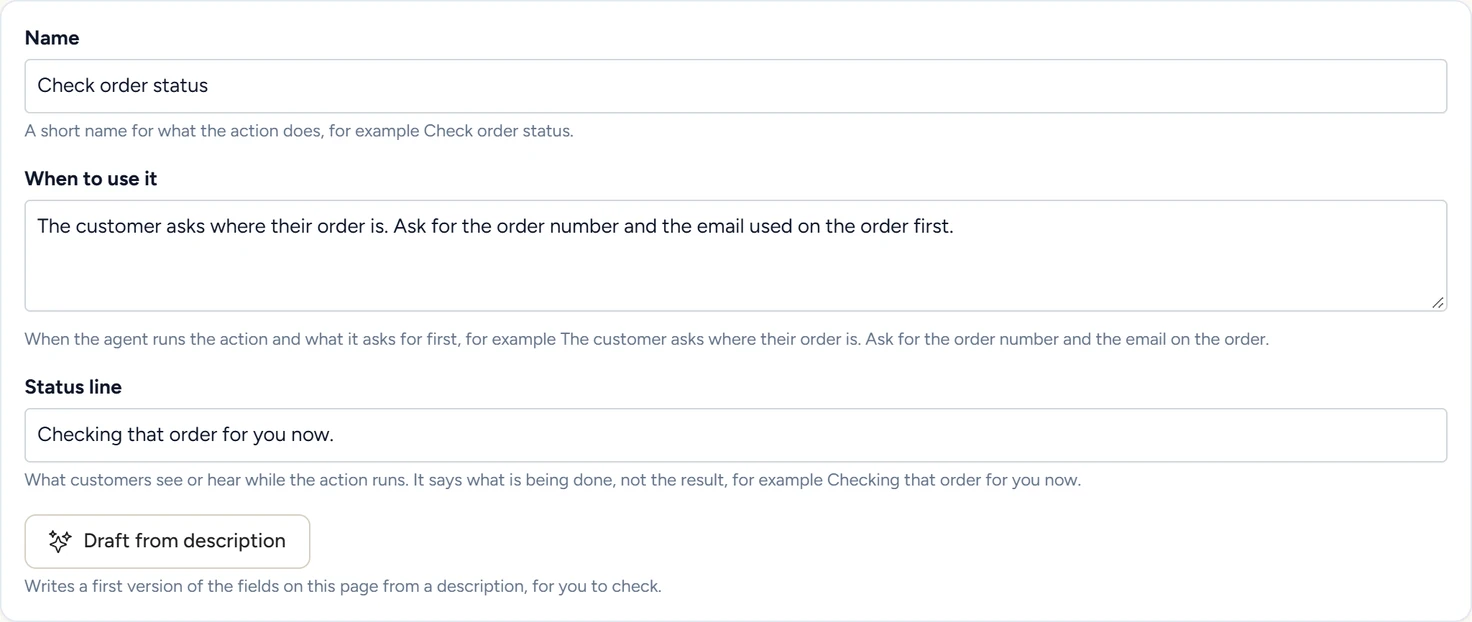
Fill in Name, such as Check order status. In When to use it, write when the AI receptionist runs the action and what it asks for first.
- Write the status line
In Status line, type what customers see or hear while the action runs, such as "Checking that order for you now."
- Add parameters
Under Parameters, click Add parameter for each detail the action needs from the customer.
- Add steps
Under Steps, click Add step, pick the step's Type and fill in its settings.
- Pick what comes back
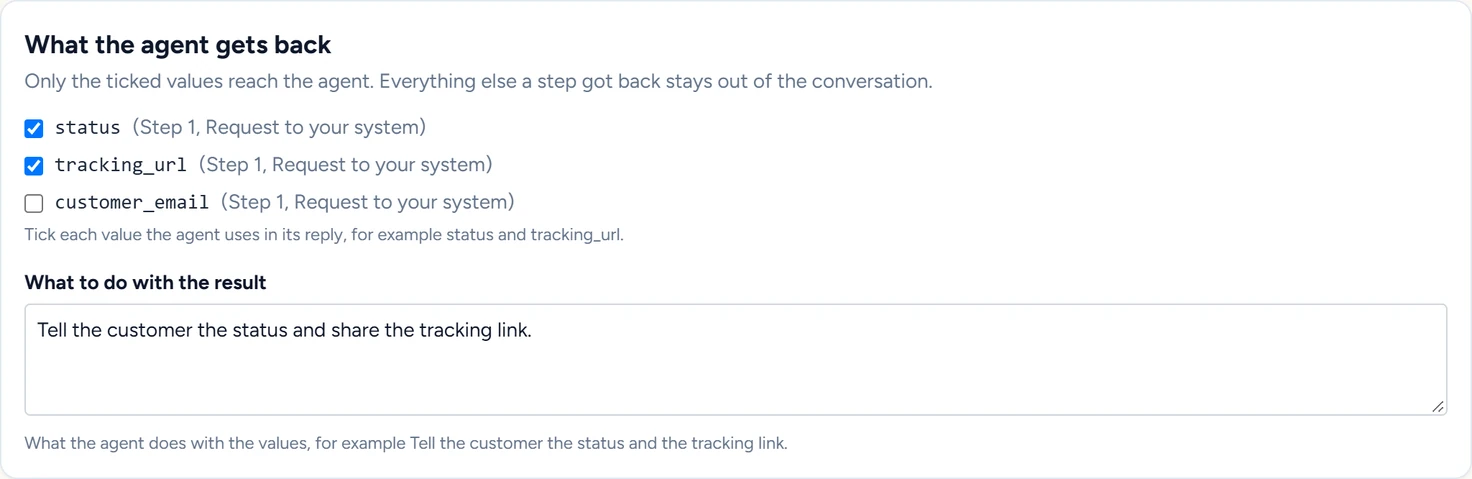
Under What the agent gets back, tick the values the AI receptionist uses in its reply, and fill in What to do with the result.
- Test and save
Under Test, enter sample values and click Run. When the result is right, click Save. The action shows as a card under Your actions.
Settings
Name
Up to 80 characters. It names the action on its card and in the workflow trigger's Action list.
When to use it
The AI receptionist decides from this text, so say what the customer asks for and which details to collect first. The app's example: "The customer asks where their order is. Ask for the order number and the email on the order." Up to 2,000 characters.
Status line
Fixed text of up to 120 characters that says what is being done, such as "Checking that order for you now." What the customer sees or hears shows where it appears on each channel.
Draft from description
Click Draft from description, fill in What the action should do and click Write draft. The draft fills in the name, when to use it, the status line, the parameters and what to do with the result, for you to check. Paste a curl command or a piece of API documentation into Sample request or API documentation, and the draft adds a Send an API request step when the request's host is written in that sample. A key in the sample you paste is left out of the draft. Save it as a credential. The draft is saved only when you click Save.
Parameters
One row for each detail the AI receptionist collects from the customer.
| Field | What it does |
|---|---|
| Name | What the steps call the value, in lower-case letters, digits and underscores, such as order_number. |
| Type | Text, Number or Yes or no. |
| Description | What the AI receptionist asks the customer for. |
| Allowed values | For Text. A list separated by commas, such as billing, sales, support. |
| Advanced › Pattern | For Text. A regular expression the whole value must match, such as ^[0-9]{6,12}$ for 6 to 12 digits. It is checked against values of up to 200 characters. |
| Required. The agent asks for it before it runs the action. | Ticked on a new parameter. |
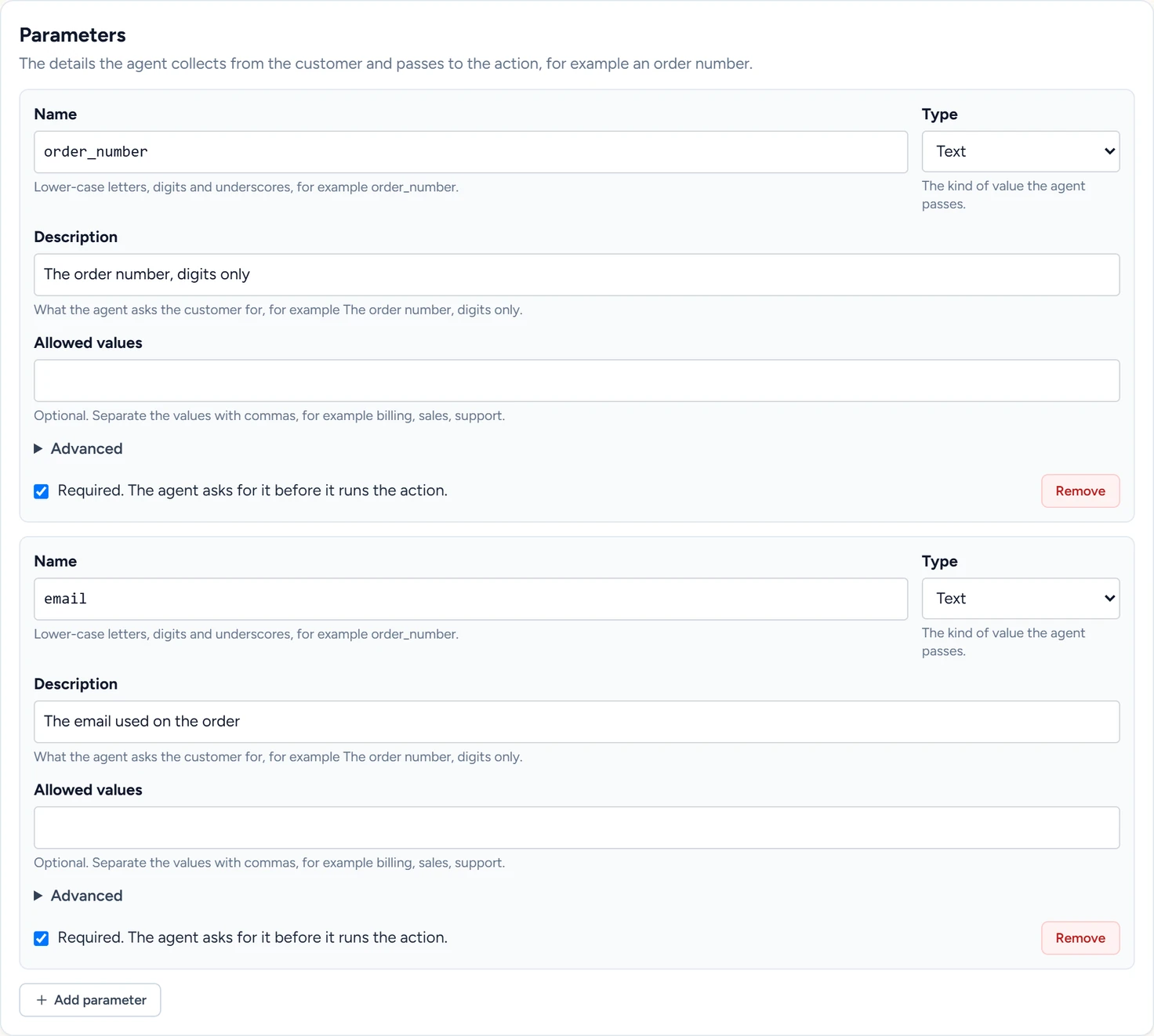
A value that is missing, of the wrong type, outside Allowed values or outside the Pattern stops the action before any step runs. The AI receptionist then asks the customer for it again.
Steps
Steps run from top to bottom, and the action stops at the first step that finds nothing or cannot be done. Each step has:
- Type: one of the step types.
- Step name: what later steps call this step, such as
find_order. - Status line: optional. Shown or said when this step starts. An action with an Only answer if row uses only its own status line.
- The settings for its type.
The arrow buttons move a step up or down, and Remove takes it out.
Fields with an Insert value button take values in double curly brackets:
| Value | Written as |
|---|---|
| A parameter | {{parameters.order_number}} |
| A field an earlier step kept | {{steps.find_order.status}} |
| The caller's phone number | {{system.caller_phone}} |
What the agent gets back
Every field a step keeps is listed with a checkbox. Only the ticked values reach the AI receptionist and the saved conversation. In What to do with the result, say what it does with them, such as "Tell the customer the status and the tracking link."
Where it runs
Three switches: Phone calls, Text messages and Website chat. The AI receptionist can run the action on each channel that is switched on. The same switches are on the action's card under Your actions. A Transfer the call step keeps Text messages and Website chat off, and a Change a tag step keeps Website chat off; Conversation Actions lists the line the editor shows for each.
Test
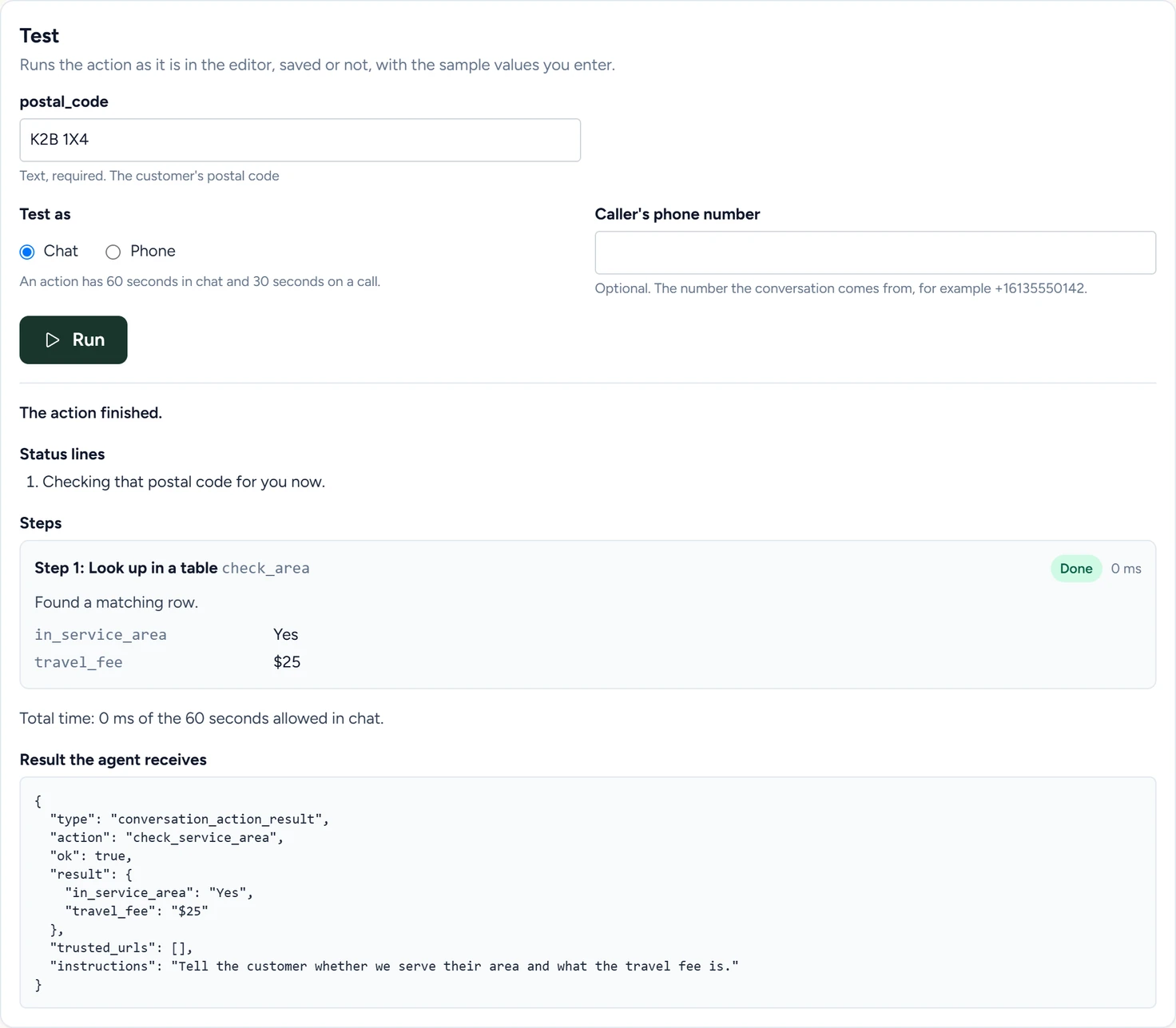
Test runs the action as it is in the editor, saved or not.
- Enter a sample value for each parameter.
- Under Test as, pick Phone calls, Text messages or Website chat.
- Caller's phone number is optional: the number the conversation comes from.
- Click Run. On an action that changes something, the button reads Run for real.
The result shows how the run ended, the Status lines in order, and each step with its result (Done, Nothing found, Did not match, Could not be done or Timed out), its time and the values it kept. It ends with the total time against the time allowed and with Result the agent receives. A Send an API request step also shows the status code and the start of the reply. A Transfer the call step shows the number and moves no call.
A test of an action that changes something runs it for real: the request is sent, CRM changes are saved and workflows start.
Save, Cancel and Delete
Save checks the action and returns to the page. Cancel closes the editor, and asks first when you changed something. Delete shows on a saved action and asks you to confirm.
If something goes wrong
| What you see | Why | What to do |
|---|---|---|
| Give the action a name. | Name is empty. | Type a name. |
| Describe when the agent should use this action in "When to use it". | When to use it is empty. | Write when the action applies. |
| Add at least one step. | The action has no steps. | Click Add step. |
| Step 1, value to look up: {{parameters.postal_code}} is not available here. A value must be one of this action's parameters, a field kept by an earlier step, or a system value. | A value names a parameter or a field that the action doesn't have, or a field from a later step. | Pick the value from Insert value. |
| The status line must be fixed text of up to 120 characters. | The status line is too long or holds a value in curly brackets. | Shorten it and take the value out. |
| The pattern of "order_number" repeats a group that already repeats, which can take too long to check. Write it without a repeat inside a repeated group. | The Pattern has a repeat inside a repeated group, such as (a+)+. |
Rewrite it, for example as ^[0-9]{6,12}$. |
| The pattern of "order_number" uses a group that starts with "(?" or a "[" inside square brackets. Use plain groups, ( ) or (?: ), and write a "[" inside square brackets as \[. | The Pattern has a group such as (?i) or (?=, or a class such as [[:digit:]]. |
Rewrite it with plain groups and sets, for example ^[A-Za-z0-9]{6,12}$. |
| This workspace has run 60 tests in the last hour. Try again later. | Test runs up to 60 times an hour in a workspace. | Wait, then click Run again. |
| 10 actions are already switched on for website chat. Switch one off first. | A new action starts with all three switches on, and ten actions already have Website chat on. For the other two switches, the message says phone calls or text messages. | On the page, switch one action's Website chat off before you create another. |
| This workspace has asked for 20 drafts in the last hour. Fill in the fields by hand, or try again later. | Draft from description writes up to 20 drafts an hour in a workspace. | Fill in the fields, or wait and click Write draft again. |
| A draft could not be written right now. Fill in the fields by hand, or try again. | Draft from description got no draft back. | Click Write draft again, or fill in the fields. |