
Connect any API
Add a step that sends an API request, so an action can read from, or write to, any tool with a public API during a chat, text or call.
What this does
A Send an API request step calls any tool with a public API while a website chat, text conversation or phone call is going on: your own system, a CRM, job software or any other service. It sends one GET, POST, PUT, PATCH or DELETE request to the address you set, signs in with a saved Bearer, Header or Basic credential or none, and keeps the fields you name from the JSON reply. The AI receptionist in Small Business Chatbot can then tell a customer their order status, or create a ticket or a lead and read back its number. The address, the method and the credential are fixed when you save the action. The customer's details go only into the places you put them.
- Where
- Conversation Actions › an action › Steps › Type: Send an API request
- Needs
- A public
https://orhttp://address, and a saved credential on anhttps://address when the API asks for a key - Time allowed
- Up to 20 seconds for the step
Before you start
- The API documentation of the tool: the address, the method, the fields it expects and how it takes a key.
- A key or token limited to what the action needs, such as read-only access to orders.
- An action with its parameters. Create an action covers them.
Save the key as a credential
- Start a credential
In the step, under Credential, click New credential.
- Fill it in
Type a Name, then pick the Type: Bearer token, Header or Username and password. Fill in the secret fields for that type. For a key sent in its own header, pick Header, type the header's name in Header name, such as
X-API-Key, and paste the key in Header value. - Create it
Click Create credential. The credential is saved for your workspace and selected on the step.
To change a key later, pick the credential, click Edit selected, type the new secret and click Save credential. An empty secret field keeps the saved one. Workflows can use the same credential, and Workflow credentials says where the secrets are kept.
Write the request
- Set the method and address
Pick the Method. GET reads, and the others change something. In Address, type the full web address.
- Put the customer's details in
Click Insert value where a detail belongs: after the host in the Address, in a query parameter, in a header's value or in the body.
- Name the fields to keep
Under Fields to keep, click Add field and type the path of each value you need from the reply.
- Test it
Under Test, enter sample values and click Run. The step shows Status code: and the start of the reply.
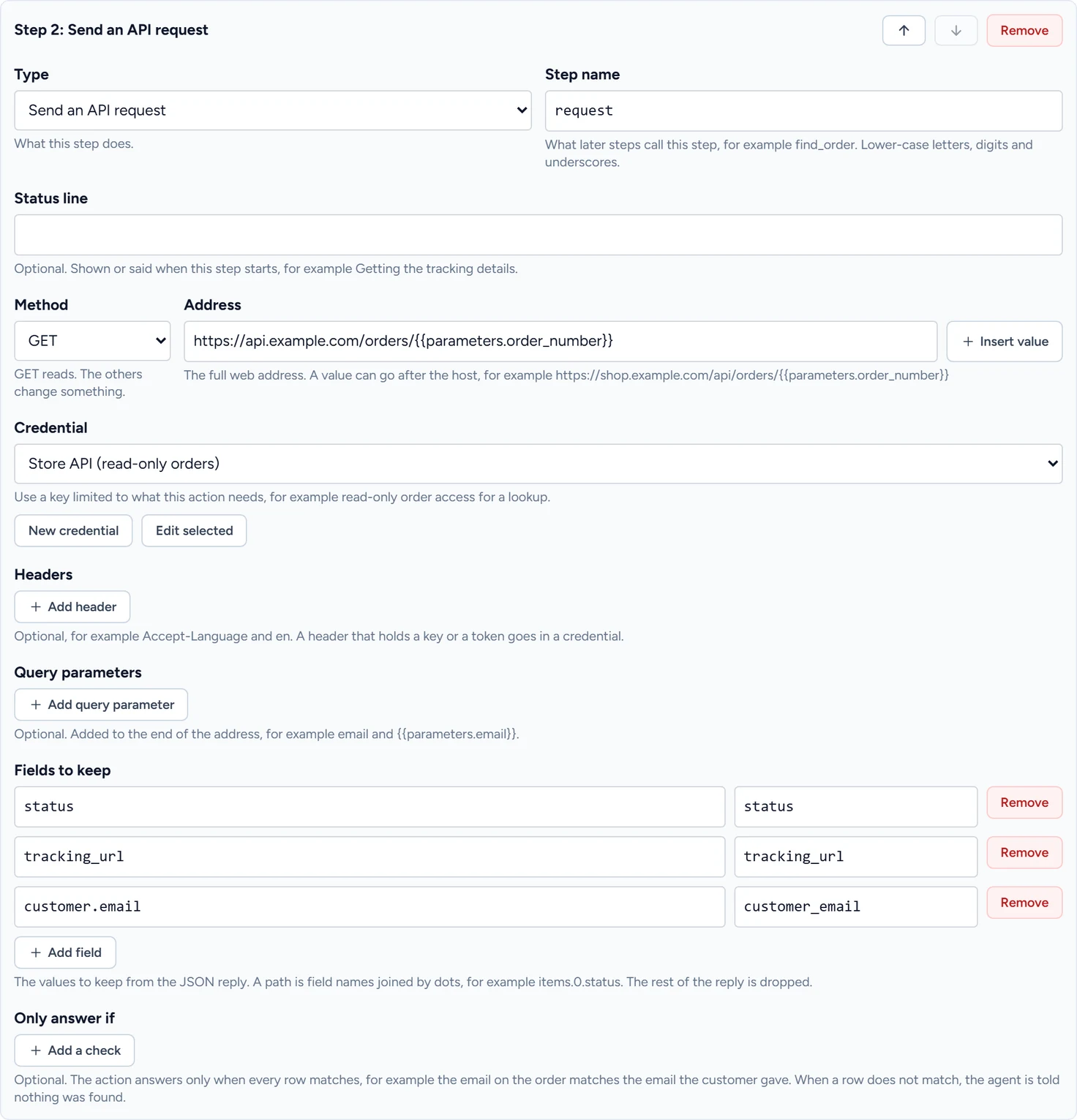
Settings
Method
GET, POST, PUT, PATCH or DELETE. An action with a method other than GET counts as one that changes something, so the limits on those runs apply.
Address
The full address, such as https://shop.example.com/api/orders/{{parameters.order_number}}. The host is fixed text. A value can go anywhere after it, and is encoded for its place, so a value in the path stays one piece of the path.
Credential
No credential, or one saved in the workspace. Its header is added to the request when the step runs.
Headers
Optional names and values, added with Add header, such as Accept-Language and en. A header whose name contains token, secret, password, api-key, auth-key, access-key, cookie, credential, signature or authorization holds a secret, so save it as a credential.
Query parameters
Optional names and values, added with Add query parameter. They are encoded and added to the end of the address, such as email and {{parameters.email}}. A query parameter with one of those words in its name, or named key or sig, is refused when its value is fixed text, so save that value as a credential too. The same rule applies to a query parameter typed into the Address.
Body
Shown for every method except GET: None, JSON or Form.
- JSON body takes the JSON to send. A value inside quotes is sent as text. A value on its own, with no quotes, keeps its type.
- Form fields takes names and values, added with Add form field.
{
  "email": "{{parameters.email}}",
  "quantity": {{parameters.quantity}}
}
Fields to keep
Each row is a path in the JSON reply and the name later steps call it. A path is field names joined by dots, and a number is a place in a list: items.0.status is the status of the first item. The rest of the reply is dropped. Tick a kept field under What the agent gets back to pass it to the AI receptionist.
To give the customer a link, such as a tracking address, keep it as a field of its own. A link that is the whole value of a returned field is passed on, and a link inside a longer text field is taken out of the reply.
Only answer if
Checks a kept field against what the customer said before the action answers. Verify the customer covers it.
What happens with each reply
| Your system replies | What the action does |
|---|---|
| A status from 200 to 299, with at least one of the fields to keep | Keeps the fields and goes on to the next step. |
| A status from 200 to 299, on a step with no fields to keep | Goes on to the next step. |
| 404, or a reply with none of the fields to keep | Ends as "not found". The AI receptionist tells the customer it could not find a match. |
| Any other status | Ends. The AI receptionist says it cannot do this at the moment and offers to take the customer's details. |
| A reply that isn't JSON, or is larger than 200 KB, on a step with fields to keep | Ends the same way. |
| No reply within the time allowed | Ends the same way. |
| A request made while 4 from your workspace are still under way | Ends the same way. A workspace can have 4 requests under way at once. |
A redirect on the same host, or from http:// to https:// on it |
Follows it. |
If something goes wrong
| What you see | Why | What to do |
|---|---|---|
| Step 1: The address must start with https:// or http:// and name a host. | The address is empty or has no scheme. | Type the full address. |
| Step 1: The host of the address must be fixed text. A value in double curly brackets can go in the path, the query or the body. | A value sits in the host. | Move it after the host. |
| Step 1: the address must be a public web address. Local and private network addresses are not allowed. | The address is local or private. | Use your system's public address. |
| Step 1: the header "Authorization" holds a secret. Save it as a credential and select it on this step. | The header's name contains a word that marks a secret, such as authorization, token or api-key. | Remove the header and save the key as a credential. |
| Step 1: The request body is not valid JSON (line 3, column 5). | A quote, comma or brace is missing in JSON body. | Fix the JSON at that place. |
| Step 1: the path "items[0].status" must be field names joined by dots, such as items.0.status. | A path under Fields to keep uses brackets or spaces. | Write it with dots. |
| Your system answered with status 401. in a test | The key is wrong, expired or sent the wrong way. | Check the credential's type and value against your system's documentation. |
| The reply from your system is not JSON, so its fields could not be read. in a test | The reply is HTML or plain text. | Check the address, and that the API returns JSON. |
| The credential on this step could not be read. Open the credential and save it again. in a test | The saved secret could not be loaded. | Click Edit selected, type the secret and click Save credential. |