
Transfer a call
Add a Transfer the call step so the AI receptionist puts a caller through to the right person, with one action for each number.
What this does
A Transfer the call step puts the caller through to a phone number you set. Each transfer is its own Conversation Action in Small Business Chatbot, with its own When to use it, so the AI answering service can send invoice questions to billing and no-heat calls to the technician on call. You type the number, or the step reads it from an earlier step such as a lookup table.
- Where
- Conversation Actions › an action › Steps › Type: Transfer the call
- Works on
- Phone calls. The action's Text messages and Website chat switches stay off.
- Numbers
- Canadian and US numbers, written as +1 and ten digits. Caribbean +1 numbers and premium-rate numbers such as 900 numbers are refused.
- Place in the action
- The last step
If Voice Agent › Settings has Allow transfer to human number switched on, that transfer keeps working as Transfer to a person describes. Once an action with a Transfer the call step is on for Phone, calls use that action and the Voice Agent setting is left out of the call.
Set up one transfer
- Create the action
In the app, open Conversation Actions and click New action. Type a Name, such as Transfer to billing.
- Say when to transfer
In When to use it, write which callers this transfer is for, such as "The caller has a question about an invoice or a payment and asks to speak to someone."
- Write what the caller hears first
In Status line, type the line said before the transfer, such as "Transferring you to billing now."
- Add the step
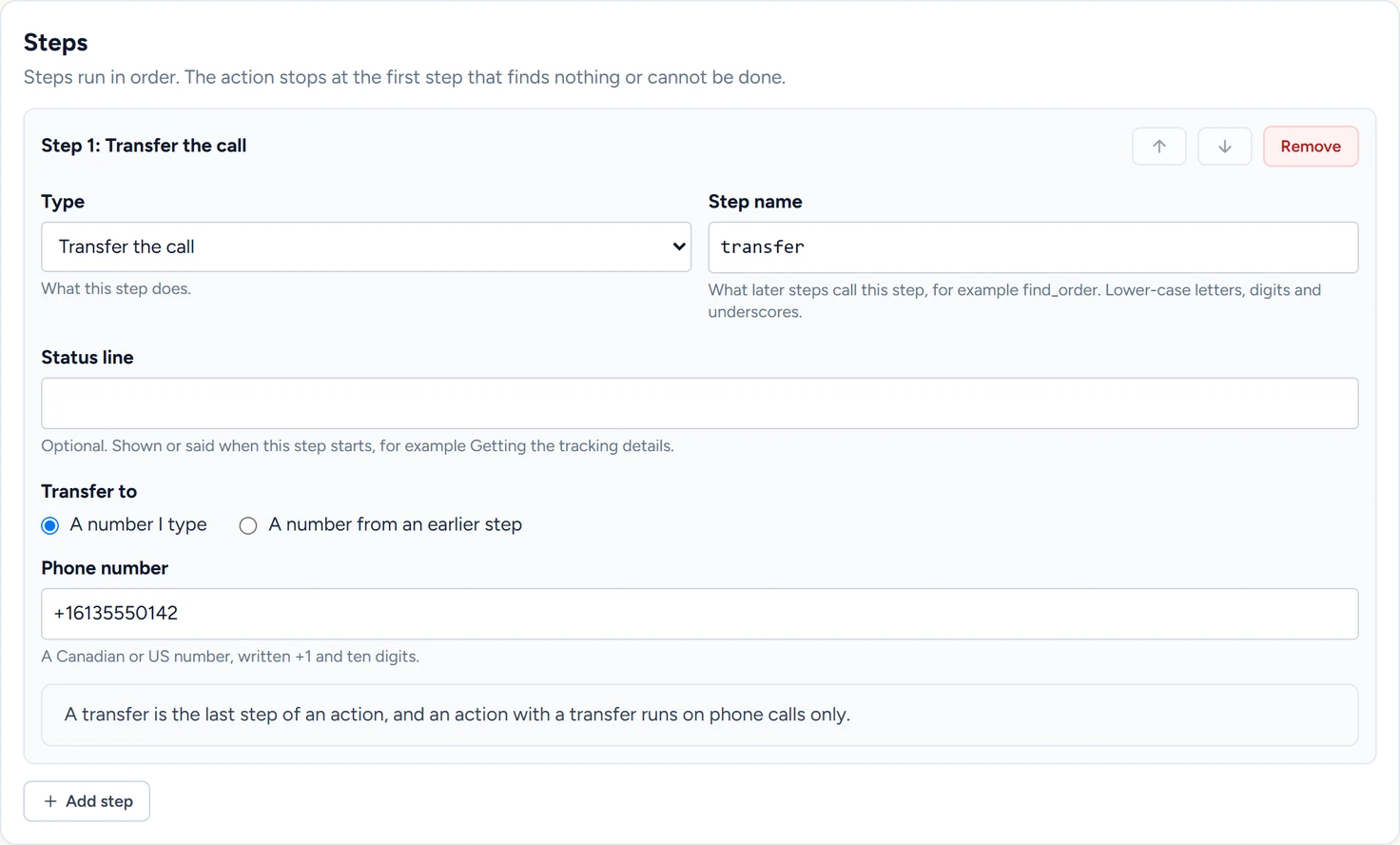
Under Steps, click Add step and change Type to Transfer the call.
- Type the number
Under Transfer to, keep A number I type. In Phone number, type the number with its country code, such as +16135550142.
- Save and test
Click Save. The card shows "A transfer only happens on a phone call." Call your voice agent's number from another phone and ask for billing.
Several transfers
Create one action for each destination. The AI answering service picks between them from each When to use it.
| Name | When to use it | Number |
|---|---|---|
| Transfer to billing | The caller has a question about an invoice or a payment and asks to speak to someone. | Your billing line |
| Transfer to the on-call technician | The caller has no heat, or a leak that cannot wait. | The technician's phone |
A transfer after a lookup
A transfer can read its number from a step before it, such as the rep for the caller's territory.
- Add the lookup
Add a
postal_codeparameter, then a Look up in a table step on a table that holds a phone column, such asrep_phone. Tick that column under Columns to return. Lookup tables covers the table. - Add the transfer
Click Add step and change Type to Transfer the call. Under Transfer to, pick A number from an earlier step.
- Pick the field
In Field that holds the number, pick the column, shown as
look_up: rep_phone.
A number in the table can be written as 613-555-0142, (613) 555-0142 or +16135550142. When no row matches, the action stops before the transfer and the AI answering service tells the caller it could not find a match.
A Start a workflow step placed before the transfer can text you that a call is on its way.
Where the number comes from
The number is the one you type, or one field kept by an earlier step. What a caller says never sets it. The AI answering service is told never to say the number, so leave the number's field unticked under What the agent gets back.
What the caller hears
| Moment | What happens |
|---|---|
| The action starts | The AI answering service says a short line such as your Status line. |
| Your phone rings | For up to 30 seconds. The caller ID shows your voice agent's number. The caller hears ringing. |
| You answer | You and the caller talk. The voice agent leaves the call. |
| Nobody answers in 30 seconds | The line drops and the call ends. |
| The transfer can't start | The AI answering service tells the caller it could not connect them and offers to take a message. |
| After the call | The transcript in Conversations ends with "*Call transferred to a human at this number:" and the number. |
If something goes wrong
| What you see | Why | What to do |
|---|---|---|
| Step 1: write the transfer number as +1 and ten digits, for example +16135550142. Calls are transferred to Canadian and US numbers. | The number has no +1, too few digits or another country code, or it is a Caribbean +1 number or a premium-rate number such as a 900 number. | Type +1, the area code and the number of a Canadian or US phone. |
| Step 1: a transfer must be the last step. | Another step comes after the transfer, or the action has two transfers. | Move the transfer down with the arrow button. For a second number, create a second action. |
| Step 2: the transfer number must be a phone number you type, or one value from an earlier step. It cannot come from what the caller says. | The number holds a parameter. | Type the number, or pick A number from an earlier step. |
| The transfer number is the caller's own number or this agent's number. in a test | The number matches the Caller's phone number typed for the test. On a call, a transfer to the caller's own phone or to your voice agent's number is refused. | Set another phone as the transfer number. |
| The transfer number is not a full phone number. in a test | The field read from the earlier step holds something other than a Canadian or US number, or holds a premium-rate number. | Fix the number in the table and upload a replacement. |