
Workflow credentials
The three credential types for the HTTP Request step, what each one sends, where the secrets are kept, and why keys belong in a credential.
What this does
A workflow credential holds the key an API asks for, saved once and picked on any HTTP Request step in the account. Small Business Chatbot keeps the secret apart from the workflow and adds it to the request only when the step runs.
- Where
- Workflows › an HTTP Request step › Authentication: Workflow credential › New credential
- Used by
- the HTTP Request step
Credential fields
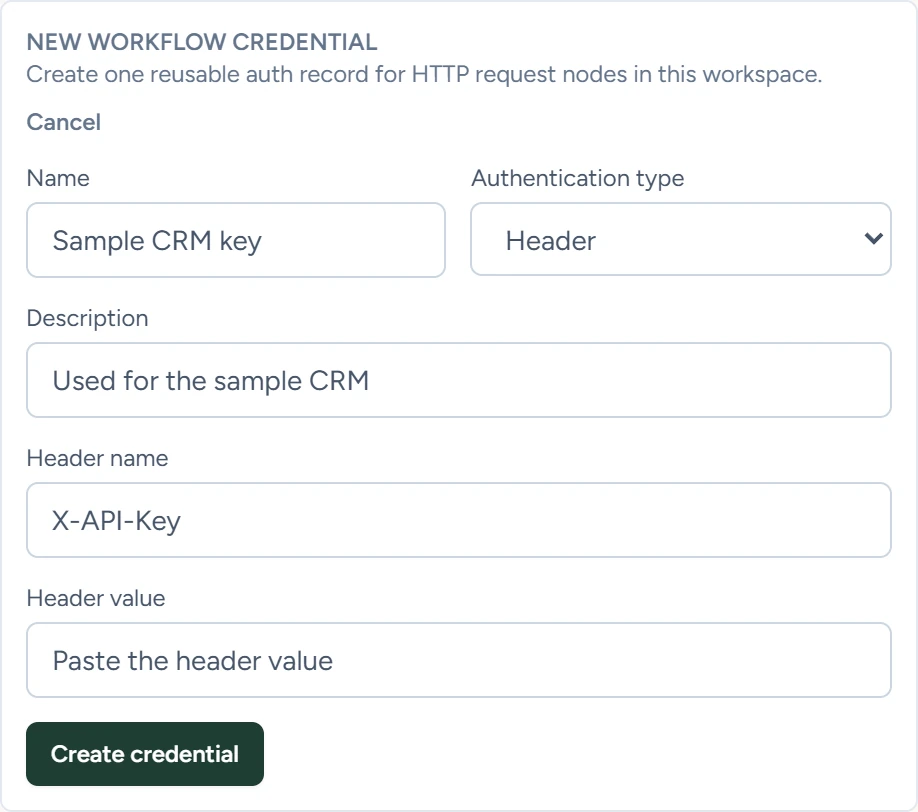
New credential opens New workflow credential inside the step. Create credential saves it.
| Field | What it does | Default or options |
|---|---|---|
| Name | How the credential shows in the Credential list. Required. | Empty |
| Authentication type | What the credential sends. | Bearer. Options: Bearer, Header, Basic |
| Description | A note for you. | Empty |
| Header name | Header only: the header to send. | Authorization |
| Bearer token | Bearer only: the token. | Empty. Required |
| Header value | Header only: the header's value. | Empty. Required |
| Username and Password | Basic only: the sign-in for the API. | Empty. Both required |
What each type sends
| Type | Sent with each request |
|---|---|
| Bearer | Authorization: Bearer and your token |
| Header | The header you named, with your value, for example X-API-Key |
| Basic | Authorization: Basic and your username and password, encoded |
If the step's Headers already has a header with the same name, the step's header is sent in place of the credential's. A Basic credential replaces any Authorization header in Headers.
Where the secrets are kept
- The token, header value, username and password are stored encrypted in AWS Secrets Manager, apart from the workflow. The credential's name, type, header name and description are stored with your account.
- After you save, the app never shows the secret again. Edit selected shows "Secret values are hidden after save. Enter new ones only if you want to rotate them." A blank secret field keeps the saved value.
- Changing a credential's Authentication type needs new secret values.
- A credential belongs to the account. Every workflow in it can pick it, and other accounts can't.
- Run history shows which credential a request used, by ID, name and type. It never shows the secret, and secret-looking headers are masked. Executions lists the rules.
Keys belong in a credential
- Authentication offers only None and Workflow credential. A step saved earlier with a token in the step itself fails when it runs, and the worker never sends that token. Its editor shows "This node used legacy inline auth fields before the credential system." The old token stays hidden and is dropped when you save, so attach a credential before saving.
- A step set to Workflow credential saves only once a credential is picked.
- An address with a user name or password in it, such as
https://user:pass@host, fails the step. - Headers sends whatever you type, and the workflow saves it. A key typed there is stored in the workflow itself, so use a credential instead.
Changing and deleting
| Button | What it does |
|---|---|
| Edit selected | Opens the picked credential. Save credential saves name, type, description and any new secret. |
| Delete selected or Delete credential | Asks "Delete workflow credential" and the name, then deletes it. |
Deleting a credential can't be undone in the app. Every step that uses it fails from its next run with "Workflow credential ... was not found". Pick another credential on those steps first.