
Appointment booked, rescheduled, cancelled
Start a workflow when someone books, moves or cancels an appointment, with the times ready to drop into a message.
What this does
Small Business Chatbot has three appointment triggers. Each starts a run in every published workflow that uses it, once per appointment event.
- Labels in the app
- Appointment booked, Appointment rescheduled, Appointment cancelled
- Fires
- When an appointment is booked, moved or cancelled through your booking page or a website chat with the AI chatbot
- Carries
- The fields below, as
{{trigger.…}} - Settings
- Booking source on Appointment booked. The other two have none.
When they fire
| Trigger | Fires when |
|---|---|
| Appointment booked | Someone books on your booking page, or the chatbot books for a visitor in a website chat |
| Appointment rescheduled | The booking is moved with the reschedule link, or by asking the chatbot in a website chat |
| Appointment cancelled | The booking is cancelled with the cancel link, or by asking the chatbot in a website chat |
They fire for changes made through your booking page, its links and website chats. Edits made straight in your calendar start no runs.
Two things happen on their own, before any workflow runs:
- Cancelled: runs of Appointment booked workflows for that appointment stop and show Removed.
- Rescheduled: runs of Appointment booked workflows for that appointment take the new time. A Relative Wait still waiting moves with it. Steps already done stay done.
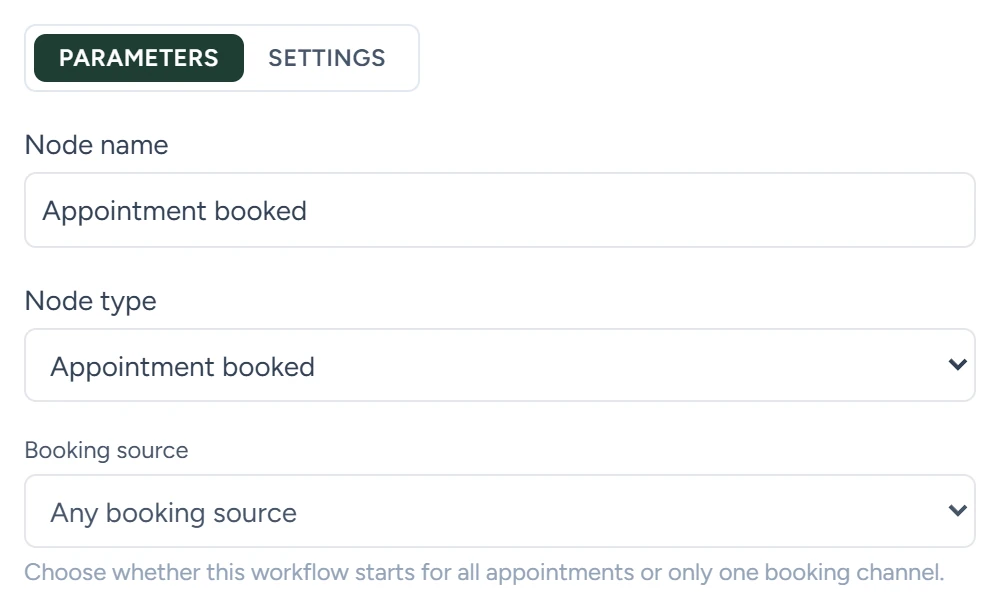
Booking source
On Appointment booked only. It decides which bookings start the workflow.
| Option | Starts the workflow for |
|---|---|
| Any booking source | Every booking. The default. |
| Public booking page | Bookings made on your booking page |
| Chat calendar agent | Bookings the chatbot makes in a website chat |
The rest of the list is provider-specific: one option for each type of calendar connection. Each matches every booking that went into that type of calendar, from the booking page or a chat.
What they carry
All three carry the same fields. trigger.trigger_type says which event it was.
| Variable | Type | What it holds |
|---|---|---|
trigger.trigger_type |
text | appointment_booked, appointment_rescheduled or appointment_cancelled |
trigger.source |
text | public_booking_page or chat_calendar_agent |
trigger.provider |
text | The calendar connection the booking went into |
trigger.occurred_at |
date and time | When the event happened |
trigger.contact.* |
object | The person who booked. first_name, last_name, full_name, email and phone fall back to what they entered when booking. The other fields are listed in Contact events. |
trigger.appointment.title |
text | The appointment's title |
trigger.appointment.description |
text | Its description |
trigger.appointment.location |
text | Where it happens, or the meeting link |
trigger.appointment.conference_url |
text | The video meeting link, when there is one |
trigger.appointment.start_at_iso, end_at_iso |
date and time | Start and end, in UTC, as 2026-08-26T18:00:00Z |
trigger.appointment.timezone |
text | Your calendar's time zone, as America/Toronto |
trigger.appointment.duration_minutes |
number | Length in minutes |
trigger.appointment.invitee_emails |
list | The guests' email addresses |
trigger.appointment.invitee_phone |
text | The phone number given when booking |
trigger.appointment.organizer_email |
text | Your calendar's email |
trigger.appointment.management.reschedule_url |
text | The guest's reschedule link, when guests may reschedule. Empty otherwise. |
trigger.appointment.management.cancel_url |
text | The guest's cancel link, when guests may cancel. Empty otherwise. |
trigger.appointment.previous.start_at_iso, end_at_iso |
date and time | The old times. On Appointment rescheduled only. |
trigger.appointment.event_id |
id | The calendar event's id |
trigger.booking_page.* |
object | id, business_slug and meeting_slug of the booking page. Booking page events only. |
Times ready for messages
These are in trigger.appointment.timezone, so a text reads the time the way your customer expects it.
| Variable | Example |
|---|---|
trigger.appointment.start_at_local_display |
August 26, 2026 at 2 PM EDT |
trigger.appointment.start_at_local_phrase |
2 PM EDT on August 26, 2026 |
trigger.appointment.start_date_local_display |
August 26, 2026 |
trigger.appointment.start_time_local_display |
2 PM EDT, or 2:30 PM EDT when the minutes aren't zero |
trigger.appointment.end_at_local_display |
August 26, 2026 at 2:30 PM EDT |
trigger.appointment.time_range_local_display |
2 PM EDT to 2:30 PM EDT on August 26, 2026 |
trigger.appointment.timezone_abbreviation |
EDT |
trigger.appointment.start_at_local_iso, end_at_local_iso |
2026-08-26T14:00:00-04:00 |
After an appointment trigger, a new Send Text step fills Recipient phone with {{trigger.contact.phone}}, and a new Send Email fills To with {{trigger.contact.email}}. A Relative Wait starts from the appointment's start time.
Ready-made drafts
In the app, open Chat Widget › Calendar Booking. Under Workflow Integrations, four buttons create draft workflows on these triggers: Create Booking confirmation, Create 24-hour reminder, Create Internal notification and Create Cancellation follow-up. They send email only. Nothing sends until you publish them and switch on Outbound automation and Emails under CRM › Contacts › Settings.
Used in
- Calendar booking: the booking page and the ready-made drafts.
- Wait: reminders before and after the appointment.
- Triggers: how to pick a trigger.