
Sending domain
Connect a domain you own, so workflow emails go out from it and replies come back to the app and to your inbox.
- Direction
- Both: workflow emails go out, replies come back
- Sign-in
- None: you add DNS records at your domain provider
- Time to set up
- About fifteen minutes, plus the time your DNS provider takes to publish the records
What this does
Workflow emails go out through Mailgun. Connecting a sending domain in Small Business Chatbot adds your domain to the app's Mailgun account, so the emails come from your domain. Replies to them come back to the app: they show in Conversations and on the CRM contact, they can stop a workflow that has stop-on-reply on, and they're forwarded to the sender's own inbox.
Until you connect a domain, workflow emails go out through the app's own sending domain. Connect yours to bring replies back into the app.
Before you start
- A domain you own, and access to its DNS settings at your domain provider.
- A subdomain to send from, such as
mg.yourdomain.com. - A working inbox on your main domain for each address your workflow emails come from, such as
[email protected]. Replies are forwarded there.
Use a subdomain, not the domain your team's email runs on. The setup includes receiving records that send the domain's incoming mail to Mailgun. On your main domain, they could take your team's email away from its inboxes.
Add the domain
- Open Admin
In the app, open Admin and find the Workflow Email (Mailgun) card. Its badge reads Not connected until you add a domain, and active once the domain is verified.
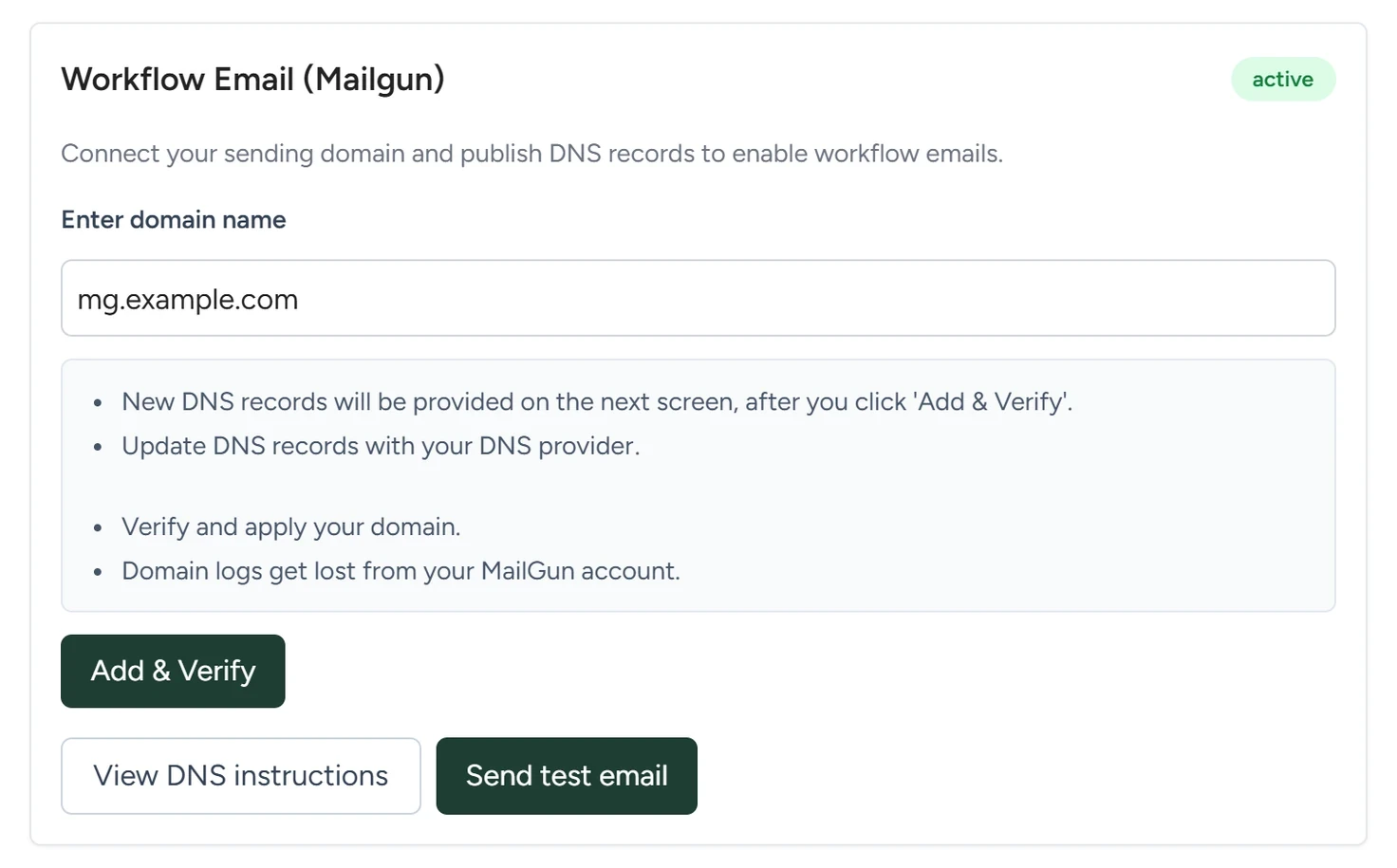
Admin › Workflow Email (Mailgun), October 2026 - Enter the subdomain
Under Enter domain name, type your subdomain, such as
mg.yourdomain.com. Click Add & Verify. - Read the records
The Mailgun DNS Setup window opens with one row per record: Record (its type), Host, Required value and Verified. Each host and value has a copy button.
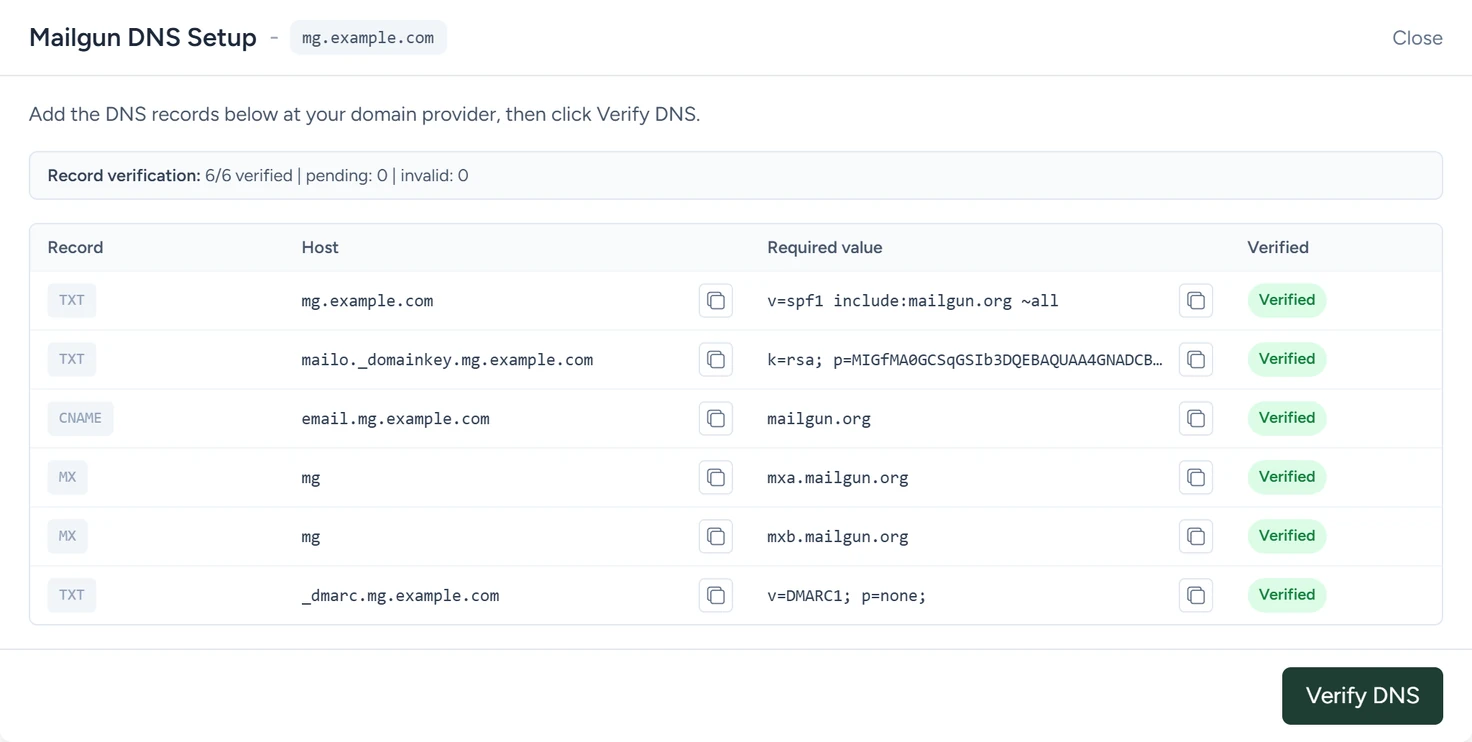
Admin › Workflow Email (Mailgun), October 2026
Publish the records
- Add each record at your domain provider
At your domain provider, add every row as a DNS record of the type shown, with its host and its value. The list can include a DMARC record, on the
_dmarchost. - Verify
In the app, in Admin › Workflow Email (Mailgun), click View DNS instructions to reopen the window, then click Verify DNS. The summary line counts the records verified, pending and invalid. When the domain passes, the app says Mailgun domain is verified. and the badge reads active.
Send a test
In Admin › Workflow Email (Mailgun), click Send test email. It goes to the address in Primary Email for Conversations on the same page (Admin settings), from an address on your domain, with a short check-in subject line. The app says Test email sent.
Use it in a workflow
In a Send Email step of a workflow, set From email to an address on your domain, such as [email protected], and Sender name to the name readers see. Replies go to the same name at your sending subdomain, such as [email protected], and come back to the app from there.
What it does
- Sends workflow emails through Mailgun, from your domain.
- Brings replies back into Conversations and onto the CRM contact, and forwards them to the sender's address on your main domain.
- Lets an email reply stop a workflow that has stop-on-reply switched on.
- Sends only when a published workflow reaches a Send Email step, while outbound email is switched on.
If something goes wrong
| You see | Why | What to do |
|---|---|---|
| Enter a domain first. | Enter domain name is empty | Type your subdomain |
| Domain is connected but still waiting for DNS verification. | Mailgun hasn't seen every record yet | Check each row against your provider, wait for the records to publish, then click Verify DNS again |
| A row shows Invalid | The record at your provider doesn't match | Copy the host and value from the window again |
| DNS records are not available yet for this domain. | Mailgun returned no records | Click Add & Verify again |
| Connect a Mailgun domain before sending tests | No domain is saved | Add the domain first |
Mailgun API error: or Mailgun request failed: followed by a message |
Mailgun refused the request; the message says why | Fix what the message names, then try again |