
Any website
Paste one line of code into your site so the AI chatbot shows on every page, then check that it loads.
- Direction
- In
- Sign-in
- None
What this does
The installation code is one line that loads the Small Business Chatbot widget from smallbusinesschatbot.com. The launcher sits in the bottom right corner of every page that has the code. On screens 768 pixels wide or less, the open chat fills the screen. On wider screens it opens 400 by 600 pixels in the corner.
The short version of the task, including how to email the code to whoever runs your site, is Add to your website.
On WordPress, the WordPress plugin loads the same widget with no code.
Before you start
- Access to your site's code, or to its setting for code that goes on every page.
- The chatbot trained on your website: Train the chatbot on your website.
The installation code
- Open Add to Website
In the app, open Chat Widget › Add to Website. The first card is Copy the installation code directly.
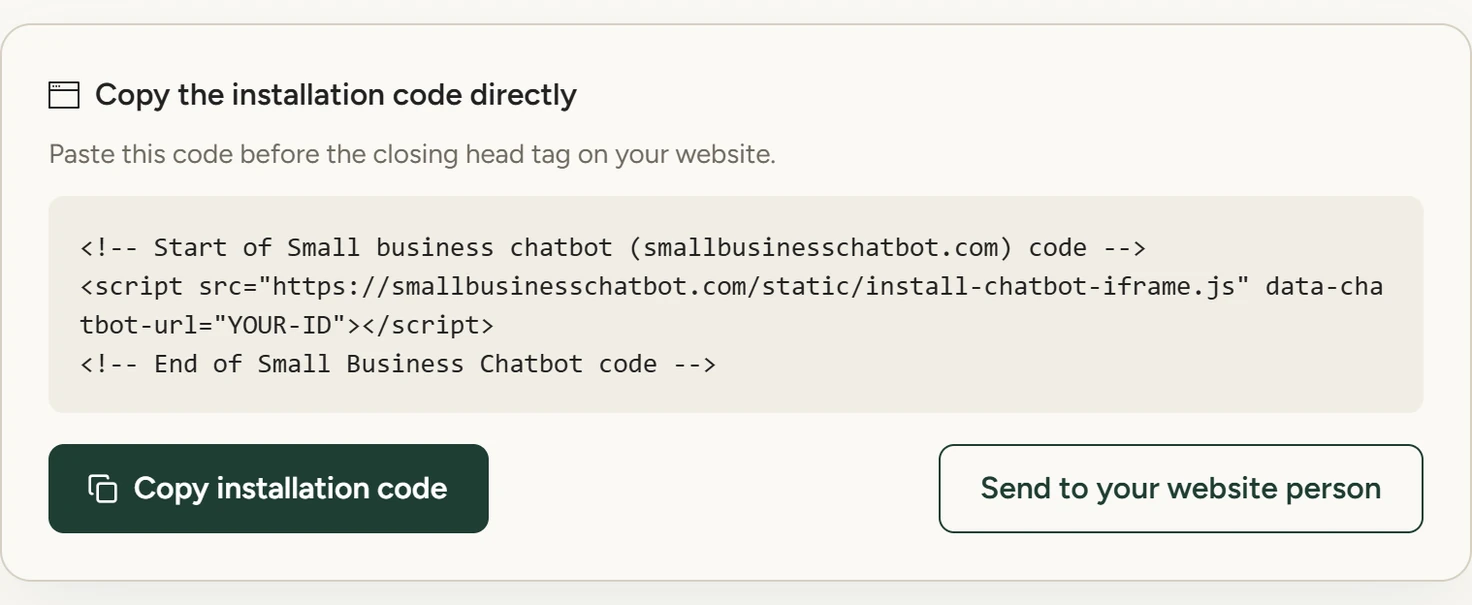
Chat Widget › Add to Website, October 2026 - Copy it
Click Copy installation code. The button reads Installation code copied! for a few seconds.
<!-- Start of Small business chatbot (smallbusinesschatbot.com) code -->
<script src="https://smallbusinesschatbot.com/static/install-chatbot-iframe.js" data-chatbot-url="YOUR-CHATBOT-ID"></script>
<!-- End of Small Business Chatbot code -->
data-chatbot-url is your chatbot's ID. The panel fills it in. Don't change it.
Where to paste it
- Paste it where every page includes it
Use the part of your site that every page shares, such as the site-wide header or footer, or the site's setting for custom code. Each page that loads the code shows the widget.
- Pick head or body
The panel says to paste the code before the closing
</head>tag. The email to your website person says before the closing</body>tag. Either place works. - Publish the change
Save and publish your site the way you normally do.
Check it loads
- Open your site
Open your site in a private browser window, so you see it as a new visitor does. The launcher shows in the bottom right corner.
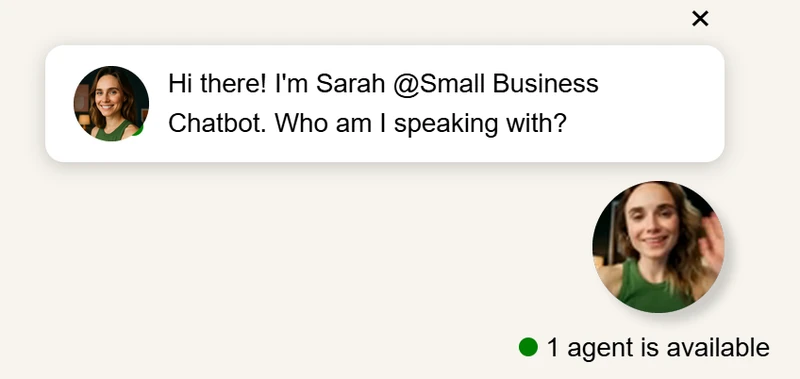
The chat widget on the sample site, October 2026 - Open the chat
Click the launcher. The chat opens with your intro message. Send a question and check that the chatbot answers. The test chat shows in Conversations like any other.
- Look at the page code
If nothing shows, open your browser's developer tools on that page. A working install adds an iframe titled
Small Business Chatbotthat loadshttps://smallbusinesschatbot.com/bot/followed by your chatbot ID.
The always-open Q&A widget
Under Other ways to install, Embed always-open Q&A widget gives a second code. That widget stays open inside your page, for example on a help or FAQ page, instead of opening from the corner. It shows right after the spot where you paste its code, so paste it in the page body where you want it.
Fill container
Ticked, the widget fills the box it sits in. It stays at least 250 pixels tall. Off by default.
Width and Height
A fixed size from 200 to 1000 pixels, 770 by 360 by default. The sliders are off while Fill container is ticked. Click Copy Q&A embed code to copy the code with your settings.
Its colours and heading are set under Embedded widget customizations in Look and feel.
What it does
- Loads the chat widget on every page that has the code.
- Shows your changes from the app, such as a new colour or new answers, with no new code.
- Works on any site that lets you add code to its pages.
If something goes wrong
| You see | Why | What to do |
|---|---|---|
| No launcher on the page | The code isn't on that page, or the change isn't published | Check the page's source for install-chatbot-iframe.js, add the code where every page includes it, and publish |
The widget shows Chatbot not found |
The data-chatbot-url value doesn't match your chatbot |
Copy the code again from Add to Website and replace the old one |
The browser console shows an error that mentions getAttribute |
The script can't find its own tag, which happens when a site tool renames or combines scripts | Exclude install-chatbot-iframe.js from that tool |
The browser console shows Error creating iframe: |
The page stopped the script from adding the widget | Send the full console message to your website person |