
HTTP request
Send a lead, a booking or a conversation's details to any tool with a public API, or fetch data from it, with one workflow step.
- Direction
- Out, and the response comes back to the workflow
- Sign-in
- A saved Bearer, Header or Basic credential, or none
- Time to set up
- About fifteen minutes
What this does
The HTTP Request step calls a web address when a workflow run reaches it, and saves the answer for the steps after it. After a trigger such as Chat Widget Conversation Ended, it can send what the AI chatbot collected to any tool with a public API: a CRM, job software, a spreadsheet tool, or another tool's webhook URL. It can also fetch a record and hand it to a text, an email or a branch.
Every field of the step is in the HTTP Request reference. To bring data in from another tool, use Inbound webhooks.
Before you start
- The other tool's API documentation open: the address to call, the method, the fields it expects and how it takes a key.
- A key or token from the other tool, if its API needs one.
- A workflow with a trigger: Your first workflow.
Match the tool's sign-in
The tool's API documentation says how to send its key. The step sends it one of three ways:
| The tool asks for | Credential type | What the step sends |
|---|---|---|
Authorization: Bearer and a token |
Bearer | Authorization: Bearer and your token |
A key in a header of its own, such as X-API-Key |
Header | That header with your value |
| A user name and password, or a key in their place | Basic | Authorization: Basic with the two values |
All three send the key in a request header.
Save the key as a credential
- Add the step
In the app, open Workflows, open the workflow, and add an HTTP Request step after the trigger.
- Start a new credential
In the step, under Authentication, choose Workflow credential, then click New credential.
- Fill it in
In New workflow credential, type a Name and pick the Authentication type. For a key sent in its own header, pick Header, type the header's name in Header name, such as
X-API-Key, and paste the key in Header value. Click Create credential. The secret is hidden once saved. Any HTTP Request step in your workspace can pick it.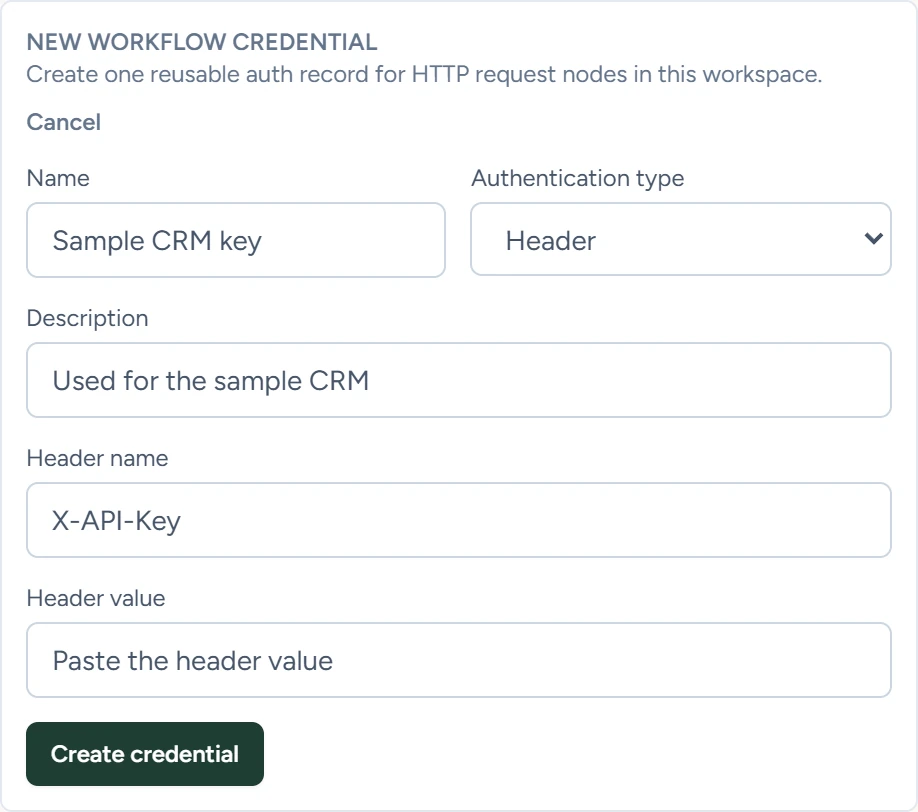
Workflows › HTTP Request › New credential, October 2026
To change a key later, pick the credential, click Edit selected and paste the new value. Leave a secret field blank to keep the old one.
Your key stays safe. It's stored encrypted in AWS Secrets Manager, apart from the workflow, and added to the request only when the step runs. The app never shows it again after you save it, run history masks it, and only workflows in your account can use it. Workflow credentials has the details.
Build the request
- Set the method and address
In the step, under Request, pick the Method: GET, POST, PUT, PATCH or DELETE. Paste the Request URL.
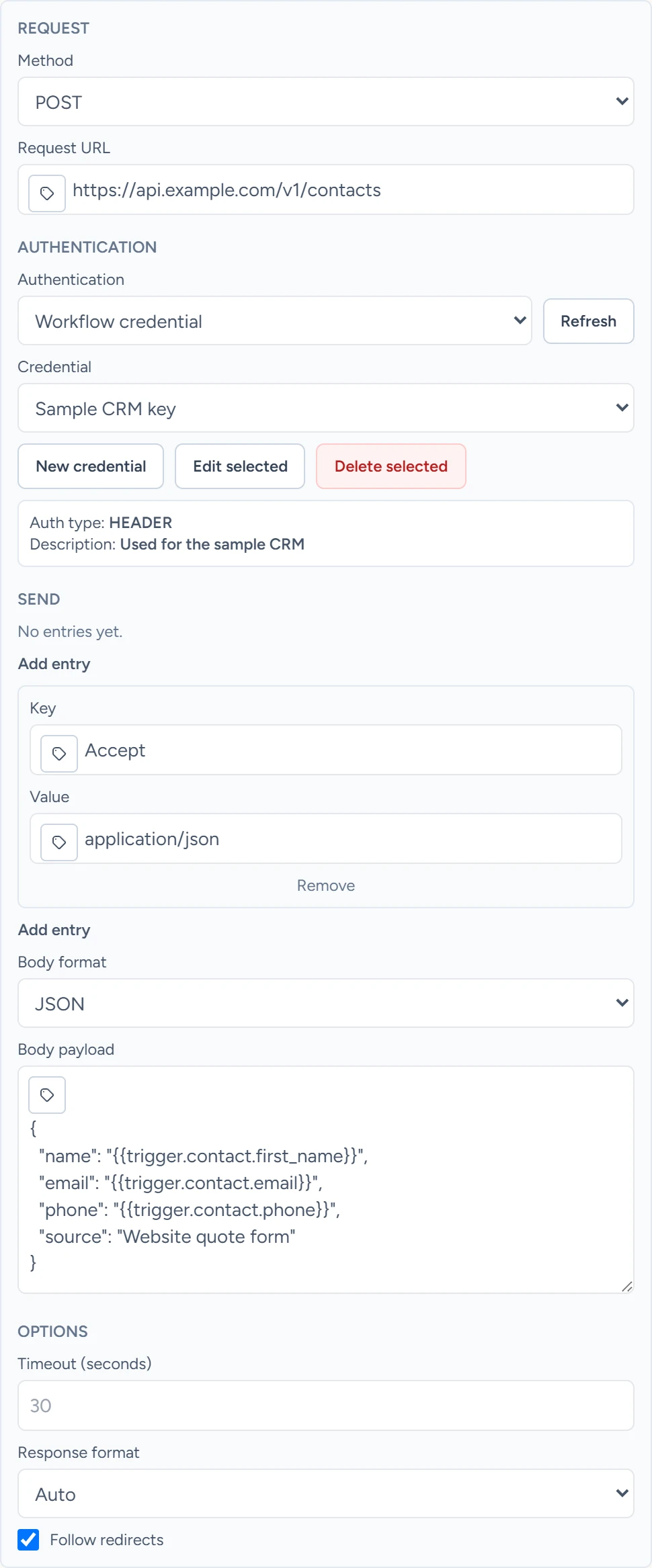
Workflows › HTTP Request, October 2026 - Add query parameters and headers
Add Query parameters and Headers as Key and Value pairs, if the tool's documentation asks for them.
- Write the body
Under Send, pick the Body format: JSON, Raw text, Form fields or No body. Put workflow variables in double curly braces.
- Save
Click Save workflow.
A JSON body that sends a website chat's lead:
{
  "name": "{{trigger.first_name}}",
  "email": "{{trigger.email}}",
  "phone": "{{trigger.phone}}",
  "notes": "{{trigger.action_items}}",
  "source": "Website chat"
}
In a JSON body, a variable in quotes becomes text. A variable without quotes becomes the value itself, such as a list or an object.
| The chatbot collected | Workflow variable | Note |
|---|---|---|
| First name | {{trigger.first_name}} |
|
{{trigger.email}} |
Empty when the visitor gave none | |
| Phone | {{trigger.phone}} |
Empty when the visitor gave none |
| What they want | {{trigger.action_items}} |
The chatbot's action items for you |
| Summary | {{trigger.summary}} |
The AI summary of the chat |
| Transcript | {{trigger.messages}} |
A list; leave it unquoted to send it as a JSON list |
Calls and texts carry their own fields. The Variables reference lists them.
Use the response
The step saves the status code, the response headers and the first 15,000 characters of the body. Later steps read it by the step's name, for example {{node_outputs_by_name.http_request.response.body.status}}.
Test it
- Publish the workflow
In Workflows, switch Status to Published and click Save workflow.
- Make the trigger happen
For Chat Widget Conversation Ended, chat with the chatbot on your website, give a name and an email, and close the chat.
- Check the run
Switch from Editor to Executions and open the run. The HTTP Request step shows the request it sent, with secret headers masked, and the response with its status code.
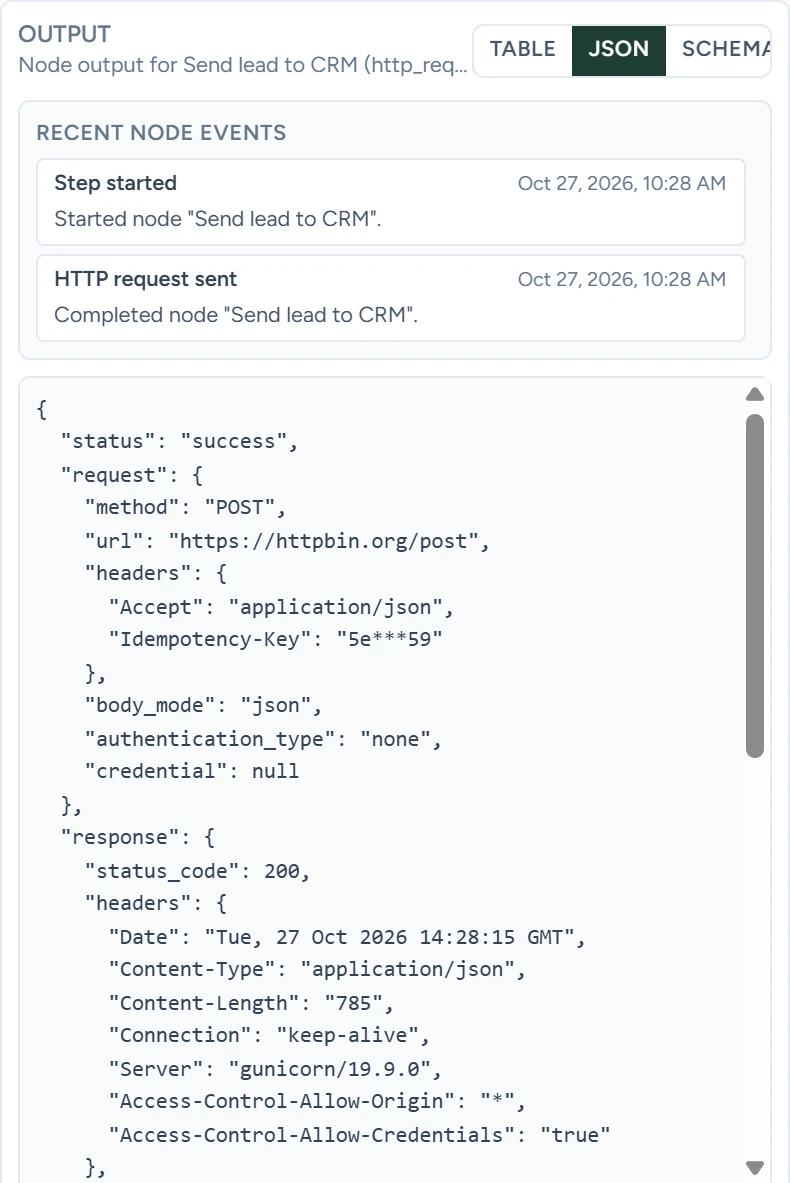
Workflows › Executions, October 2026 - Check the other tool
Find the new record in the other tool.
What it does
- Calls any public
http://orhttps://address, and refuses localhost, private and internal network addresses. - Sends one request each time a run reaches it. To read a record back, add a step with a GET request.
- Adds an
Idempotency-Keyheader to each request, so an API that supports it can skip a repeat when the step runs again. - Masks headers whose names contain token, secret, password, key or authorization in Executions.
- Waits 30 seconds for an answer unless you change Timeout (seconds).
- Follows up to 10 redirects while Follow redirects is on. On a redirect to another site it drops the
Authorizationheader, so Bearer and Basic credentials stay behind. To keep a Header credential, such asX-API-Key, at the address you set, turn off Follow redirects.
The HTTP Request step runs whenever a published workflow reaches it, even while outbound texts, email and calls are switched off.
If something goes wrong
A response of 400 or higher fails the step. Executions shows the error with the start of what the API sent back. The run then waits and tries the step again: workflows made in the editor try up to three more times, a minute apart, before the run shows as failed. Enable node retry policy in the step's settings sets its own count and delay.
| You see | Why | What to do |
|---|---|---|
HTTP request node received HTTP 401 or 403 |
The key is wrong, expired, sent the wrong way, or lacks a permission the call needs | Check the credential against the tool's documentation, and the key's permissions in the tool |
HTTP request node received HTTP 404 |
The address or the method is wrong | Check Request URL and Method |
HTTP request node received HTTP 400 or 422 |
The body misses a field, or has one the API rejects | Read the response preview and match the API's field names |
...not valid JSON after workflow variables were resolved |
A quote, comma or brace is missing in the body | Fix the JSON, then save |
Workflow HTTP Request blocked a localhost destination or blocked non-public destination |
The address is local or private | Use the tool's public address |
Workflow HTTP Request credentials must use the credential fields, not the URL |
The URL holds a user name or password | Move them into a Basic credential |
HTTP request node failed to send or could not resolve hostname |
The address is misspelled, the request timed out, or the connection failed | Check Request URL; raise Timeout (seconds) for a slow API |