
Google Calendar and Outlook
Connect Google Calendar or Outlook so bookings from the AI chatbot and your booking page land in it, with Google Meet or Microsoft Teams links.
- Works with
- Google Calendar and Microsoft Outlook calendars
- Video links
- Google Meet with Google Calendar, Microsoft Teams with Outlook
- Sign-in
- Your Google or Microsoft account, in a pop-up window
What this does
Connecting Google Calendar or an Outlook calendar to Small Business Chatbot lets the app read your free times and write each booking into that calendar. It also turns on your public booking page, a link people can book from. Once booking is turned on for chat, the chatbot can offer times, book, reschedule and cancel in website chat.
Turning on booking in chat, and the settings that shape bookings, such as hours, length, buffers and what the booking form asks, are in Calendar booking. This page covers the connection, video links and the booking page.
Which calendars work
| Calendar | Sign in with | Video link on each meeting |
|---|---|---|
| Google Calendar | Your Google account | Google Meet |
| Microsoft Outlook calendar | Your Microsoft account | Microsoft Teams |
One calendar account is connected at a time. Bookings go into that account's calendar.
Before you start
- The sign-in for the Google or Microsoft account whose calendar should get the bookings.
- Pop-ups allowed for the app in your browser. The sign-in opens in a new window.
Connect Google Calendar or Outlook
- Open Calendar Booking
In the app, open Chat Widget › Calendar Booking. With no calendar connected, the panel shows Connect Your Calendar.
- Start the sign-in
Click Connect Calendar. The button reads Opening... and a sign-in window opens.
- Sign in with Google or Microsoft
In the window, sign in to the Google or Microsoft account and allow access to its calendar. The window shows Calendar Connected and closes on its own.
- See the connected panel
The panel now shows Your public booking page with its link, Copy URL and Open page, and the booking settings under it.

Chat Widget › Calendar Booking, October 2026
Add Google Meet or Microsoft Teams links
With Google Calendar connected, each meeting can get its own Google Meet link. With an Outlook calendar, it gets a Microsoft Teams link. The link is in the calendar event.
- Find Default Location
In Chat Widget › Calendar Booking, go to Meeting Messaging and find Default Location.
- Add the video link
Click Add Google Meet location or Add Microsoft Teams location, whichever your calendar shows. The button changes to Google Meet location added or Microsoft Teams location added, and the line above it reads "A new Google Meet link will be created for each meeting." (or Microsoft Teams).
- Save
Click Save Changes at the bottom of the panel.
To stop adding video links, click the added location again and save. A link or address typed into Default Location is used instead of the automatic Google Meet or Teams link, and the booking form skips the location question.
Your public booking page
The top card, Your public booking page, shows the page's link. Copy URL copies it and Open page opens it. The app makes the link. The first time you save a Default Meeting Title in Calendar booking, the link gets a readable ending made from that title, and keeps it from then on.
People pick a free time on the page and book. The booking lands in your Google Calendar or Outlook calendar.
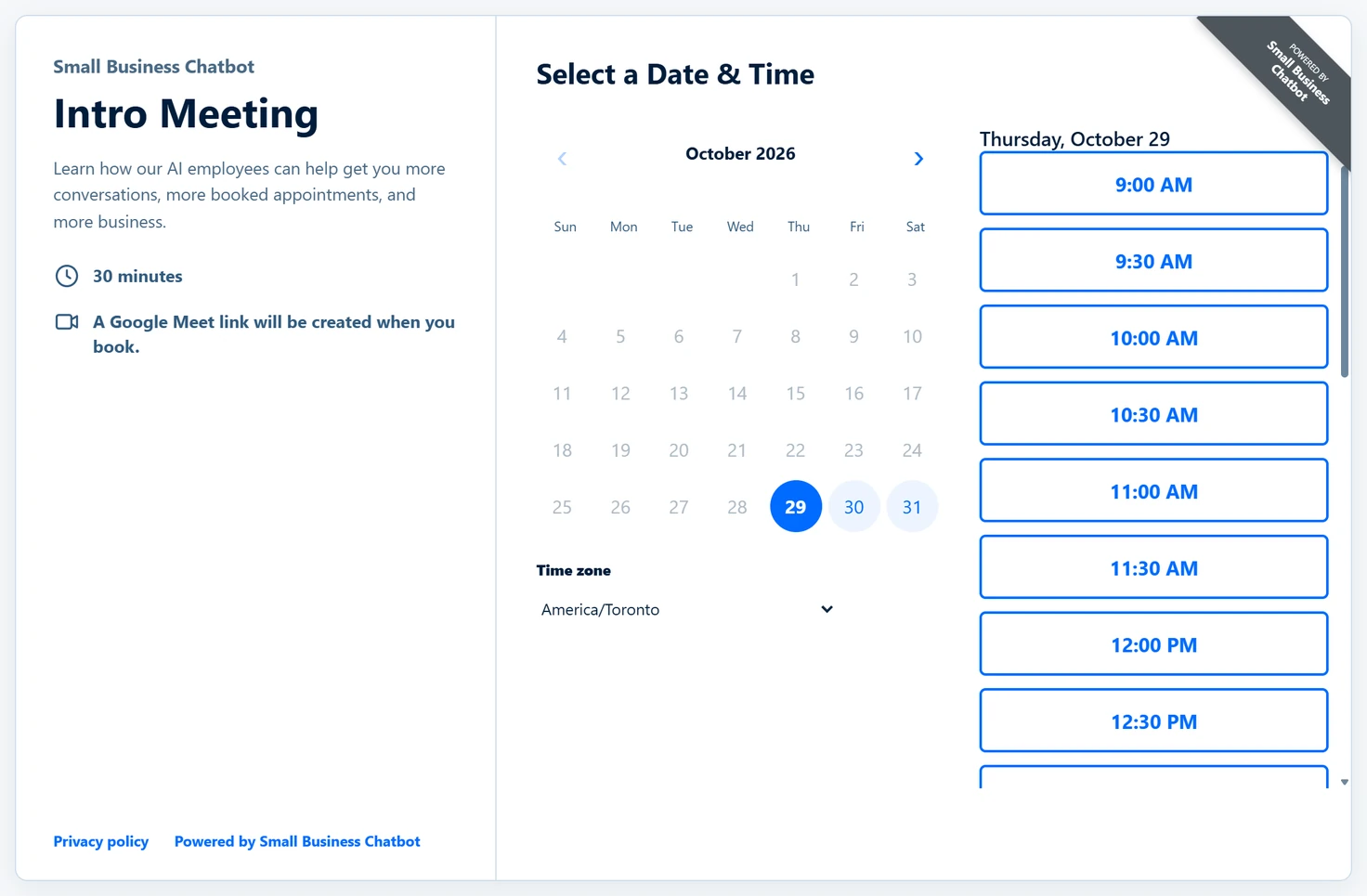
People reach the page through its link. It asks search engines to keep it out of their results.
Test it
- Book from the booking page
In Chat Widget › Calendar Booking, click Open page. Book a time as a visitor would.
- Find it in your calendar
Open Google Calendar or Outlook. The appointment is there at the time you picked, with the Google Meet or Teams link if you added one.
Disconnect or switch accounts
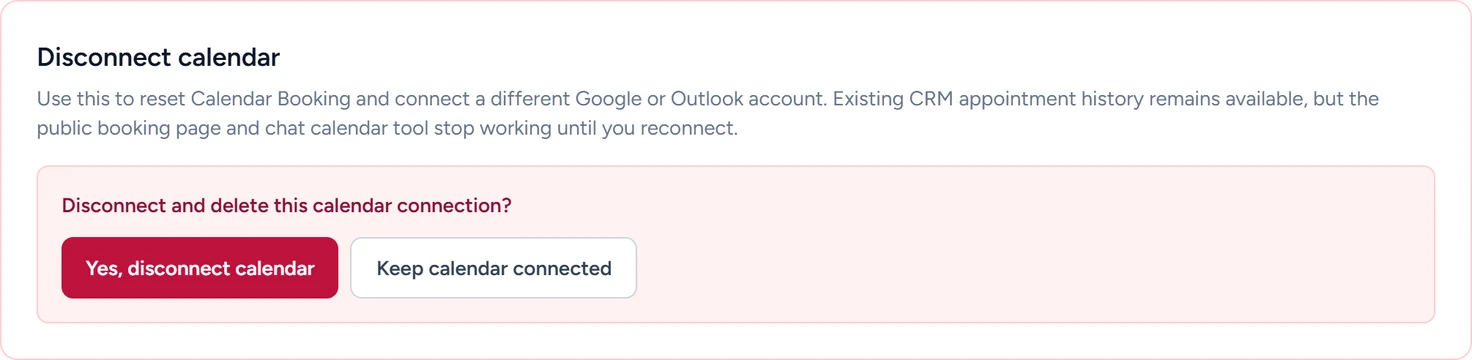
The Disconnect calendar card at the bottom of the panel resets the connection, for example to connect a different Google or Outlook account.
- Start the disconnect
In Chat Widget › Calendar Booking, under Disconnect calendar, click Disconnect calendar. The card asks Disconnect and delete this calendar connection?
Chat Widget › Calendar Booking, October 2026 - Confirm or keep it
Click Yes, disconnect calendar to disconnect. To stop, click Keep calendar connected.
Disconnecting is permanent. The booking page and booking in chat stop until you connect again, and the booking settings go back to their defaults. Your booking page link is kept for when you reconnect, and appointment history in the CRM stays.
What it does
- Reads free times from Google Calendar or Outlook and books into it, from the booking page and, once booking is on, from website chat.
- Adds a Google Meet or Microsoft Teams link to each meeting, when you add that location.
- Gives each booking its own reschedule and cancel links, while Invitee rescheduling and cancellation is on.
- Starts workflows that use the appointment triggers: booked, rescheduled and cancelled.
- Sets up confirmation and reminder emails as draft workflows from Calendar booking. Nothing sends until you publish one in Workflows.
If something goes wrong
| You see | Why | What to do |
|---|---|---|
| Please allow pop-ups to connect your calendar. | The browser blocked the sign-in window | Allow pop-ups for the app, then click Connect Calendar again |
| Unable to start the calendar connection. Try again. | The app couldn't open the sign-in | Wait a minute and click Connect Calendar again |
| The window closed and the panel still shows Connect Your Calendar | The sign-in wasn't finished | Click Connect Calendar and finish the sign-in |
| No Add Google Meet location or Add Microsoft Teams location button | The app doesn't know which kind of calendar is connected yet | Reload the panel. The button shows for Google and Microsoft calendars |
| Calendar settings could not be loaded | The panel couldn't reach the server | Click Retry |
| Booking link temporarily unavailable | The booking page is suspended | Contact support to restore the link, as the panel says |
| Nylas could not disconnect the calendar. No local settings were deleted. | The calendar service refused the disconnect | Try again later. The connection is still in place |
| The calendar could not be disconnected. The existing connection was left in place. | The disconnect didn't reach the server | Try again later |