
Zapier
Start a Zap when a chat, call or text ends, a contact is added, or an appointment is booked, moved or cancelled.
- Direction
- Out
- Sign-in
- Sign in to your account from Zapier and click Allow
- Time to set up
- About ten minutes
What this does
Small Business Chatbot has an app on Zapier with seven triggers. When one of these events happens in your account, every Zap that is on and uses that trigger runs with the event's details. Conversation events carry the contact's details, the summary and the transcript. Appointment events carry the times and the reschedule and cancel links. The app on Zapier sends events out. To bring data in, a Zap posts to an inbound webhook.
Until Zapier lists the app publicly, you add it to Zapier through the invite link in the Zapier panel.
Before you start
- A Zapier account.
The triggers
| Trigger in Zapier | When it fires |
|---|---|
| New Contact | A contact is added to the CRM, from a chat, call, text, booking or by hand |
| Chat Ended | A website chat ends and its summary is ready |
| Call Ended | A phone call the AI receptionist answered ends |
| Text Conversation Ended | A text conversation ends |
| Appointment Booked | An appointment is booked on the booking page or in chat |
| Appointment Rescheduled | An appointment is rescheduled |
| Appointment Cancelled | An appointment is cancelled |
Add the app to Zapier
- Open the Zapier panel
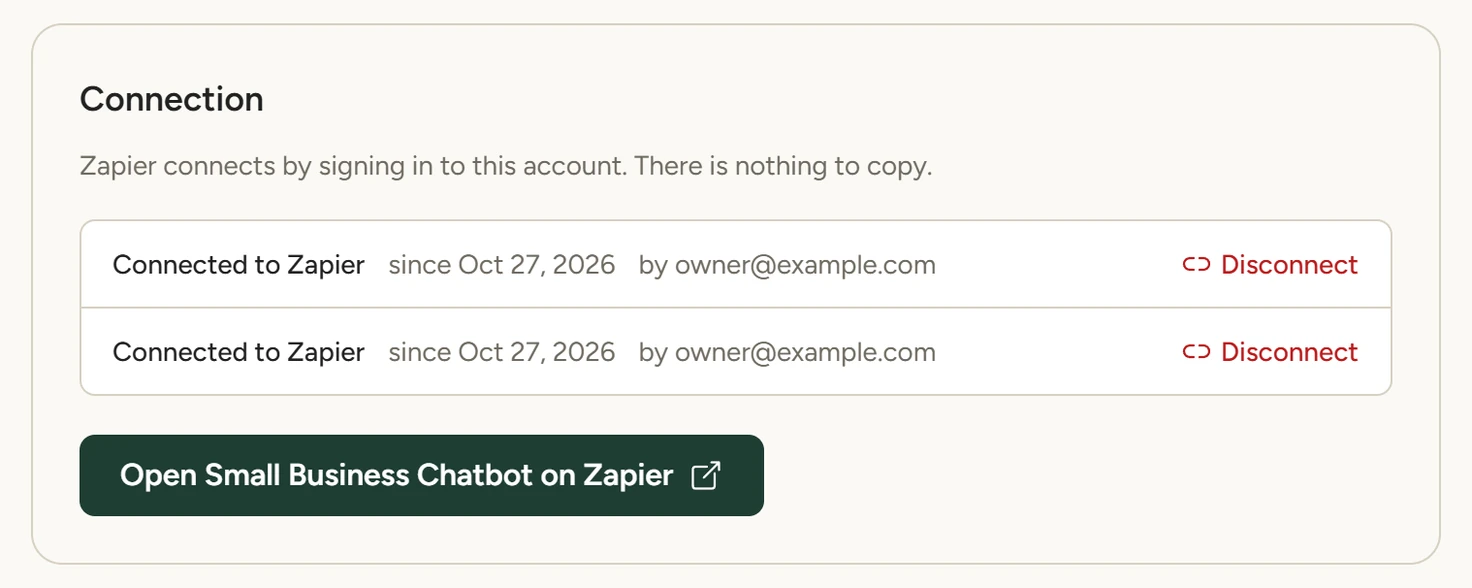
In the app, open Integrations › Zapier. The Connection card lists each Zapier connection as Connected to Zapier, with the date it was made, the email it was made with and a Disconnect link. With no connection, it reads Not connected yet.
Integrations › Zapier, October 2026 - Open the invite
Click Connect on Zapier. Once a connection exists, the same button reads Open Small Business Chatbot on Zapier. Zapier opens in a new tab at the Small Business Chatbot app's invite. Accept it with your Zapier account.
Connect your account in a Zap
- Pick the trigger
In Zapier, create a Zap. For its trigger, choose the Small Business Chatbot app and one of the seven trigger events.
- Sign in
In Zapier, when the trigger asks for an account, click Sign in. A window opens on smallbusinesschatbot.com. Sign in there if it asks.
- Allow the connection
The window shows Connect Zapier to Small Business Chatbot? with your business name, your email and the seven events. Click Allow. Zapier shows the connection under your business name.
- Test the trigger
In Zapier, test the trigger. It pulls up to three of your most recent events of that kind from the last 30 days. If there are none, make one happen, such as adding a contact in CRM › Contacts for New Contact (Contacts), and test again.
Turn the Zap on and check it
- Turn the Zap on
In Zapier, add the action steps you want and turn the Zap on.
- Check the panel
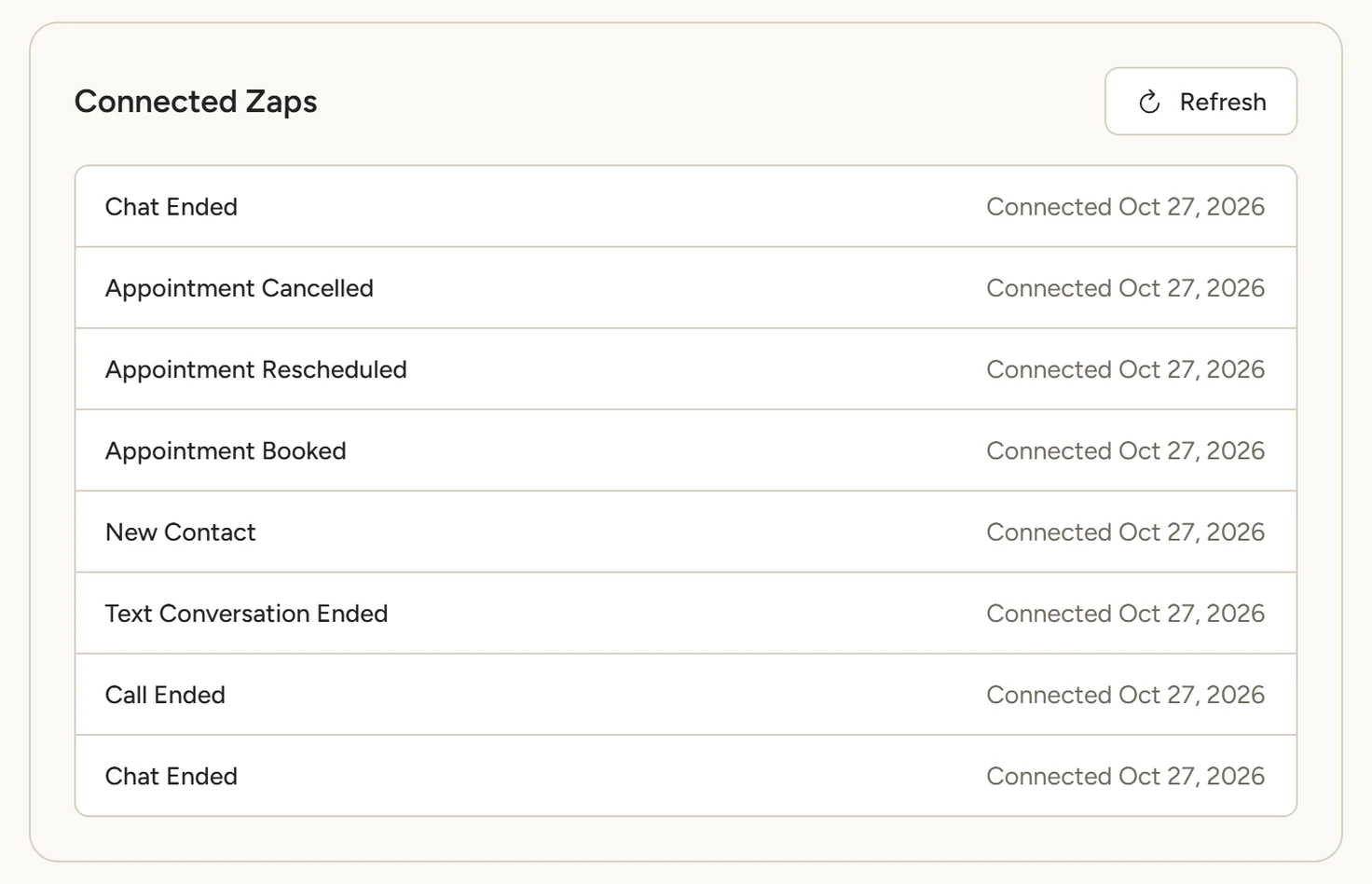
In the app, in Integrations › Zapier, click Refresh under Connected Zaps. Each Zap that is on shows with its trigger's name and the date it connected.
Integrations › Zapier, October 2026
Payload sample
What a Chat Ended event carries. The transcript is shortened, and the messages field, the same conversation as a list, is left out.
{
  "id": "chat_ended:66f1c2a9e4b0f5a1d2c3b4a6",
  "event": "chat_ended",
  "occurred_at": "2026-10-27T14:32:10Z",
  "channel": "chat",
  "conversation_id": "66f1c2a9e4b0f5a1d2c3b4a6",
  "first_name": "Jordan",
  "email": "[email protected]",
  "phone": "+14165550188",
  "contact_information_collected": true,
  "action_items": "Jordan wants a furnace tune-up; call tomorrow morning to book a time.",
  "lead_quality_score": "8",
  "number_of_messages": 4,
  "transcript": "Visitor: Hi, do you do furnace tune-ups?\nAssistant: Yes, we do furnace tune-ups. Can I get your name and the best number to reach you?",
  "business_name": "Northside Heating",
  "chatbot_url": "northside-heating",
  "contact_id": "66f1c2a9e4b0f5a1d2c3b4a5"
}
Zapier shows these as fields such as First name, Email, Action items, Lead quality score and Transcript. Call Ended adds the caller's number, your business number, the call ID and the recording link when recording is on. Text Conversation Ended adds the customer's number and your business number. Appointment events carry the title, start and end times, time zone, length, the invitee's name, email and phone, the location, and the reschedule and cancel links.
Disconnect
In Integrations › Zapier, click Disconnect next to a connection. It goes at once, on the first click. Zapier then shows "This Zapier connection is no longer valid" for that sign-in.
Events keep going to every Zap that is on while any connection is left, including Zaps that were set up with the one you removed. Removing the last connection stops all events and removes every Zap subscription on the account. To connect again, sign in from Zapier.
What it does
- Sends each event to every Zap that is on and uses that trigger, from the moment the Zap is on. A test in Zapier also pulls up to three recent events.
- Tries a delivery again after 1, 3 and 9 seconds when Zapier gives no answer or answers with a server error.
- Stops sending to a Zap that Zapier reports as gone.
If something goes wrong
| You see | Why | What to do |
|---|---|---|
| This Zapier connection request expired | More than 15 minutes passed after Zapier opened the window | Go back to Zapier and click Sign in again |
| Zapier is included in your plan | The account isn't on a paid plan yet | Subscribe from Manage Plan, then start again from Zapier |
| That did not go through. Start again from Zapier. | Your Allow or Cancel didn't reach the app | Start again from Zapier |
| In Zapier: This Zapier connection is no longer valid | The connection was disconnected in the app | Reconnect the account in Zapier |
| A Zap doesn't show under Connected Zaps | The Zap is off, or the list is out of date | Turn the Zap on, then click Refresh |
| Zapier settings could not be loaded. | The panel couldn't reach the server | Reload the page |