
Google Analytics
See the chats, calls, texts, leads and appointments your AI receptionist handles as events in your own Google Analytics 4 property.
- Direction
- Out
- Sign-in
- None for website events; a Measurement ID and an API secret for the rest
- Time to set up
- About ten minutes
What this does
Small Business Chatbot sends what happens in website chat, on calls and by text to your Google Analytics 4 property as events. They start in two places, so there are two paths:
- Website chat events go through the Google Analytics or Google Tag Manager tag already on your site. They land in the visitor's session, with its source and campaign. No setup.
- Calls, texts, leads and appointments happen away from your site, so the app sends them from its servers once you save a Measurement ID and an API secret.
Every event name starts with sbc_. Events carry the channel, IDs, counts and the lead quality score. Names, emails, phone numbers, message text and transcripts are never sent.
Before you start
- A GA4 property, with its Google tag or Google Tag Manager on your website.
- Access to the property's Admin in GA4, to create an API secret.
- The chat widget on your site: Any website.
Website chat events
- Open the panel
In the app, open Integrations › Google Analytics. Under Website chat events, Send chat events to the Google Analytics or Tag Manager on my website is ticked. It is on by default. To turn it off, untick it and click Save, the button in the next card, which saves both cards.
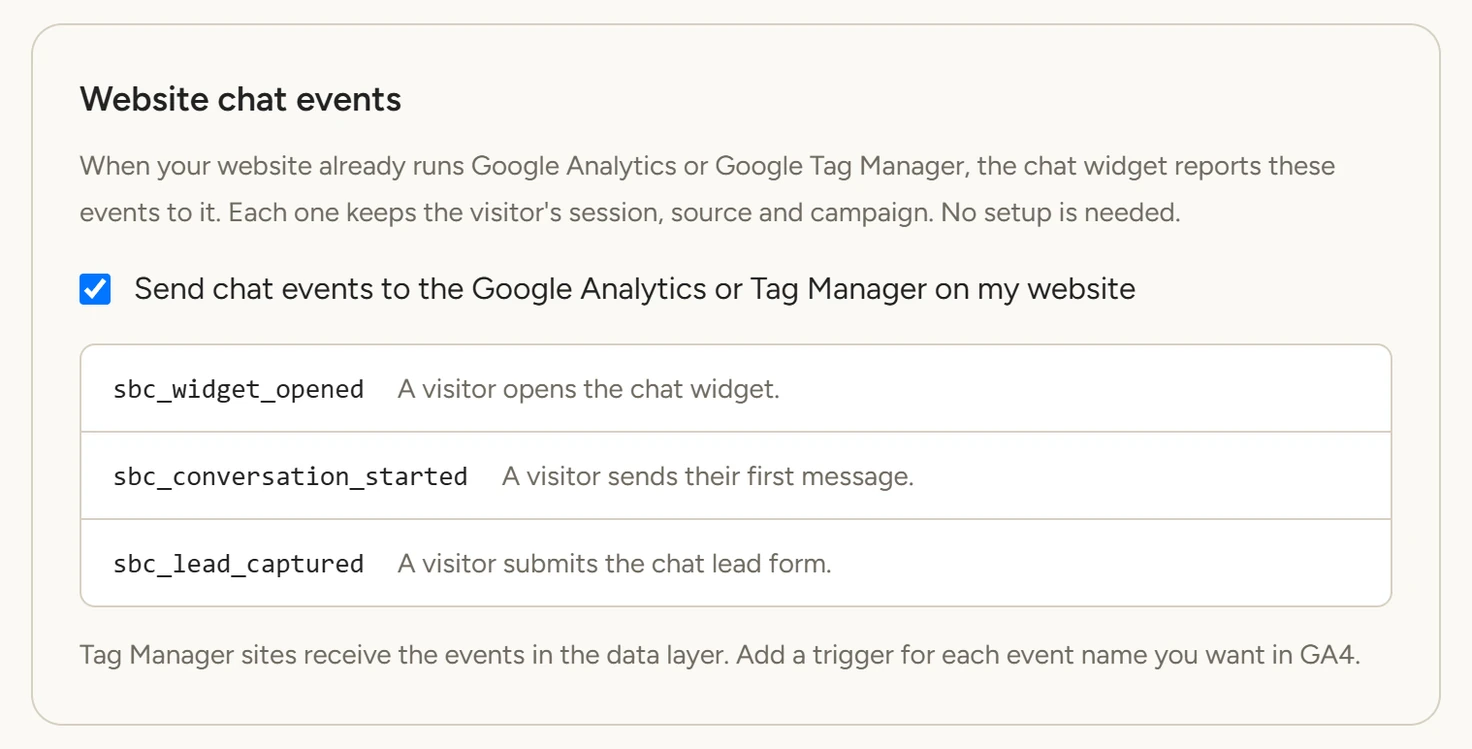
Integrations › Google Analytics, October 2026 - On Tag Manager, add triggers
Sites on Google Tag Manager get the events in the data layer. In Tag Manager, add a Custom Event trigger for each event name you want, and send it to GA4 with a GA4 Event tag.
Get two values from GA4
- Copy the Measurement ID
In GA4, open Admin › Data streams and click your web stream. The Measurement ID starts with
G-. - Create an API secret
On the same screen, open Measurement Protocol API secrets. Create one named Small Business Chatbot and copy its value.
Save them in the app
- Paste and save
In Integrations › Google Analytics, under Calls, texts, leads and appointments, paste the Measurement ID and the API secret. Click Save. The panel shows Saved. and Connected since today's date.
- Send a test event
Click Send test event. The panel shows Test event sent. Within a minute,
sbc_test_eventshows in GA4 under Reports › Realtime and in DebugView.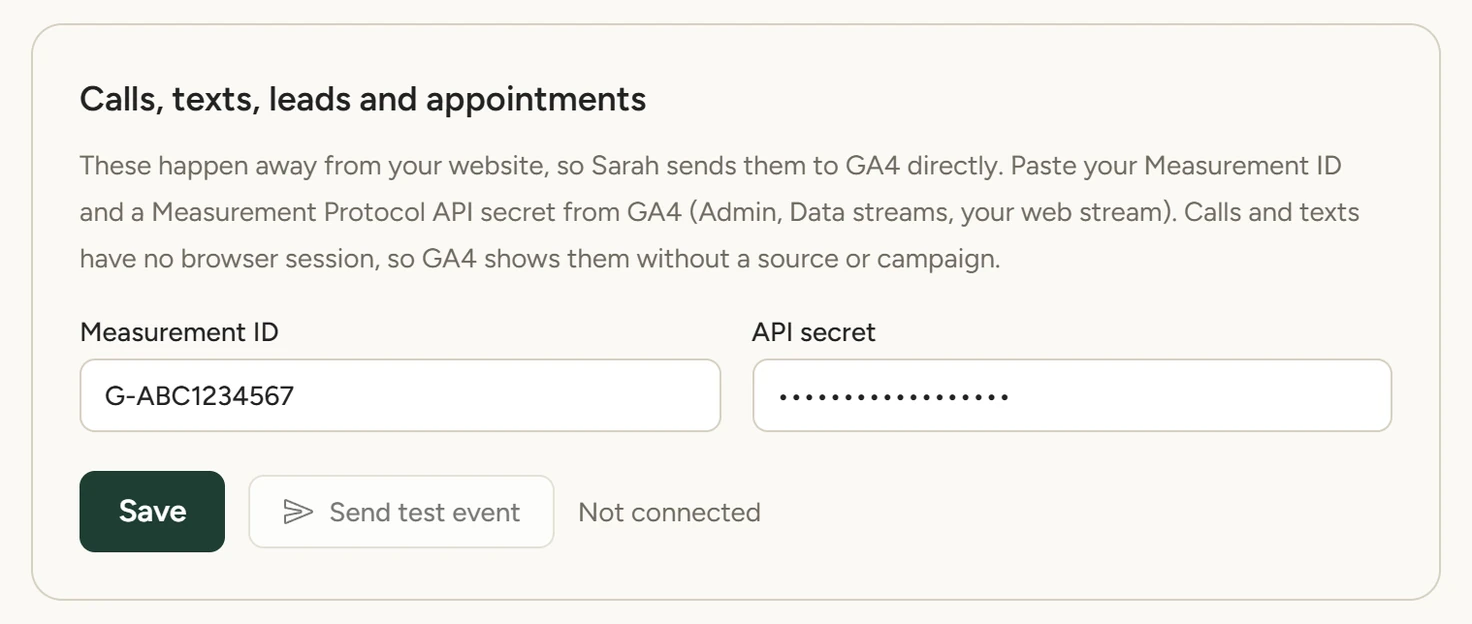
Integrations › Google Analytics, October 2026
After saving, the API secret field shows only its last four characters. To change it, paste a new one and click Save. To stop the server events, tick Remove the saved API secret and click Save.
The events
| Event | When it fires | Sent |
|---|---|---|
sbc_widget_opened |
A visitor opens the chat widget | From your website |
sbc_conversation_started |
A visitor sends their first message | From your website |
sbc_lead_captured |
A visitor submits the chat lead form | From your website |
sbc_chat_ended |
A website chat ends and is saved | From the app |
sbc_call_ended |
A phone call the AI receptionist answered ends | From the app |
sbc_text_ended |
A text conversation ends | From the app |
sbc_lead_captured |
A contact is added to the CRM | From the app |
sbc_appointment_booked |
An appointment is booked in chat or on the booking page | From the app |
sbc_appointment_rescheduled |
An appointment is moved | From the app |
sbc_appointment_cancelled |
An appointment is cancelled | From the app |
sbc_lead_captured comes from both places. On the website event, the widget's lead form was sent. On the event from the app, sbc_contact_source says where the contact came from.
What each event carries
| Parameter | On | Value |
|---|---|---|
sbc_channel |
Chat, call, text and appointment events | Usually chat, call, text or booking_page |
sbc_conversation_id |
Chat, call and text endings | The conversation's ID in the app |
sbc_contact_captured |
Chat, call and text endings | yes or no |
sbc_lead_quality_score |
Chat, call and text endings | The conversation's lead quality score, when there is one |
sbc_message_count |
Chat, call and text endings | Messages in the conversation |
sbc_contact_id, sbc_contact_source |
sbc_lead_captured from the app |
The contact's ID and where it came from |
sbc_appointment_id, sbc_appointment_source, sbc_appointment_status, sbc_duration_minutes |
Appointment events | The appointment's ID, where it was booked, its status and its length |
To see a parameter in reports, register it in GA4 under Admin › Custom definitions.
Count them as conversions
In GA4, open Admin › Events and switch on Mark as key event for the events that count as results, such as sbc_appointment_booked and sbc_lead_captured. If Google Ads is linked to the property, you can import those key events there. You do the marking and the import in Google's tools.
What it does
- Keeps the visitor's session, source and campaign on website chat events.
- Counts a returning caller as one user, with an ID made by hashing your workspace and the caller's number, so the number itself is never sent.
If something goes wrong
| You see | Why | What to do |
|---|---|---|
| The Measurement ID looks wrong. It starts with G- and is found in GA4 under Admin, Data streams. | The ID isn't a GA4 Measurement ID | Copy the ID from your web stream in GA4 |
| The API secret looks wrong. Copy it from GA4 under Admin, Data streams, Measurement Protocol API secrets. | The value has spaces or is too long | Copy the secret's value again |
| Send test event is greyed out | The ID and the secret aren't both saved | Save both, then try again |
| Google Analytics could not be reached. | The test got no answer from Google | Try again in a minute |
| Google Analytics answered followed by a status code, or a message from Google | Google refused the event | Check that the ID and the secret come from the same web stream |
| No website events in GA4 | The site has no GA4 or Tag Manager tag, the box is unticked, or Tag Manager has no trigger for the event | Add the tag, tick the box, or add the trigger |