
Inbound webhooks
Bring data from any tool into Small Business Chatbot: a form, a CRM or a Zap posts to your workflow's own URL, and the workflow starts with its data.
- Direction
- In
- Sign-in
- None: the URL is the secret
- Time to set up
- About fifteen minutes
What this does
The Inbound Webhook trigger gives a workflow its own URL on smallbusinesschatbot.com. Each POST to that URL starts a run of the workflow, and the request's data becomes the run's trigger data. Any tool that can send a webhook can use it: a website form, a form builder, a Zap, your job software or your own code.
Every field of the trigger is in the Inbound Webhook reference. To send data the other way, use the HTTP request step.
Before you start
- The other tool's setting for sending a webhook, open in another tab.
- A first workflow to build on: Your first workflow.
Add the trigger and copy the URL
- Add the trigger
In the app, open Workflows, open or create a workflow, and add the Inbound Webhook trigger.
- Copy the URL
Click the trigger. Under Inbound endpoint, Webhook URL shows
https://smallbusinesschatbot.com/workflow/webhooks/followed by a long random ID. Click Copy URL.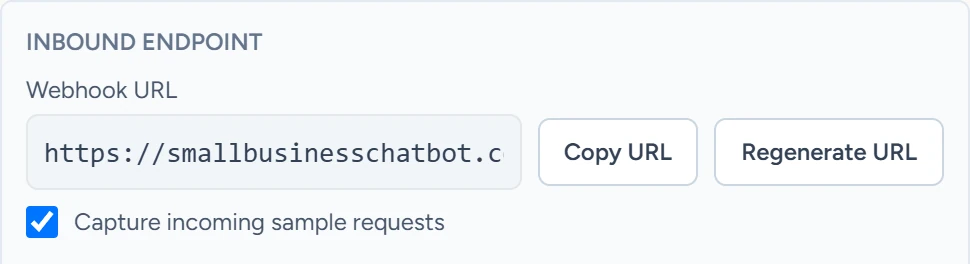
Workflows › Inbound Webhook, October 2026 - Save and publish
Switch Status from Draft to Published, then click Save workflow. The URL starts runs only while the workflow is published.
Every request to a published workflow's URL starts a real run, test requests included. Capture your sample before you add steps that text, email or call.
Register the webhook in the other tool
In the other tool, paste the URL where it asks for a webhook URL, and pick POST if it asks for a method. It can send JSON, form fields or plain text. To send a test from a terminal instead:
curl -X POST https://smallbusinesschatbot.com/workflow/webhooks/YOUR-ENDPOINT-ID \
  -H "Content-Type: application/json" \
  -d '{"customer": {"name": "Jordan", "email": "[email protected]", "phone": "+15555550123"}, "form": {"message": "Quote for a new water heater"}}'
The reply carries execution_id, workflow_id and trigger_node_id, so the sending tool can log the run.
Capture a sample request
- Send one request
Send a test from the other tool, or the test request above.
- Fetch it
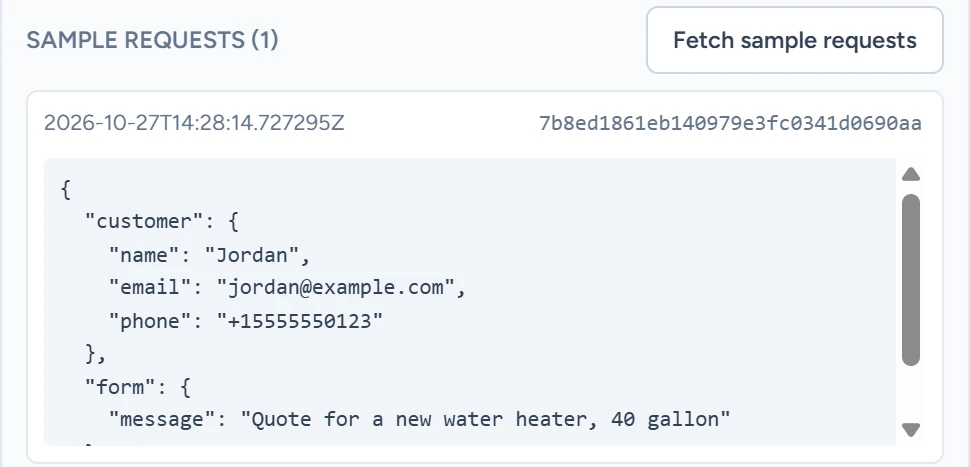
In the trigger, next to Sample requests, click Fetch sample requests. The request shows with the time it arrived and its body. The trigger keeps the last 20.
Workflows › Inbound Webhook, October 2026 - Mark your reference
Click Use latest sample. Its ID goes into Mapping reference, a note of which sample your rules follow.
Map the fields
Without mapping rules, the whole request is the trigger data. With rules, the trigger data holds only the fields you map, and the original request stays available as trigger_raw.
- Add a rule per field
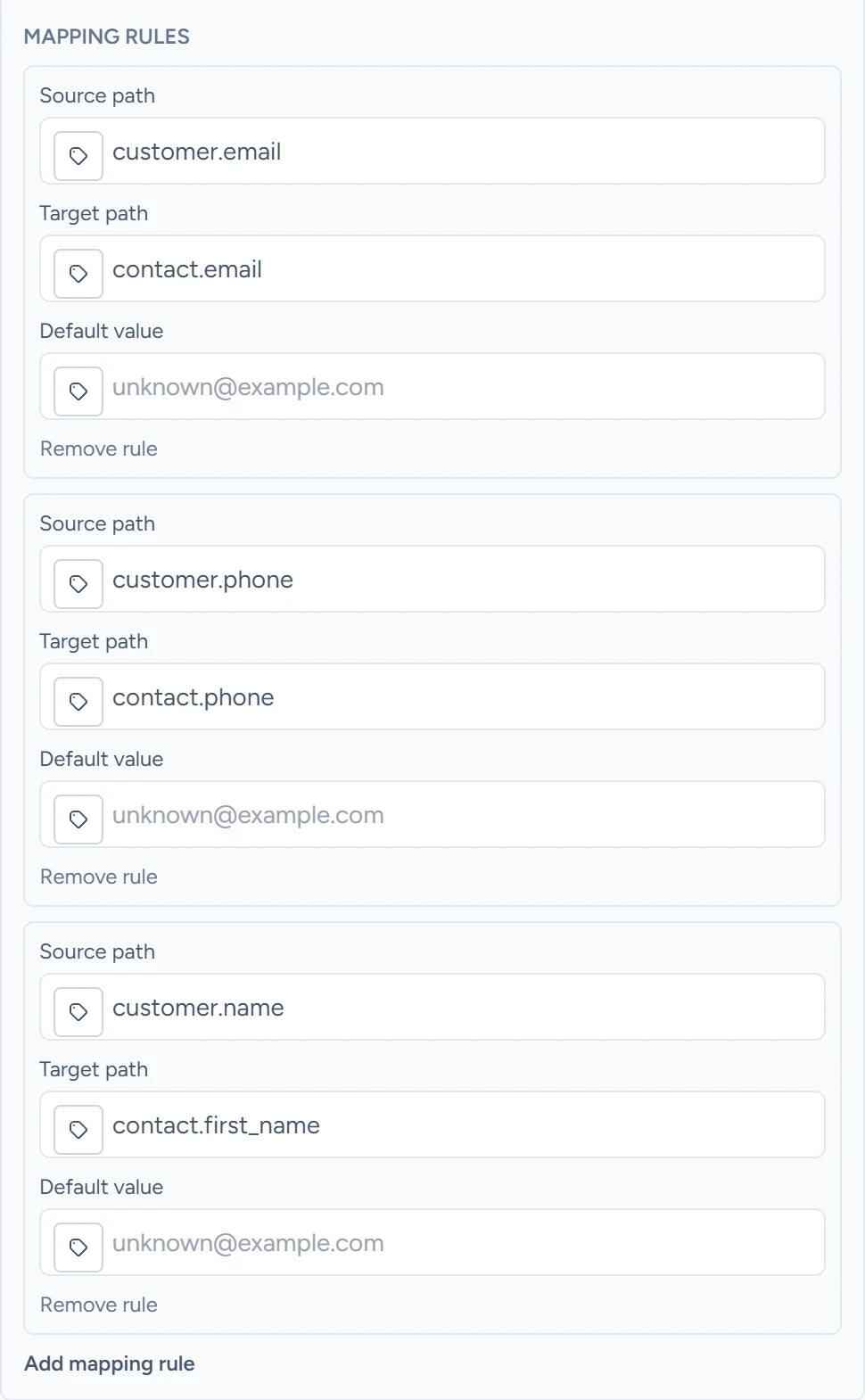
In the trigger, under Mapping rules, add a rule for each field you need. Source path is where the value sits in the request. Target path is the name your workflow uses. Default value fills in when the field is missing.
Workflows › Inbound Webhook, October 2026 - Map the person
Map the person's details to
contact.email,contact.phoneandcontact.first_name. The run is then tied to that contact, so a Remove From Cadence step can find and stop it.
The rules for the test request:
| Source path | Target path | Variable in later steps |
|---|---|---|
customer.email |
contact.email |
{{trigger.contact.email}} |
customer.phone |
contact.phone |
{{trigger.contact.phone}} |
customer.name |
contact.first_name |
{{trigger.contact.first_name}} |
form.message |
lead.message |
{{trigger.lead.message}} |
Paths use dots, and list positions are numbers. A request whose body is a JSON list arrives as value, so its first item is value.0.
To save the person as a CRM contact, add an Upsert Contact step after the trigger.
Test it
- Send a real request
With the workflow published, send a request from the other tool.
- Check the run
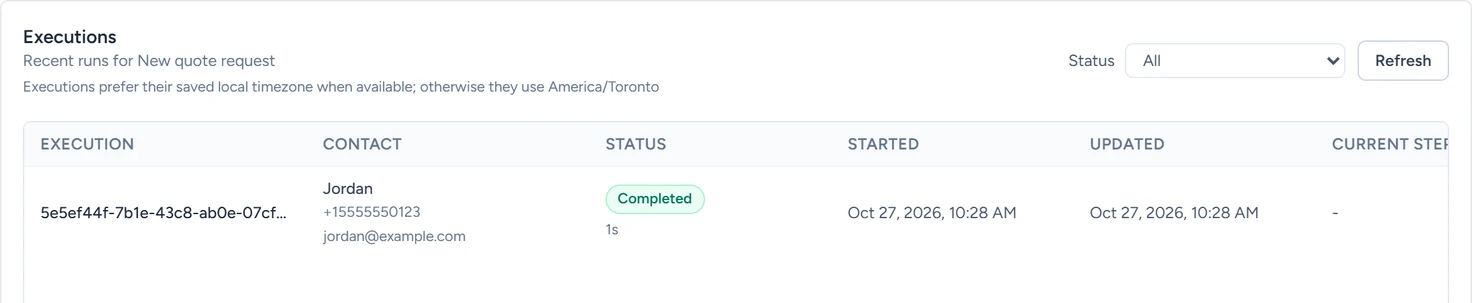
In Workflows, switch from Editor to Executions. The new run shows with its status. Open it to see each step's input and output.
Workflows › Executions, October 2026
What it does
- Starts one run per request while the workflow is published.
- Accepts POST requests with JSON, form fields (URL-encoded or multipart) or plain text. Plain text that holds JSON is read as JSON.
- Skips repeats. A request with the same
Idempotency-KeyorX-Idempotency-Keyheader as an earlier one returns that run's ID and starts nothing new. - Gives each workflow its own URL. A duplicated workflow gets a new one.
- Uses the URL as the secret: anyone who has it can start the workflow, so keep it private. If it leaks, click Regenerate URL and save; the old URL stops working.
If something goes wrong
| You see | Why | What to do |
|---|---|---|
404 Webhook endpoint was not found |
The workflow is a draft, the URL was regenerated, or it came from another trigger | Publish the workflow and copy the URL again |
403 Workflows is included in your plan and unlocks once your subscription is paid |
The account isn't on a paid plan | Subscribe from Manage Plan |
409 Workflow execution limit reached |
The workflow already has as many runs going as its limit allows | Wait for runs to finish, then send again |
| No sample requests captured yet. Send a POST to this URL, then fetch samples. | No request reached the published workflow, or Capture incoming sample requests is off | Publish, tick the box, send a request, then click Fetch sample requests |
The reply has "idempotency_reused": true |
An earlier request sent the same idempotency key | Send a new key for each new event |